FL Studio
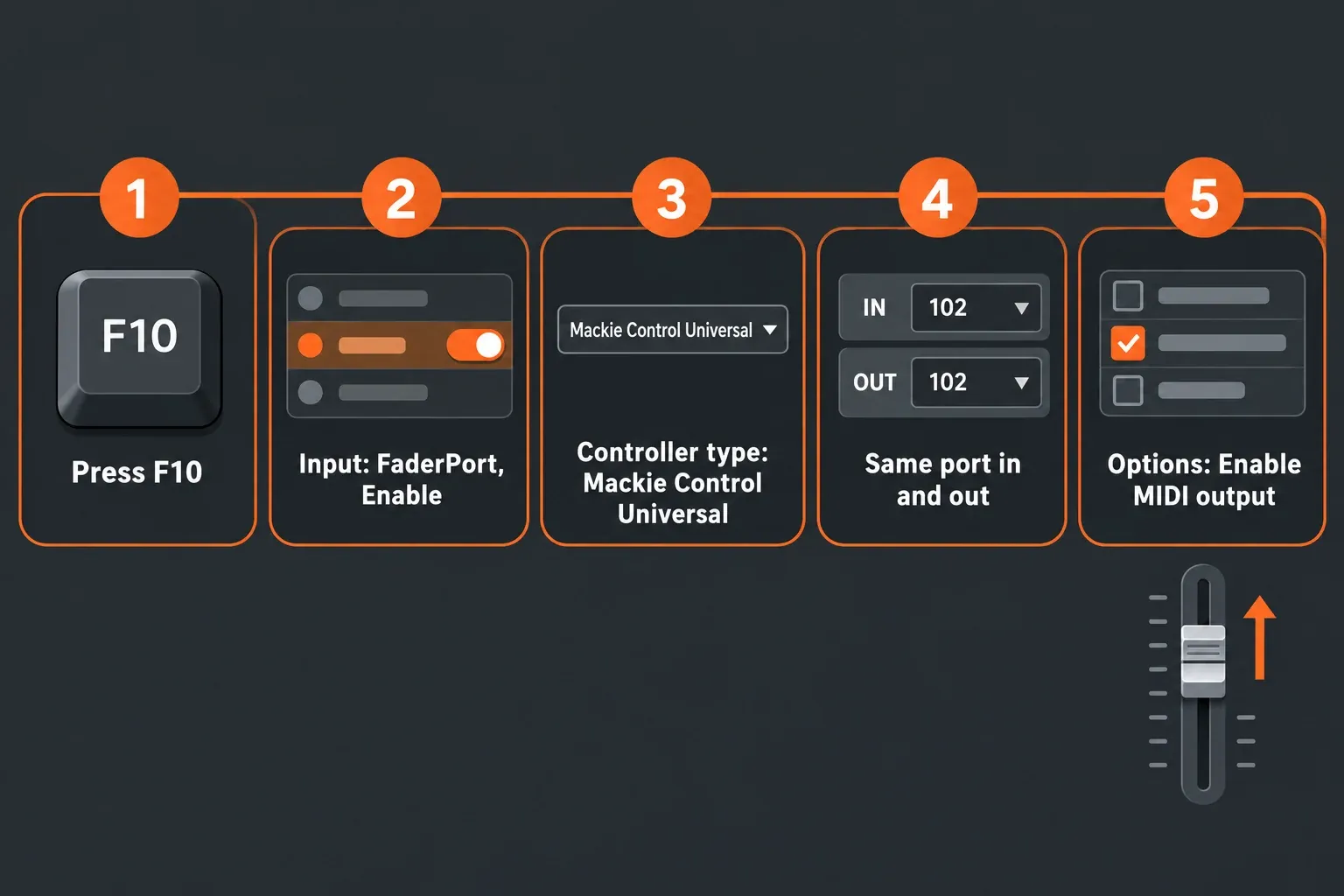
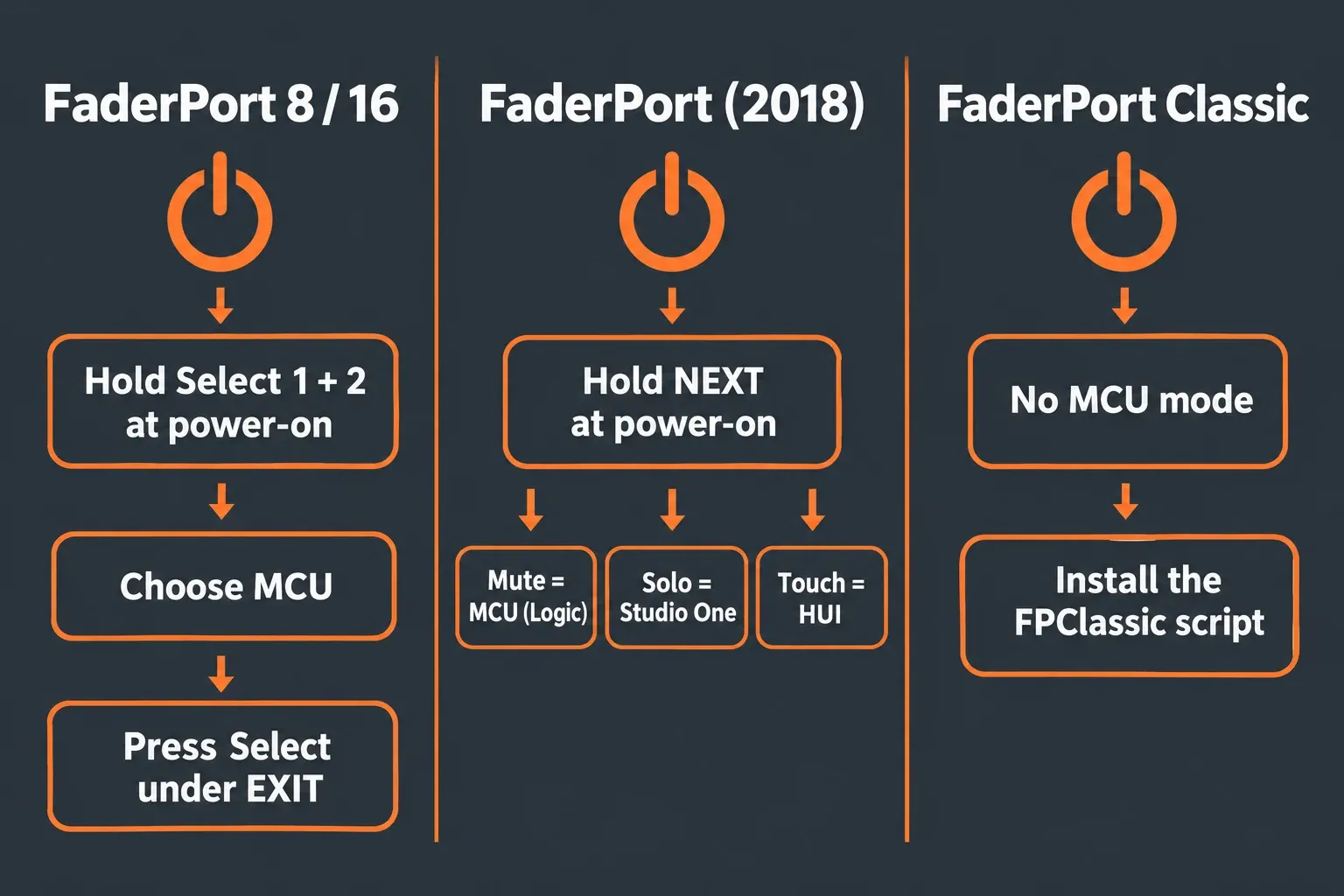
PreSonus FaderPort works in FL Studio, but not as a preconfigured controller, so you connect it one of two ways: as a Mackie Control Universal (MCU) emulation or through a community MIDI script. On a FaderPort 8 or 16, hold the first two Select buttons while powering on, choose MCU, press the Select button under Exit, then press F10 in FL Studio, enable the FaderPort input, set Controller type to Mackie Control Universal and give the input and output the same port number.
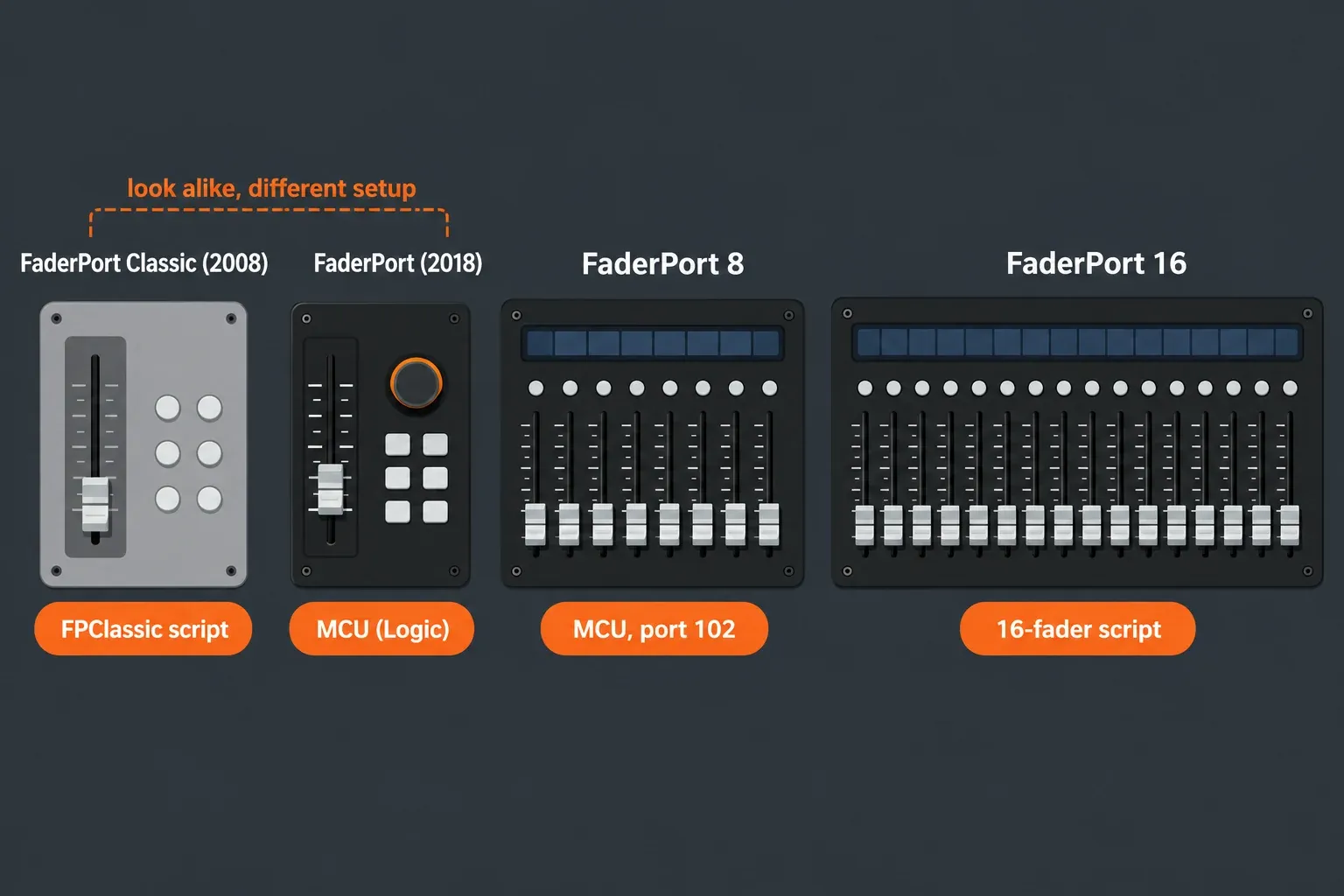
The single-fader models split in two. The FaderPort (2018) has an MCU (Logic) mode on NEXT + Mute at power-on, while the grey FaderPort Classic from 2008 has no MCU mode and needs a script such as FPClassic.
MCU mode is the quick route: owners report transport, mute, solo, pan, select and the scribble strips working, with eight motor faders active at a time. A script is the better route on two models, the FaderPort 16 if you want all sixteen faders, and the Classic, which can’t use MCU at all. Below you’ll find how to tell the four models apart, the exact settings for each, a results table showing what every route controls, and fixes for faders that sit still.
Which FaderPort do you have?
Image-Line’s list of preconfigured controllers names control surfaces such as the BCF2000, the Frontier Design AlphaTrack and the Mackie Control Universal, and no PreSonus model. The same page says a device that isn’t listed doesn’t have preconfigured support, which does not mean it won’t work. With the FaderPort, which route works depends on the model, so identify the unit first.
| Model | How to recognise it | Modes on the unit | Best FL Studio route |
|---|---|---|---|
| FaderPort Classic (2008) | One motorized fader, grey case, Window View buttons labelled Mix, Proj, Trns and Undo | HUI emulation and Native mode | FPClassic script (FL Studio 20.7 or later) |
| FaderPort (2018) | One 100 mm motorized fader, Session Navigator buttons such as Link, Pan, Channel, Scroll, Master, Click, Section and Marker, plus Prev and Next | Logic, Live and Cubase MCU, Pro Tools HUI, Studio One | MCU (Logic), or the FaderportV2 script for extra buttons |
| FaderPort 8 | Eight motorized faders with scribble strips | Studio One, MCU, HUI, MIDI Mode | MCU mode, port 102 in and out |
| FaderPort 16 | Sixteen motorized faders with scribble strips | Studio One, MCU, HUI, MIDI Mode | faderport-16-fl-studio script in Studio One mode, or MCU for eight faders |
Set up a FaderPort 8 in MCU mode
PreSonus’s own FaderPort 8 setup article for FL Studio was published on November 30, 2016, carries a note that current versions of FL Studio will differ, and shows the FL side only as a screenshot. Here are both halves written out. Start on the unit:
- Power off the FaderPort 8.
- Hold the first and second Select buttons and switch it back on.
- When the scribble strips show Select Control Mode, release the buttons.
- Choose MCU. The unit then offers Mackie Control emulation modes for Logic, Live, Cubase and Sonar.
- Press the eighth Select button, the one under EXIT. The FaderPort stays in MCU mode even after you power it off.
Which emulation should you pick? The FaderPort 16 and 8 Quick Start Guide answers that for a DAW without its own mode: MCU (Logic) as a Mackie Control emulation device, with the note that functionality may be limited. I’d follow it, because FL Studio has no FaderPort-specific mode and Logic is the emulation PreSonus names for exactly this case.
Now the FL Studio side. These settings live in the MIDI Settings page:
- Press F10, or choose Options > MIDI settings.
- In the Input list, select the FaderPort and click Enable.
- Set Controller type to Mackie Control Universal.
- Set Port to 102.
- In the Output list, select the FaderPort and set the same port, 102.
- Open the Options menu and make sure Enable MIDI output is ticked.
The last step is the one people skip. Image-Line’s Mackie Control support thread says to set the input and output ports to the same value and to check Options > Enable MIDI output so the MCU gets feedback from FL Studio. Without that feedback, the motor faders and button lights have nothing to follow.
Why 102? The MIDI Settings manual allows any port from 0 to 255 and only asks you not to give two devices the same number. The 102 comes from the MCU thread, where FL Studio 8 to 10 had to use port 102, and a July 2022 FaderPort 8 report on the Image-Line forum sets 102 on both input and output. I’d use 102 anyway, because then your settings match the FaderPort reports and guides you’ll compare against.
That 2022 report also ticks Send master sync on the output. The manual says this option sends FL Studio’s start, stop and pause commands to the device, and warns against it on devices that don’t use transport control. I’d leave it off on the first try and add it as a separate step, because it’s the only setting here the manual flags for unpredictable behaviour, and the feedback itself comes from Enable MIDI output. If you do switch it on, the global Options > Enable MIDI master sync has to be on as well.
FaderPort 16: two devices and the eight-fader limit
The Quick Start Guide has a line many owners miss: in MCU or HUI mode, the FaderPort 16 has to be configured as two different devices in your DAW. In FL Studio that shows up as the eight-fader ceiling. A FaderPort 16 owner wrote on the Image-Line forum in January 2018 that everything worked, including the scribble strips, transport, mute, solo, pan and select, except that only the first eight faders were active and channels 9 and up needed the bank buttons. A May 2022 feature request describes the same wall with larger Mackie setups: faders beyond the first eight just repeat, because there is no Mackie Control extender.
The community script faderport-16-fl-studio takes a different path. Version 0.4.0 lists firmware 3.74, is designed for the unit’s Studio One mode, and moves the fader bank by sixteen channels. It also adds fader pages for volume, effects, sends, panning, stereo width, EQ and user links, plus Mute Clear and Solo Clear buttons that work like the unmute-all moves in my mute and solo guide. Its own to-do list names two bugs, including missing middle-band controls on the EQ page, and FaderPort 8 support is marked experimental. I’d go straight to this script on a FaderPort 16, because it’s the only route in the published material that puts all sixteen faders on sixteen Mixer tracks at once.
Installing a user script follows Image-Line’s MIDI scripting manual:
- Create a subfolder in the FL Studio User data folder, typically Documents/Image-Line/FL Studio/Settings/Hardware/. The subfolder name can be anything.
- Put the script files there. The main file must start with device_, and its first line defines the name FL Studio shows.
- Switch the FaderPort to Studio One mode at power-on with the first two Select buttons.
- Press F10, select the FaderPort input, click Enable, and pick the script in Controller type. Your scripts show a (user) suffix there.
- If the script isn’t listed, click Refresh device list or restart FL Studio.
FaderPort (2018): the single fader with an MCU mode
The 2018 FaderPort chooses its mode at power-on. According to the FaderPort (2018) owner’s manual, you press and hold NEXT while switching it on, then press one button:
| Hold NEXT at power-on, then press | Mode |
|---|---|
| Mute | Logic (MCU) |
| Arm | Live (MCU) |
| Bypass | Cubase / Nuendo (MCU) |
| Touch | Pro Tools (HUI) |
| Solo | Studio One |
The manual’s table of recommended modes gives MCU (Logic) for DAWs such as Digital Performer, and its MCU (Logic) setup covers any DAW that doesn’t list the FaderPort FP2 or FaderPort (2018) as a supported device. Mackie Control Universal is the controller type FL Studio offers for that emulation, so the FL side is the same six steps as the FaderPort 8 above. I’d try this route first, because it needs no files and you can pick another mode at the next power-on.
For more buttons, the FaderportV2 script (version 1.1.0) maps the 2018 unit directly. Its README says the port must be 0 on input and output, and that Omni preview MIDI channel must be set to 1 as well, otherwise unassigned buttons trigger channel playback. Its button table marks 23 of 41 actions as OK or Ready: mute, arm, bypass, prev and next track, undo and redo, markers, and the transport. Write, Read, Link and Master are still TODO, and fader touch is disabled. Panning and Playlist scrolling work through the encoder tables. The README installs into an FL Studio 20 folder under Program Files on Windows. I’d use the User data folder from Image-Line’s scripting manual instead, because that’s the location FL Studio documents for user scripts, and it doesn’t depend on which version folder you installed.
FaderPort Classic: use a script, not MCU
The Classic’s owner’s manual is version 2.0 from 2008. It lists Windows XP/Vista (32-bit only) and Mac OS X 10.4 or later, and its control emulation section covers HUI emulation and Native mode, with no FL Studio setup. In a July 2019 thread on the Image-Line forum, a Classic owner reported that PreSonus described the unit as very limited in FL, because support runs through third-party MCU emulation with no first-hand driver for FL.
The current answer is FPClassic for FLStudio, an MIT-licensed script built only on FL Studio’s MIDI Scripting API. It needs FL Studio 20.7 or later. Setup:
- Copy the FPClassic_for_FLStudio folder into Documents/Image-Line/FL Studio/Settings/Hardware/.
- Connect the FaderPort Classic and start FL Studio.
- Open Options > MIDI Settings, select FaderPort in the Input section and enable it.
- Choose FPClassic for FLStudio as the Controller type.
- Click Refresh device list if the script doesn’t appear straight away. The FaderPort runs its startup self-test and is ready.
The mapping covers the fader as track volume, Pan as track pan, Shift + Pan as tempo, Mix as the Mixer, Proj as the Channel Rack, Trns as the Playlist, User as the metronome, Output as the master track, and Bank + Left/Right as previous and next pattern. Punch and Loop are still TBD. The README also lists five functions the scripting API can’t do yet: Shift + Rewind to start, Shift + Fast Forward to end, Punch In and Punch Out markers, and Playlist loop markers.
Two older routes still turn up in search results. In September 2021, John A Ferguson posted a work-in-progress Classic script on the Image-Line forum, and in August 2025 someone was still asking for it. Before scripting arrived, a Bome forum project from 2014 translated the Classic through Bome MIDI Translator so FL Studio saw a Frontier Design AlphaTrack on port 101. Its author described the motor fader as jerky when moved from the screen, and a 2016 user had the fader, loop, stop and record buttons not working. I’d use FPClassic, because it’s the only one of the three still being updated, and it has written install steps for FL Studio 20.7 and later.
Test results: what each route controls
FaderPort support in FL Studio is community territory, so the useful evidence is published owner reports and the scripts’ own status tables. Here they are side by side:
| Route | Model | Report | What works | Missing or limited |
|---|---|---|---|---|
| MCU mode | FaderPort 16 | Image-Line forum, Jan 2018 | Scribble strips, transport, mute, solo, pan, select | Only the first 8 faders active; bank buttons for 9 and up |
| MCU mode | FaderPort 8 | Gadgeteer, Mar 2021 | Basic operations handled “remarkably well” | A weekend check, no control-by-control list |
| MCU mode | FaderPort 8 | Image-Line forum, Jul 2022 | Working setup: MCU, port 102 in and out, Send master sync | No control list |
| FaderportV2 1.1.0 | FaderPort (2018) | README status table | 23 of 41 button actions (56%) | 18 TODO, fader touch disabled |
| faderport-16-fl-studio 0.4.0 | FaderPort 16 | README control list | 33 of 37 listed controls (89%), 16 faders, 7 fader pages | 4 controls N/A, EQ middle band missing |
| FPClassic 1.2 | FaderPort Classic | README mapping table | 21 of 23 mapped actions (91%) | Punch and Loop TBD, 5 API limits |
| Bome MIDI Translator | FaderPort Classic | Bome forum, 2014 to 2016 | Fader and buttons through AlphaTrack emulation | Jerky fader feedback; one user’s fader, loop, stop and record dead |
Composite result: across the three scripts, the share of listed controls with a working FL Studio function has a median of 89%, a range of 56 to 91%, from three script documents. The three FaderPort MCU reports agree that the basic setup works, and the FaderPort 16 report hits the eight-fader ceiling. The 2021 Gadgeteer test was a borrowed unit over a weekend, which is why I read it as a confirmation of basic MCU control rather than a full review.
My reading: on a FaderPort 8, MCU mode is enough, since you only have eight faders anyway. On a FaderPort 16 the script wins by a full bank of faders. On the 2018 single fader, MCU (Logic) first, the script if you want its bypass and polarity buttons. On a Classic, FPClassic has the highest mapped share of the three scripts and the most recent update, from August 2026.
MIDI Mode on the FaderPort 8 and 16
MIDI Mode is the fourth option in the power-on menu. PreSonus’s FaderPort modes article says it is only supported on the FaderPort 8 and 16, uses the faders to control MIDI-controllable elements, and doesn’t allow audio track or track automation control, though it does allow instrument parameter automation and control. You set the FaderPort up as a separate external MIDI keyboard. In FL Studio that means a generic controller input, then linking each fader with Link to controller, as shown in my guide to mapping a MIDI controller. I’d only pick it for a custom layout, such as eight synth parameters on eight faders, because MCU or a script already gives you Mixer control without any linking.
Faders don’t move or buttons do nothing?
Work through these in order. Most dead FaderPorts come down to the mode or the output port:
- Wrong mode on the unit. The route and the mode have to match: FL’s Mackie Control Universal type needs the unit in MCU mode, while the FaderPort 16 script is designed for Studio One mode. Power on with the first two Select buttons held and check which mode is active.
- FaderPort missing from MIDI Settings. If you connected it after FL Studio started, or it stopped responding, click Refresh device list. If it still doesn’t appear, follow my MIDI controller not detected guide.
- Buttons work, faders and lights don’t follow. Select the FaderPort in the Output list, give it the same port as the input, and tick Options > Enable MIDI output.
- Erratic behaviour after enabling sync. Turn Send master sync off again. The manual warns it can cause unpredictable behaviour in external devices.
- Another controller stops working. Two devices share a port number. Give each one its own.
- Script not in the Controller type list. Check that the main file name starts with device_, that its first line defines the name, and that it sits in its own subfolder under Settings/Hardware. Then click Refresh device list.
- Some functions missing on a new unit. PreSonus says you must install Universal Control and run a firmware update for full functionality. On the 2018 model, one of the operating modes has to be selected before the update runs.
- Faders move at the wrong speed or touch doesn’t register. On a FaderPort 8 or 16, the Select Control Menu’s Setup page has Tune Faders, which calibrates the motors to a speed from 1 to 7 and can take a few minutes, so don’t power off during it. Tune Touch Sensitivity lights the Select buttons green when you touch a fader cap, and Tests > Test Inputs shows the fader reading 0 at the bottom and 102 at the top.
- Buttons play sounds on the 2018 script. Set Omni preview MIDI channel to 1, as the FaderportV2 README describes.
Quick answers
Does PreSonus FaderPort work with FL Studio?
Yes, though not as a preconfigured controller. FaderPort 8 and 16 work in MCU mode with Controller type Mackie Control Universal, the 2018 single fader works in MCU (Logic) mode, and the Classic works through the FPClassic script.
How do I set up a FaderPort 1 in FL Studio?
If it’s the 2018 model, hold NEXT while powering on and press Mute for Logic (MCU), then in FL Studio press F10, enable the input, choose Mackie Control Universal and set the same port on input and output. If it’s the grey Classic, install FPClassic and choose it as the Controller type.
Which port should a FaderPort use?
Any free number from 0 to 255 works, as long as input and output match and no other device uses it. Port 102 is the convention for MCU; the FaderportV2 script asks for port 0.
Why do only eight faders work on my FaderPort 16?
PreSonus says the FaderPort 16 has to be set up as two devices in MCU mode, and owners report FL Studio driving only the first eight faders. Use the bank buttons, or switch to Studio One mode with the faderport-16-fl-studio script to control sixteen tracks at once.
Do I need Universal Control?
Not to make the FaderPort work, since it’s class-compliant on macOS and Windows. You do need it for firmware updates, and PreSonus says the FaderPort 8 and 16 need one for full functionality.
My verdict
A FaderPort is a usable FL Studio controller once you match the route to the model. On a FaderPort 8, MCU mode with port 102 on input and output and Enable MIDI output switched on covers mixing basics with motor feedback. On a FaderPort 16, I’d skip MCU and install the sixteen-fader script, because eight active faders on a sixteen-fader surface wastes half the unit. On the 2018 single fader, start with MCU (Logic). On a Classic, install FPClassic and accept that punch and loop markers stay on the mouse for now. Whichever model you have, update the firmware first and set the output port second, because those two cover most of the “it lights up but nothing moves” reports.