FL Studio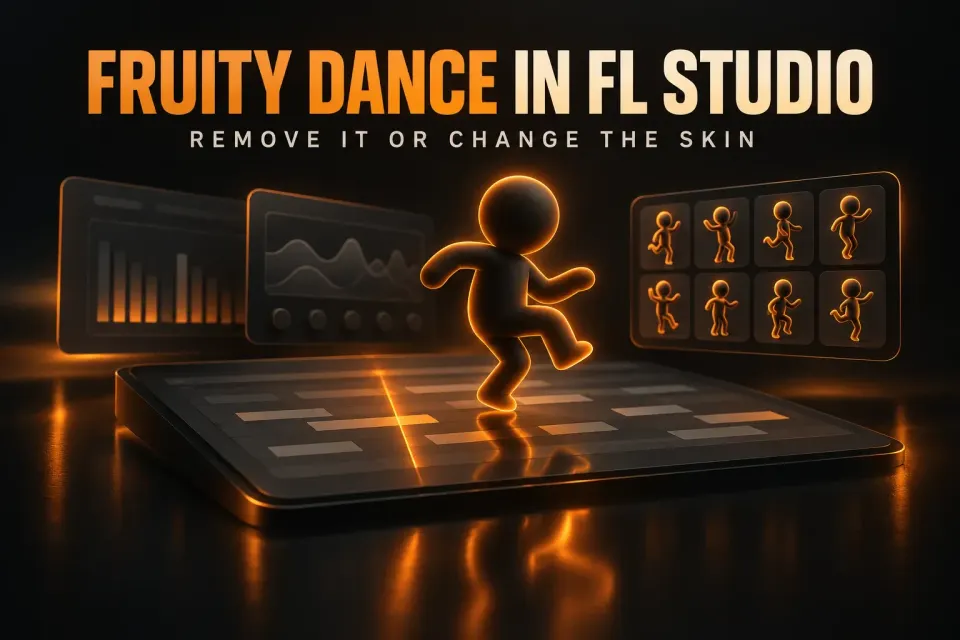
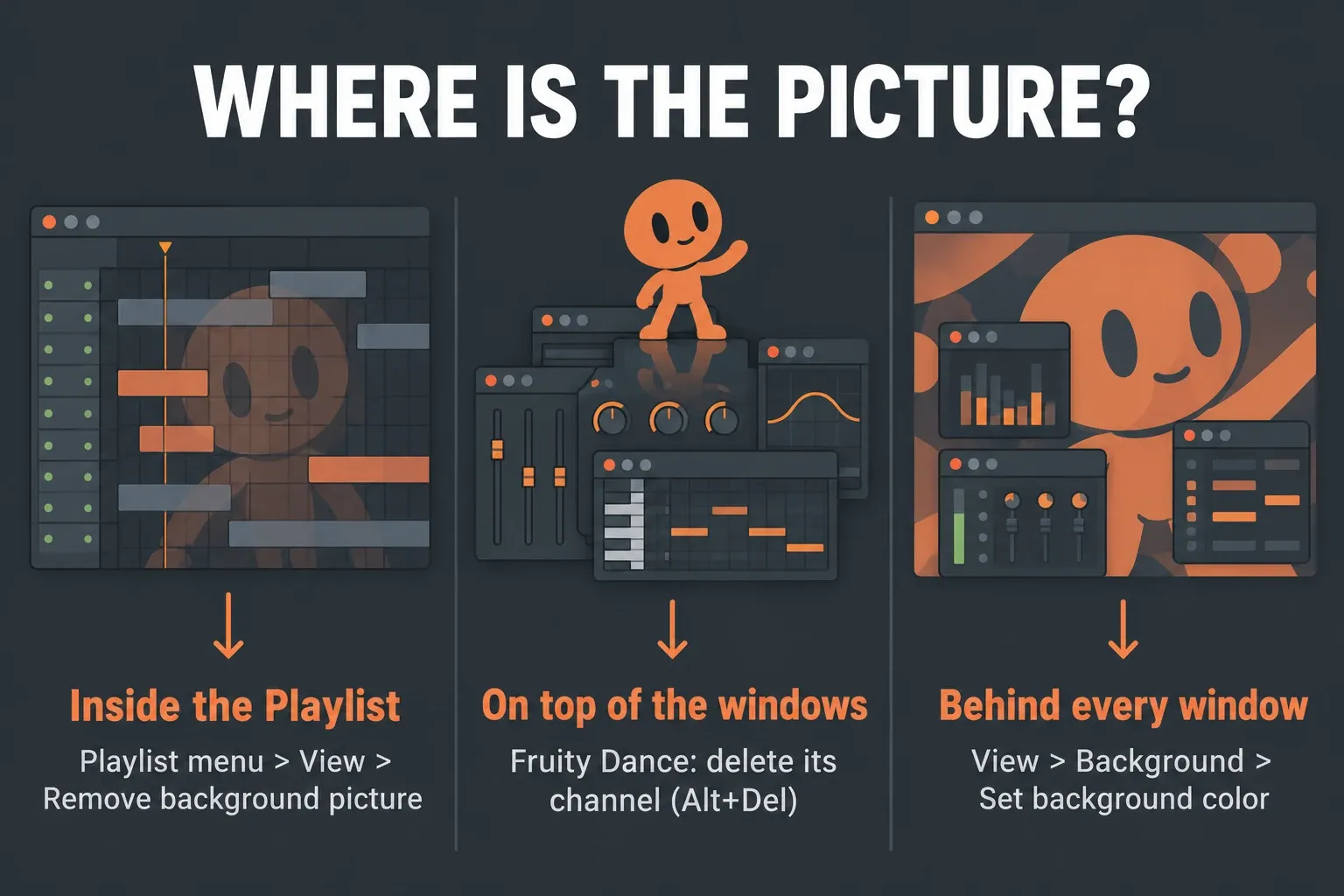
To get a picture or character off your FL Studio screen, first look at where it sits. A picture inside the Playlist lanes is a Playlist background picture: open the Playlist menu and choose View > Remove background picture. A character dancing on top of your windows is Fruity Dance: select its channel in the Channel Rack and press Alt+Del (Opt+Del on a Mac), or untick Visible to hide it. A picture behind every window is the main wallpaper, and View > Background > Set background color swaps it for a plain color.
I’d check the Playlist first. It’s where you drop samples, and Image-Line’s Playlist page says a .png dropped there becomes a background image, so a stray picture from a drum-kit folder turns into wallpaper instead of a clip. If you want the dancer, not rid of it, the second half of this guide covers Fruity Dance’s controls, making it follow your track and building your own skin.
Which picture is it?
Three different features can put an image on your FL Studio screen, and each has its own off switch. Match what you see to a row, then use that fix.
| What you see | What it is | How to get rid of it |
|---|---|---|
| A picture inside the Playlist, behind your clips | Playlist background picture | Playlist menu > View > Remove background picture |
| A character standing or dancing on top of the windows, which you can drag around | Fruity Dance | Delete its channel with Alt+Del, or untick Visible |
| The character stays on your computer’s desktop after you minimize FL Studio | Fruity Dance with On desktop switched on | Untick On desktop, or delete the channel |
| The character blocks clicks on whatever is behind it | Fruity Dance with Solid switched on | Turn Solid off so clicks pass through |
| A picture filling the whole workspace behind every window | Main window wallpaper | View > Background > Set background color |
Remove a picture from the Playlist
The Playlist manual page describes the feature in one line: you can drag-and-drop .png format images on the Playlist to create a background image, and Remove background picture takes them away again.
- Open the Playlist with F5 if it isn’t on screen.
- Click the Playlist menu, the small arrow at the top left of the Playlist window.
- Go to View and choose Remove background picture.
- Save the project, so the picture doesn’t come back the next time you open it.
If the picture fills the space behind every window instead, it isn’t a Playlist picture at all. Our guide to the FL Studio background and theme covers that main wallpaper and the theme colors around it.
The “How do I get him off?” meme and the Alt+N tip
The search phrase comes from a meme. According to Know Your Meme’s entry, X user @boolymen posted a meme on October 4, 2024 showing the Family Guy character Mr. Washee Washee in FL Studio, with an Instagram story caption asking “How do I get him off?”. Ezra, the hip-hop producer behind that story, told Know Your Meme in an interview that he was making a beat and pulling from a folder in one of his drum kits: “I thought it was a sound that I was dragging in but it was a photo. I didn’t even know you could drag photos into FL Studio.”
The same interview says someone in the replies to the tweet told him the trick is pressing ALT+N. I wouldn’t count on that shortcut. In Image-Line’s keyboard shortcut list, Alt+N appears once, as a Piano roll command: Switch waveform helper view. Nothing in that list ties Alt+N to pictures, so I’d use the menu path from the table above for whichever feature is showing the image.
How to remove Fruity Dance
Fruity Dance lives in a Channel Rack channel, like an instrument. The Fruity Dance manual page says that when it is loaded into a channel, an animated character appears, and you can drag the character around the screen with the mouse. Deleting that channel removes the character for good.
- Open the Channel Rack with F6.
- Find the channel called Fruity Dance, or whatever it was renamed to, and select it.
- Press Alt+Del (Opt+Del on a Mac). The Channel Rack manual lists the same command as Delete selected in the Channel Options menu, and it removes all selected channels.
- Save the project.
I’d delete the channel rather than hunt for a plugin slot to clear. Fruity Dance is a generator, not an effect, so it owns that channel. In a 2019 Image-Line forum thread, a user couldn’t find it in the channel’s plugin list and only found it in the Plugin picker (F8); Image-Line support’s reply pointed out that it isn’t an effect. Our Channel Rack guide covers selecting, grouping and cleaning up channels.
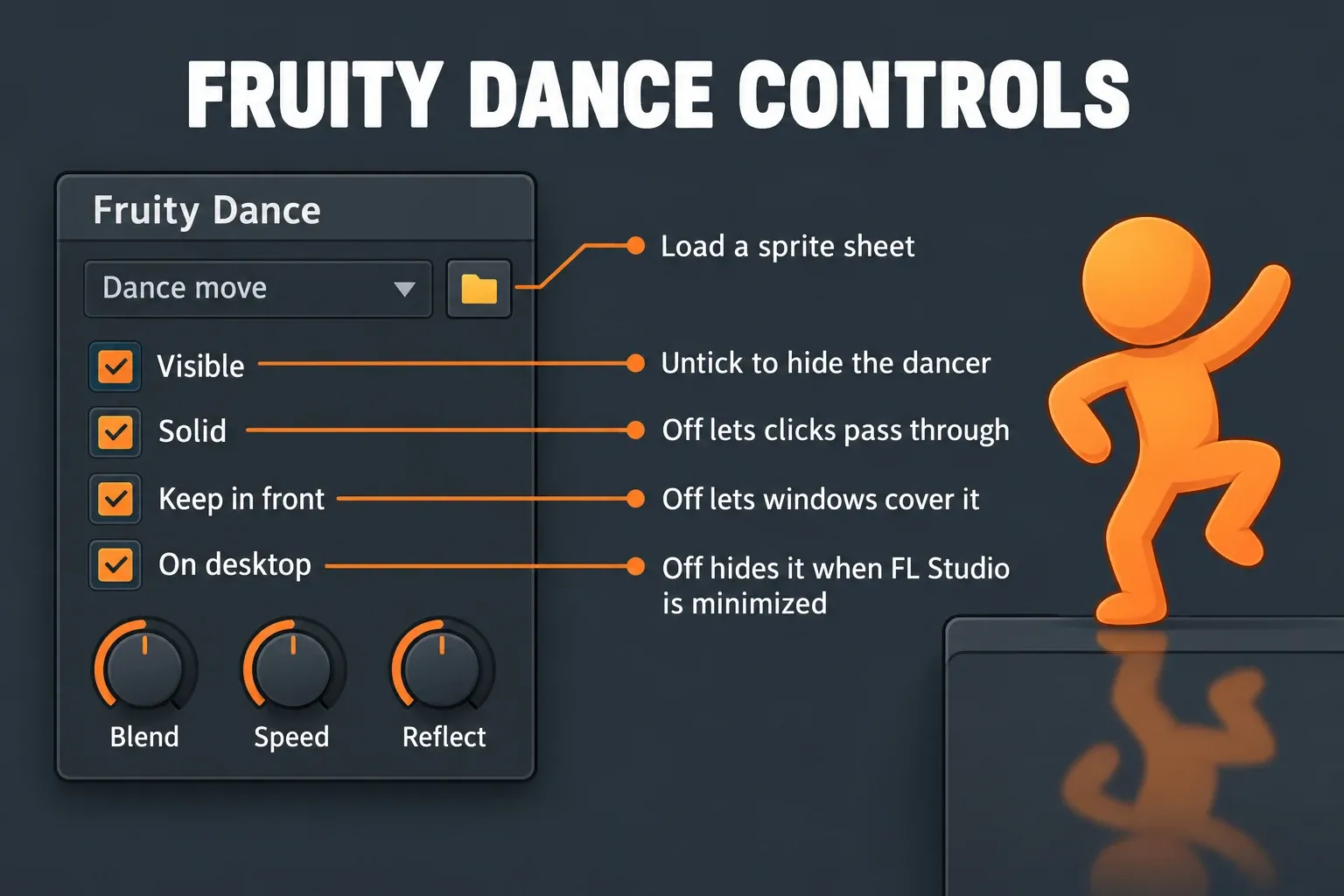
Hide it without deleting. If the dancer belongs in the project but is in your way, untick Visible. To keep it on screen but out of the way of your work, turn Keep in front off so windows can cover it, and turn Solid off so your clicks go through it to the interface underneath.
Fruity Dance controls
Image-Line calls Fruity Dance an animation plugin. Its default character is FL Chan, the FL Studio mascot, and the manual relates it to Wave Candy, since both give a project visual effects in sync with the music. Every control below changes how the character looks or behaves on screen.
| Control | What it does |
|---|---|
| Appearance menu | Picks one dance move for the whole track, when you don’t want to change moves from the Piano roll |
| Mirror horizontally | Mirrors the character’s movements around the vertical axis |
| Sync changes | Waits for a move to finish its cycle before switching to the next one |
| Visible | Shows or hides the character |
| Solid | On: the character takes mouse focus. Off: clicks pass through to the interface behind it |
| Keep in front | Keeps the character on top of all windows |
| On desktop | Keeps the character visible on the Windows desktop after FL Studio is minimized |
| Blend | Blurs the animation steps together |
| Speed | Tempo multiplier for the movements |
| Reflect | Sets how strong the reflection under the character is |
| Folder icon | Loads a sprite sheet; FL Chan and Countdown come with FL Studio |
Add Fruity Dance and make it follow your track
The fastest way in is the Plugin picker. Press F8, start typing the name to narrow the list, and double-click Fruity Dance: the Browser manual’s Plugin Picker section says a double-click loads a generator into a new channel. You can also drag its icon to where you want it. The Channel Rack’s Add one menu lists only plugins marked as favorites, so the picker is the quicker route.
The moves are driven by the Piano roll. Different moves are associated with a range of notes, so placing notes on the Fruity Dance channel builds your own sequence of dance steps in sync with your song. For one move all the way through, pick it from the Appearance menu instead of writing notes. I’d also switch on Sync changes when you program quick note changes, so each move finishes its cycle before the next one starts and the animation doesn’t stutter. Our Piano roll guide covers drawing and editing those notes.
Image-Line pitches Fruity Dance as great when you have a second monitor or video projector hooked up to FL Studio for live performances. If that’s your plan, drag the character onto the second screen and leave Keep in front on; our guide to using FL Studio on two monitors covers the screen setup itself.
Fruity Dance skins: load one or make your own
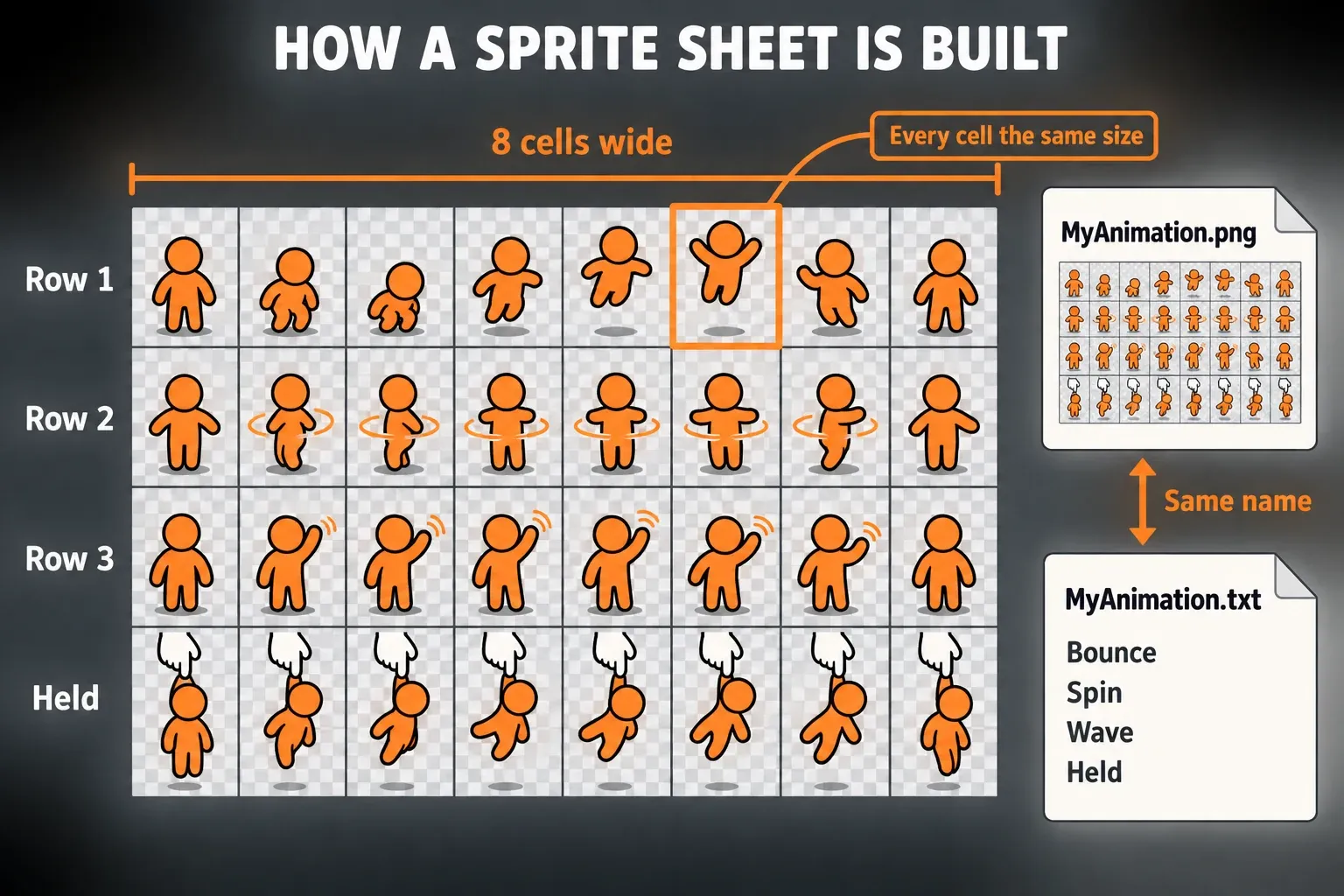
A Fruity Dance skin is two files: a sprite sheet image and a text file with the same name. The manual puts the supplied ones in the FL Studio installation folder under \Plugins\Fruity\Generators\Fruity Dance\Artwork.
Load a skin. Click the folder icon on the plugin and open the sprite sheet, or drag the sprite sheet straight onto Fruity Dance. With drag-and-drop the plugin looks in the source folder for the matching .txt file, so keep both files together. The manual also links a larger version of FL Chan with its own install instructions in the .zip.
Build your own. The manual’s rules for the sprite sheet are strict:
- It is fixed at 8 cells wide, with as many rows as you like. Each row is a separate 8-cell animation.
- The last row is always the “held by mouse” animation, played while you drag the character.
- Cells can be any size, but every cell in the sheet must be the same. In the supplied Dance.png each cell is 110 pixels wide and 128 pixels high.
- Use transparency so the character works against the FL Studio or Windows background. PNG and GIF are preferred for that reason, although PNG, JPG, GIF and BMP all load.
- The text file needs the identical name, for example MyAnimation.png plus MyAnimation.txt, with one name for each row. Call the last row Held.
I’d start by opening the supplied Dance.png and Dance.txt in an image editor that supports layers and transparency, then draw over a copy, because the grid and row names are already right. Community tools can save the slicing work: the Fruity Dance Sprite Sheet Generator takes GIF uploads and exports a sprite sheet, and repositories like LinusKay’s fruity-dance sprites share finished sheets with their .txt files and load them through the folder icon.
When you download someone else’s skin, I’d only accept image files and a .txt. A skin never needs an installer or an .exe, so anything packaged that way isn’t a Fruity Dance skin.
When the dancer won’t go away
- It’s still on your desktop with FL Studio minimized. On desktop is switched on. Untick it or delete the channel.
- It comes back when you reopen the project. The channel was hidden or deleted but the project wasn’t saved afterwards. Delete it again and save.
- Your clicks stop working where it stands. Solid is on and the character takes mouse focus. Turn Solid off.
- It covers the mixer or a plugin. Keep in front is on. Turn it off, or drag the character somewhere else.
- The picture is still there after you deleted Fruity Dance. It wasn’t Fruity Dance. Check the Playlist picture and the main wallpaper from the table at the top.
For the rest of the keys worth knowing in this area, including F5, F6 and F8, see our FL Studio shortcuts guide.
Quick answers
How do I get him off my FL Studio screen?
If the picture is inside the Playlist, use Playlist menu > View > Remove background picture. If it’s dancing on top of the windows, delete the Fruity Dance channel with Alt+Del. If it fills the space behind every window, use View > Background > Set background color.
What is the dancing girl in FL Studio?
That’s FL Chan, the FL Studio mascot and the default character of the Fruity Dance plugin.
Does Alt+N remove a picture in FL Studio?
Not according to Image-Line’s shortcut list, where Alt+N switches the Piano roll’s waveform helper view. Use the menu path for the feature that’s showing the picture.
Can Fruity Dance use my own image?
Yes. Load a sprite sheet with the folder icon or drag it onto the plugin. It needs a matching .txt file with one name per row.
Where are the Fruity Dance skins stored?
The supplied sprite sheets and their .txt files are in the FL Studio installation folder under \Plugins\Fruity\Generators\Fruity Dance\Artwork.
My verdict
Most “get him off” problems take one menu click once you know which feature is showing the picture: a Playlist picture, Fruity Dance or the main wallpaper. I’d look in the Playlist first, delete the Fruity Dance channel second, and leave the wallpaper for last. Keep the dancer, though, if it makes the session more fun: with Visible, Solid and Keep in front set the way you like and a skin of your own, it’s a harmless bit of character on a second screen or in the corner of your workspace.