FL Studio
To make the FL Studio Browser smaller, drag the divider on its right edge toward the left. That Browser is the “folder window” most people mean. For smaller text inside it, right-click a Browser tab and set View > Zoom to Compact, or hold Shift and roll the mouse wheel over the list. If whole windows are lost, floating or piled on top of each other, open View > Arrange windows and choose Into workspace, or Realign (Shift+Ctrl+H) to get the layout a fresh install has.
I’d work through layout problems from the smallest fix to the biggest: resize, then re-dock, then realign. Realign throws away the arrangement you built, so before using it I’d save the layout you do like with Save custom layout and keep that as your one-click way back. Every menu path below comes from Image-Line’s own manual pages for the Browser, the View menu and the interface.
Quick fixes by problem
Find your symptom, apply the fix, and jump to the matching section if it needs more than one click.
| Problem | Fix |
|---|---|
| The Browser (folder window) is too wide | Drag its right-hand divider to the left |
| Browser text and rows are too big | Right-click the tab, View > Zoom > Compact, or Shift + mouse wheel |
| The Browser floats as a separate window | Drag the word Browser in its header to the left or right edge |
| The Browser has vanished | Alt+F8 on Windows, Opt+F8 on a Mac |
| A window sits off the screen | View > Arrange windows > Into workspace |
| The whole layout is a mess | View > Arrange windows > Realign (Shift+Ctrl+H) |
| Windows jump together while you drag | Hold Alt while dragging |
| The Toolbar strip at the top is gone | Switch off View > Toolbars > Hide (Ctrl+F11) |
| You can’t drag the edge of the FL Studio window | Take it out of maximized mode with Maximize/Restore first |
| Everything, menus included, is the wrong size | Main GUI scaling in General settings, then restart |
| Too many windows are open | F12 closes them all; Ctrl+F12 keeps only the focused one |
How to make the Browser smaller
The “folder window” on the left of FL Studio is the Browser, the tree of folders, samples, presets and plugins. Image-Line’s Browser manual page gives it several separate size controls, and each one solves a different complaint.
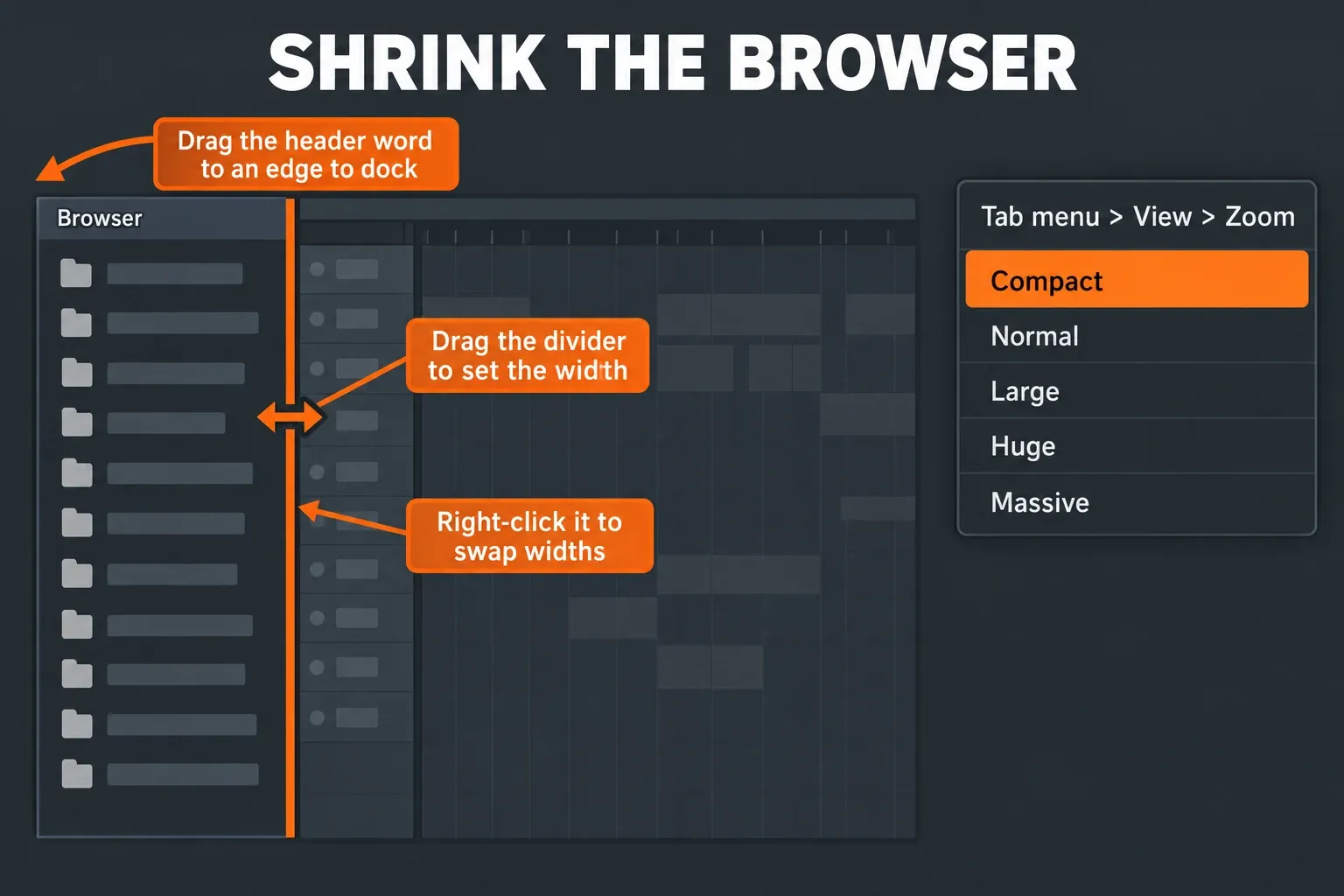
Width. Left-click the divider between the Browser and the rest of the workspace and drag it to change the width. The divider can also snap to a second position: drag it where you want, then right-click it to swap between that new spot and the original one. I’d make the second position narrow, so one right-click gives you a slim Browser for arranging and another brings back the wide view for digging through sample folders.
Text size. Right-click a tab along the top of the Browser (Control-click on a Mac) and open View > Zoom. The manual lists five steps, Compact, Normal, Large, Huge and Massive, and tab options “can be applied independently for each Tab”. So Compact can stay on a crowded tab while another keeps a bigger font. For a quick change without the menu, hold Shift and roll the mouse wheel over the Browser.
Cut-off names. A narrow Browser hides the end of long file names, but you don’t lose them: hover the cursor over an item and its full name pops out. That’s why a thin Browser costs less than it looks.
Out of the way completely. The Minimize button on the Browser header “Reduces the Browser to the caption bar”. The Auto hide browser option in the View menu goes further: the Browser hides itself and pops out when your mouse reaches its side of the screen.
For everything else the Browser does, from adding your own folders to search, see our guide to the FL Studio Browser.
Fix a Browser that floats, hides or won’t dock
The Browser docks on either the left or the right side of the main window. To move it, click and drag the word “Browser” in its header bar to the side of the screen you want. The same drag pulls it out as a floating window if you drop it anywhere else, which makes it easy to undock by accident. Drag it back to the left edge and it docks again.
Three behaviors make the Browser look broken when it isn’t:
- It slides away when the mouse leaves. That’s Auto-hide: the Browser pops out only when the mouse reaches its location. Switch the option off, or follow the manual’s tip for stopping the FL Studio workspace from moving and drag the Browser header to the right side of the screen.
- A floating Browser vanishes after you drag a sample in. That’s Hide while dragging (when detached), an option in the Browser’s own menu. Disable it and the detached Browser stays on screen.
- F8 opens a list of plugins instead of the Browser. F8 is the Plugin picker. The Browser toggle is Alt+F8 (Opt+F8 on a Mac), and the same shortcut closes it.
Snap windows together, or stop them snapping
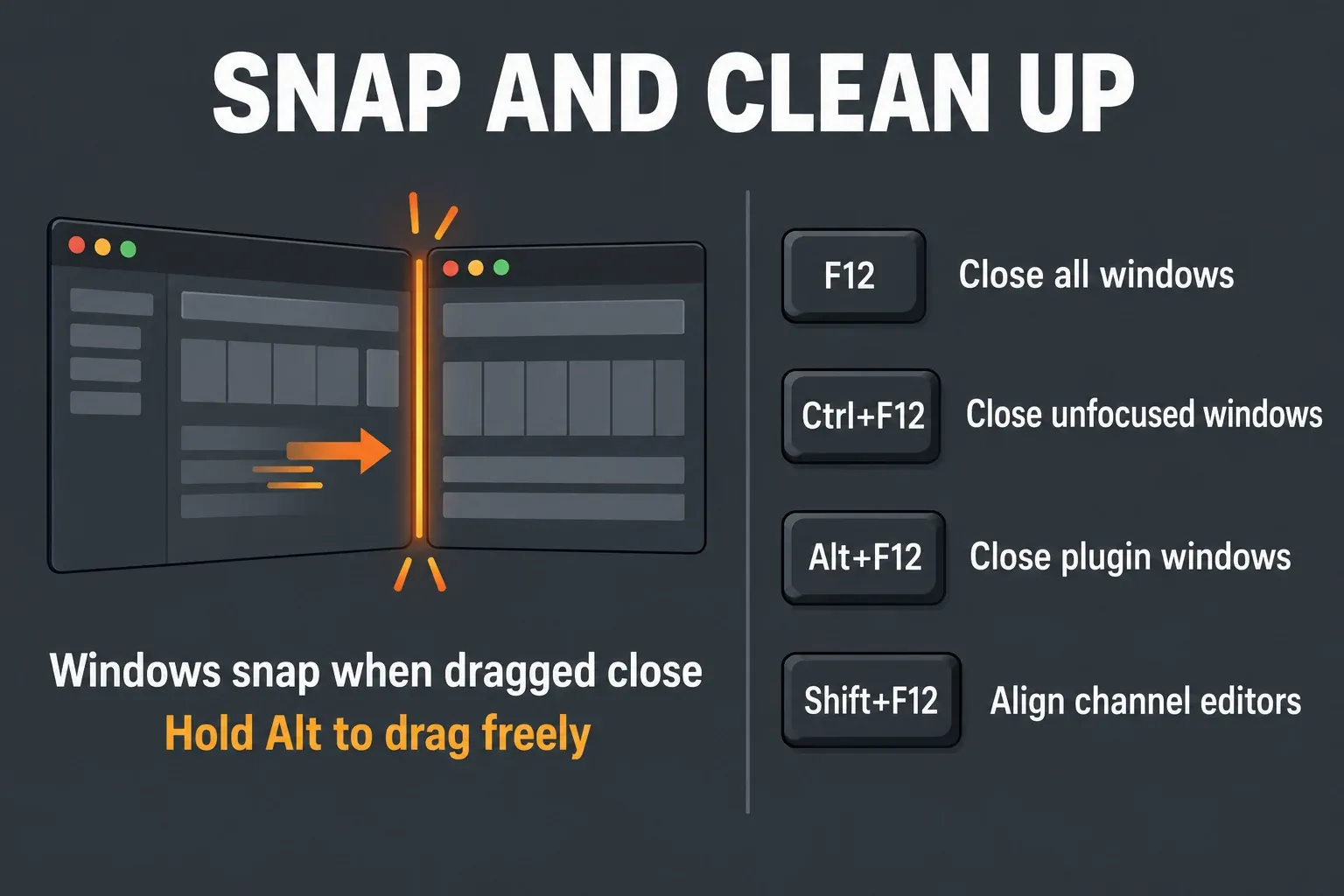
FL Studio’s internal windows, such as the Playlist, Piano roll, Channel Rack and plugin windows, are magnetic. The interface basics page says windows “will snap together when they are dragged close to each other”. That’s handy for tiling the Piano roll under the Playlist and annoying when you want a small gap. To place a window freely, hold the Alt key while you drag it.
Plugin windows have their own tidy-up command. Align all channel editors (Shift+F12) moves every channel plugin window to the top-left corner of the one you have focused, so a scatter of synth windows becomes one neat pile. It skips detached plugins, which live outside the FL Studio desktop. When several windows sit on top of each other, Tab cycles through them.
Reset window positions without resetting FL Studio
Every layout rescue sits in the View menu under Arrange windows. Image-Line’s View menu reference lists these options, and I’d try them in this order, because each step throws away a little more of your arrangement than the last:
- Into workspace moves all windows into the visible FL Studio desktop workspace. This is the fix for a window stranded off screen, typically after a second monitor was unplugged.
- Realign (Shift+Ctrl+H, or Shift+Cmd+H on a Mac) restores the default-install layout. Use it when the arrangement itself is the problem.
- Desktop, Alternate and Tablet are ready-made layouts. Desktop (default) is the standard one, Alternate is a variation worth a try, and the Tablet layouts are touch friendly, with important Toolbar items arranged along the bottom of the window.
- Save custom layout stores your current arrangement, and Custom brings it back later. The manual recommends saving before you change screen resolution, which also makes it the safety net before you try Realign.
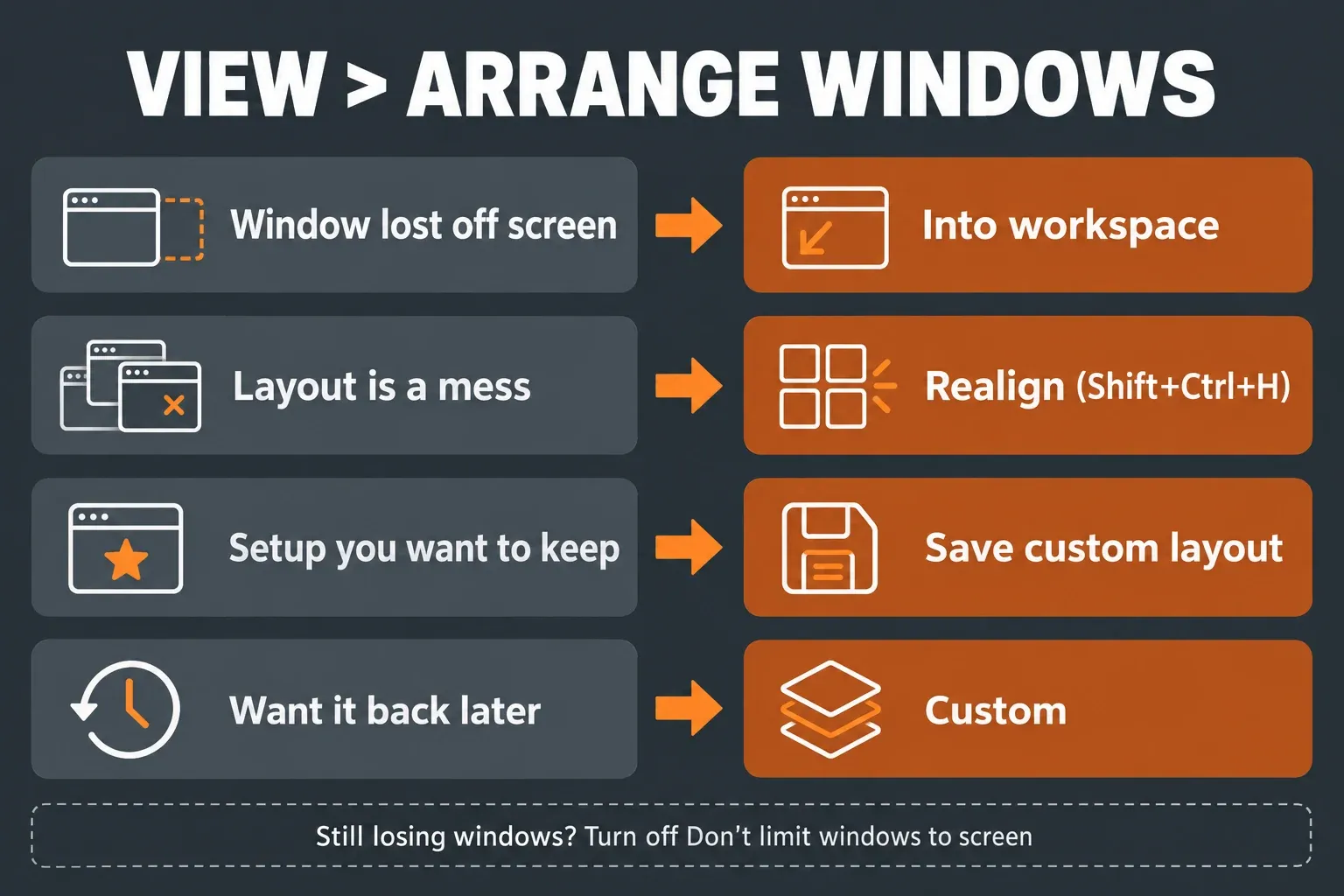
If a window keeps escaping past the screen edge, open Options > General settings and look under Advanced for Don’t limit windows to screen. That option lets windows move completely outside the screen, and the General settings page says to turn it off if you lose a window outside your monitor’s view.
Only when none of this helps, and FL Studio misbehaves in other ways too, would I move on to a full reset of FL Studio’s settings, which clears far more than window positions. For layouts that span two screens, our guide to FL Studio on two monitors covers detached windows and Maximize for all monitors.
Resize the whole FL Studio window
FL Studio only resizes when it isn’t maximized, which is why its edges can seem stuck. Click the Maximize/Restore button in the window controls on Windows, or the green Full-screen button on macOS. Image-Line calls the resulting state “Windowed”. From there you can drag an edge to resize the program, or click an empty area of the Toolbar and drag to move it.
That also cures a classic Image-Line forum complaint about the right edge of FL Studio sitting beyond a dual-monitor setup where it can’t be reached: restore the window, drag it back by the Toolbar, then resize it. If the Windows taskbar or the macOS Dock covers part of FL Studio, the Toolbar’s Restore control toggles it: right-click it or press Alt+Enter (Opt+Enter on a Mac). The Toolbar manual page notes that this relies on the operating system’s own hide option, and that the setting persists if you close FL Studio with the taskbar or Dock hidden.
Two size problems aren’t about the window at all. If menus, text and every panel are too big or too small, the cause is Main GUI scaling in General settings, which normally follows your system scaling and needs a restart to apply. Our zoom and GUI scaling guide walks through it. If only a synth or effect is tiny, see how to resize plugins in FL Studio.
Clean up a crowded screen
When plugin windows pile up, the fastest reset is a close command rather than a layout change:
- F12 closes all windows in FL Studio.
- Alt+F12 (Opt+F12 on a Mac) closes only plugin windows, so the Playlist and Mixer stay where they are.
- Ctrl+F12 closes every window except the one you’re working in.
Then reopen only what the task needs with the function keys from Image-Line’s keyboard shortcut list: F5 for the Playlist, F6 for the Channel Rack, F7 for the Piano roll and F9 for the Mixer. Each key toggles its window, so a second press hides it again.
Some windows work better outside the FL Studio desktop. The window menu at the top left of the Playlist, Piano roll, Channel Rack or a plugin has a Detached option that turns it into its own window. To have every new plugin open that way, enable Detach all new plugins in General settings; it only affects plugins you add after switching it on. The Mixer stretches too: drag its edges horizontally or vertically, and the Mixer manual explains that the visible controls change to suit its size in combination with the Mixer layout options. Our FL Studio Mixer guide covers the routing side.
For the rest of the window shortcuts worth memorizing, see our FL Studio shortcuts guide.
Quick answers
What is the folder window in FL Studio called?
It’s the Browser. Show or hide it with Alt+F8 (Opt+F8 on a Mac) and change its width by dragging the divider on its right edge.
Why can’t I resize the FL Studio window?
It’s maximized. Click Maximize/Restore, or the green button on macOS, to switch to Windowed, then drag an edge.
How do I get the default FL Studio layout back?
Use View > Arrange windows > Realign, or press Shift+Ctrl+H. It puts the windows back in the default-install layout; resetting FL Studio’s settings is a separate, much bigger step.
Why does the Browser keep disappearing?
Either Auto-hide is on, or the Browser is detached with Hide while dragging enabled. Turn off whichever applies, or dock the Browser again by dragging the word Browser to a screen edge.
Can I save my own window layout?
Yes. View > Arrange windows > Save custom layout stores it, and Custom restores it.
My verdict
Most FL Studio window problems are one drag or one menu item away from fixed, and the costly mistake is reaching for a full settings reset first. I’d set up the screen once: Browser docked on the left at a narrow width with Compact zoom on its busiest tab, and the Playlist and Piano roll snapped together. Then save it with Save custom layout. After that, Into workspace handles lost windows, F12 clears clutter, and Custom puts your own layout back in one click instead of a rebuild every session.