FL Studio
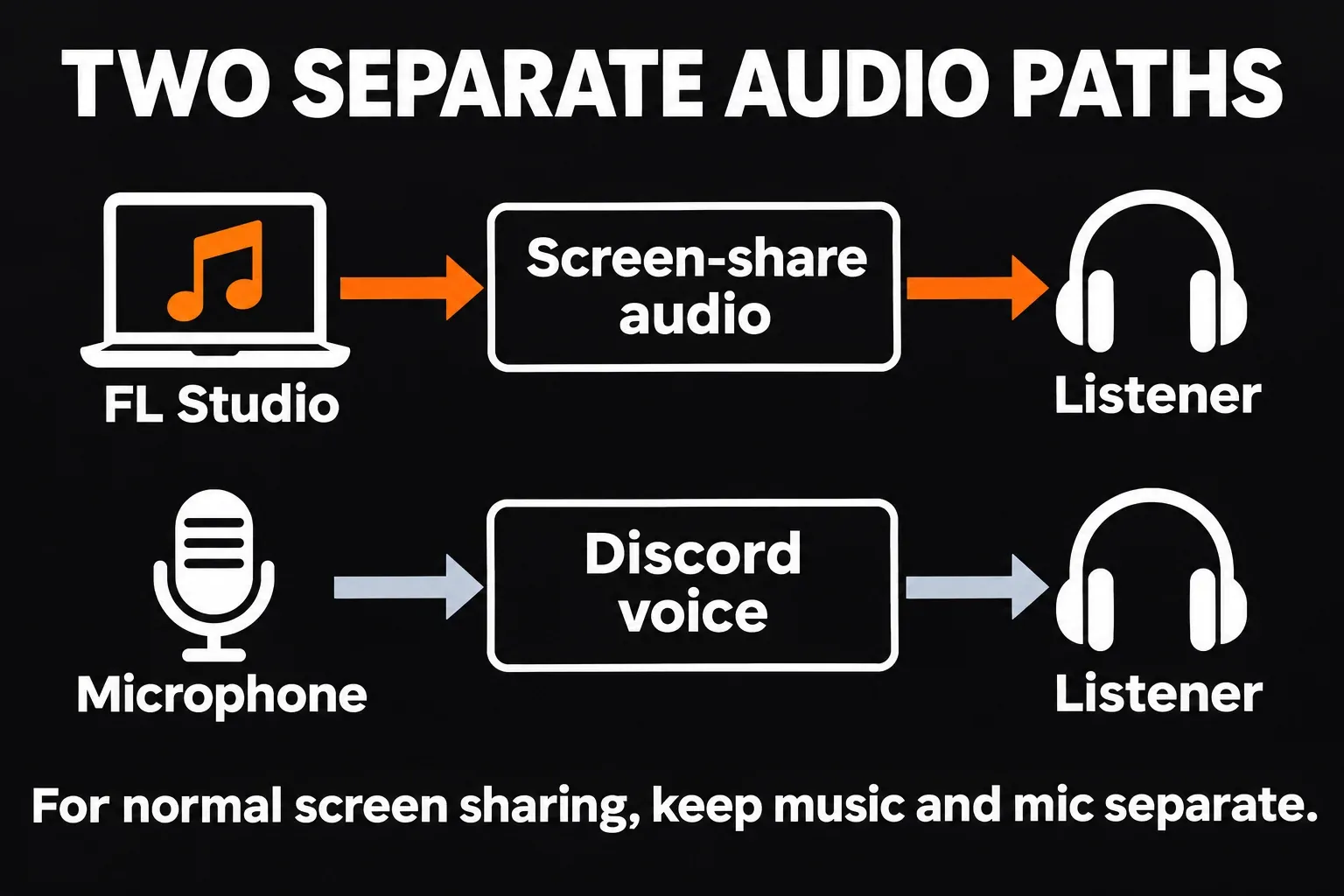
Share FL Studio's window from the Discord desktop app. On Windows, if your friends get the picture without the music, try FL Studio ASIO in Options > Audio settings; on Mac, start with Discord's built-in audio sharing on macOS 13 or later. I'd keep your microphone separate from the music for a normal screen share, so a listener can adjust your voice and the stream independently.
Start with a normal screen share
Open a project that already plays through your headphones. If FL Studio itself is silent, fix the missing audio inside FL Studio before changing anything in Discord.
- Join a Discord voice channel or start a direct-message call. In a server, you need the channel's Video permission to share your screen.
- Select your real microphone and headphone output in Discord's voice settings. A microphone input carries the signal from that device; selecting it doesn't automatically send the FL Studio Master.
- Click Share Your Screen, select FL Studio's application window, then start the stream with Go Live. Selecting the application also limits what unrelated desktop content you show.
- Ask the listener to open the stream and confirm that both the picture and music arrive. Joining the voice channel alone isn't the same as watching your stream.
Discord's screen-sharing instructions cover the channel permissions and stream controls. If one listener hears nothing, have them check Mute and Stream Volume on the stream before you rebuild your audio routing.
Windows: fix a silent stream before adding a virtual mixer
I'd try FL Studio ASIO before installing another routing app. Image-Line documents it as a multi-client layer over Windows audio, which makes it a useful first check when FL Studio plays locally but another application can't pick up its audio.
- Note your current driver so you can restore it later. Open Options > Audio settings in FL Studio and set Device to FL Studio ASIO.
- Open Show ASIO panel. Choose the actual headphone or interface output, especially if [Default output] sends the sound somewhere else.
- Play the project, restart the Discord screen share, and ask the listener to check the music again.
FL Studio ASIO can have higher latency than your interface's native ASIO driver. For playing or recording an instrument, I'd keep the native driver if its stream already works, or use the loopback route below when you need to preserve that driver.
If playback stops when you click Discord or a plugin window, check Auto close in FL Studio's Audio settings. It releases the device when FL Studio loses focus; turn it off when using a multi-client driver. For a closer look at device selection, use the FL Studio audio-settings guide.
Mac: use app-audio sharing before building a BlackHole route
Discord supports application and game audio on macOS 13 and later. An old tutorial that begins by installing an audio-capture driver isn't the starting point I'd choose on a supported Mac.
- Use the Discord desktop app and confirm that FL Studio plays locally through your chosen output.
- Start screen sharing and choose FL Studio. Follow Discord's Mac sharing flow, including the system selection prompt. The exact dialog changes with macOS.
- If permission is missing, open System Settings > Privacy & Security > Screen & System Audio Recording and allow Discord. Apple explains the available screen and audio recording permissions; older macOS versions use different labels. Relaunch Discord if macOS requests it, then start a fresh share.
- Confirm music and microphone separately with your listener. Don't switch the microphone to a virtual device merely because the stream has no sound.
On macOS older than 13, Discord's documented application-audio support doesn't cover this route. Check whether your Mac can run a supported macOS release before following current instructions. I'd avoid adding a virtual device until you've ruled out the OS requirement, permissions and selected application.
Keep native ASIO with an interface loopback
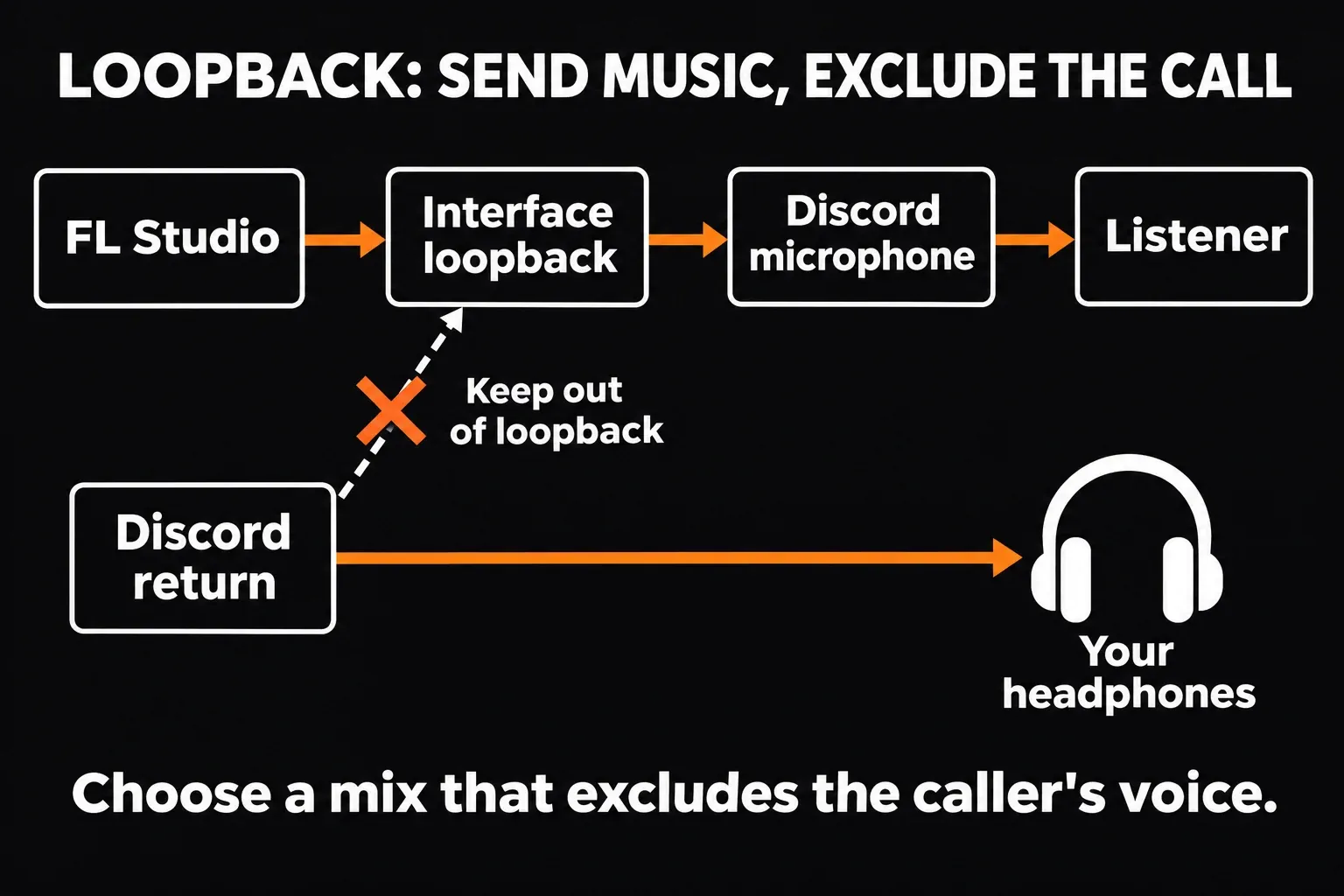
Loopback takes a chosen playback mix and presents it as an input. That lets FL Studio keep its native driver while Discord receives the music through its microphone input. You must configure both ends: a loopback mix inside the interface software and a corresponding input that Discord can select.
In this route, Discord's microphone selection carries the mix. To speak over the beat, include your microphone in that mix too. A separate USB microphone won't be added automatically just because it worked in your previous Discord setup.
Check your exact model first. Focusrite's loopback compatibility table distinguishes generations: Scarlett 4th Gen supports it, while Scarlett Solo and 2i2 3rd Gen do not. Owning a Scarlett doesn't identify the route by itself.
Scarlett Solo and 2i2 4th Gen
For these two models, Focusrite Control 2's loopback modes make an important distinction:
| Mode | Signal sent | USB inputs |
|---|---|---|
| Audio capture | Analogue inputs and software playback | 3–4 |
| Video call | Analogue inputs; software playback excluded | 1–2 |
| Stream | Analogue inputs and software playback | 1–2 |
Open Focusrite Control 2 > Settings > Device > Loopback modes and choose Stream to include computer music. If these modes are missing on your Solo or 2i2 4th Gen, check that Focusrite Control 2 is up to date. In Mixer > Loopback, set the included playback and microphone levels. Video call deliberately removes software playback, so it isn't the mode to choose for sending a beat.
In Discord, select the interface as the microphone device and confirm the signal. On Windows, Focusrite's Discord setup guide names Analogue 1+2 (Focusrite USB Audio); on Mac, select your interface. Use Mic Test to check the incoming mix, then end the test before the call.
Other supported interfaces
Use the routing instructions for your model rather than copying the Solo/2i2 mode selector. On Windows, an interface's ASIO channels don't all appear automatically in a non-ASIO app. With a supported Focusrite driver, open the taskbar Focusrite Notifier > Expose/Hide Windows Channels and expose the required loopback input pair, then select it in Discord. Focusrite documents how those extra Windows channels become selectable.
On Mac, don't assume Discord can select an arbitrary numbered input pair from a multichannel interface. Focusrite specifically warns that Discord uses its first input. If your model can't map the required mix there, return to app-audio sharing instead of selecting the device and expecting every input to be included.
Stop echo, doubled music and disappearing notes
Echo of the caller: remove Discord's return audio from the outgoing loopback mix. On a simple interface, computer playback may include both FL Studio and Discord. If you can't separate them, use a different local output for the call or switch back to application-audio sharing. Headphones stop acoustic spill, but they don't remove a digital loopback.
Music sounds doubled: check whether it reaches the listener through both the screen share and the microphone mix. Pick one music route. If you're using loopback as the fallback, have the listener mute the stream's audio while keeping the video and your voice connection open.
Notes fade or get chopped up: when music goes through Discord's microphone input, select the Studio input profile if your version offers it. Focusrite recommends that profile for instruments. With Custom, check noise suppression, the noise gate and gain processing; Krisp is designed to remove sounds other than human voices, so I'd turn it off for a music mix. This check concerns the voice-input route, not a blanket change to every screen share.
Crackles in your own headphones: solve the local playback problem first using the crackling-audio checks. A stream can't repair an already broken signal. If only the remote audio breaks up, compare the stream with local playback before changing the project's mixer or buffer.
Check the result from the listener's side
Play music, stop it, speak, then leave a quiet gap while the other person talks. They should hear the music once, hear your voice clearly, and never hear their own voice returned. Open a plugin window and confirm that the part of the screen you intend to share remains visible.
I'd finish with that short listening check rather than a promise about driver names. If the route still fails, note your OS, FL Studio driver, interface model and generation, Discord's selected share source and whether the missing sound is in the stream or voice chat. Those details identify the broken connection far better than “Discord has no audio.”