FL Studio
To change key in FL Studio, transpose the pitched parts of the song by the same number of semitones: move the notes in your Patterns, then apply the equivalent pitch shift to melodic Audio Clips. Leave unpitched drums out of the selection. Changing the Piano Roll’s scale highlighting only changes the writing guide; it does not move the existing song.
I’d save a separate project version first and work through notes, audio, then playback checks. That keeps a simple key change from turning into a hunt for the one bass line or vocal slice that stayed behind. These steps cover desktop FL Studio on Windows and Mac.
Choose the interval before touching the project
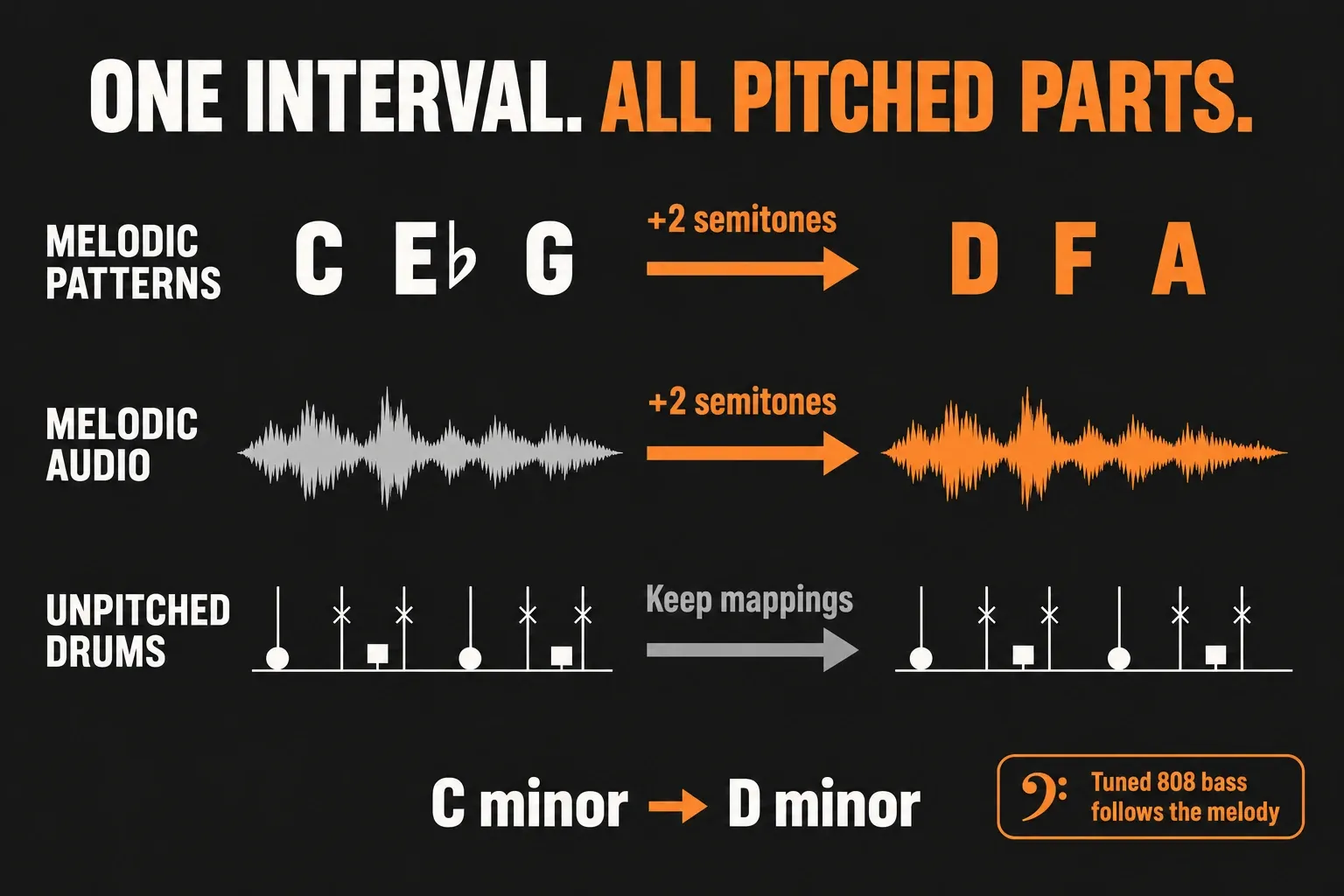
Write down the original key, target key and one signed interval. For example, C minor to D minor is +2 semitones. Every pitched part needs that same shift. C minor to A minor is −3 semitones; moving up nine reaches the same pitch classes, but puts the music in a much higher register.
One semitone equals 100 cents, as defined in Image-Line’s fine-tuning controls. Use semitones where the control asks for semitones and cents where it asks for cents.
| Example change | Note / semitone shift | Equivalent cents |
|---|---|---|
| C minor → D minor | +2 | +200 |
| C minor → A minor | −3 | −300 |
| C major → F major | +5 | +500 |
Uniform transposition preserves the relationships between the notes. It takes C minor to D minor, not D major. Turning a minor arrangement into major requires changing particular scale degrees and checking the chords; a global pitch offset cannot do that job.
If the starting key is uncertain, establish it from the harmony and bass before shifting everything. A filename is a useful lead, but a loop that already has a pitch offset may no longer sound in its named key.
Separate pitched parts from drum mappings
Make a short inventory of the material that actually plays in the arrangement:
- Melodic Patterns: chords, leads, bass and tuned 808 lines need their notes transposed.
- Melodic Audio Clips: vocals, printed instruments and tonal loops need an audio pitch shift by the same interval.
- Unpitched drums: hats, snares and kit patterns normally keep their existing notes and sound.
- Mixed Patterns: if one Pattern contains both a melody and drum channels, edit its melodic channels individually rather than transposing the entire Pattern indiscriminately.
The distinction is musical, not a folder label. An 808 playing a bass melody belongs with the pitched parts. A drum instrument can use note numbers to choose sounds: FPC maps MIDI notes to pads, so moving those notes can trigger different drums.
Keep a list of completed Pattern sources and audio selections. Repeated Playlist blocks are not necessarily independent sources, and the easiest mistake is applying the shift twice to something that has already changed. For a recoverable project copy, follow the FLP project and backup guide.
Transpose melodic Patterns through the Picker Panel
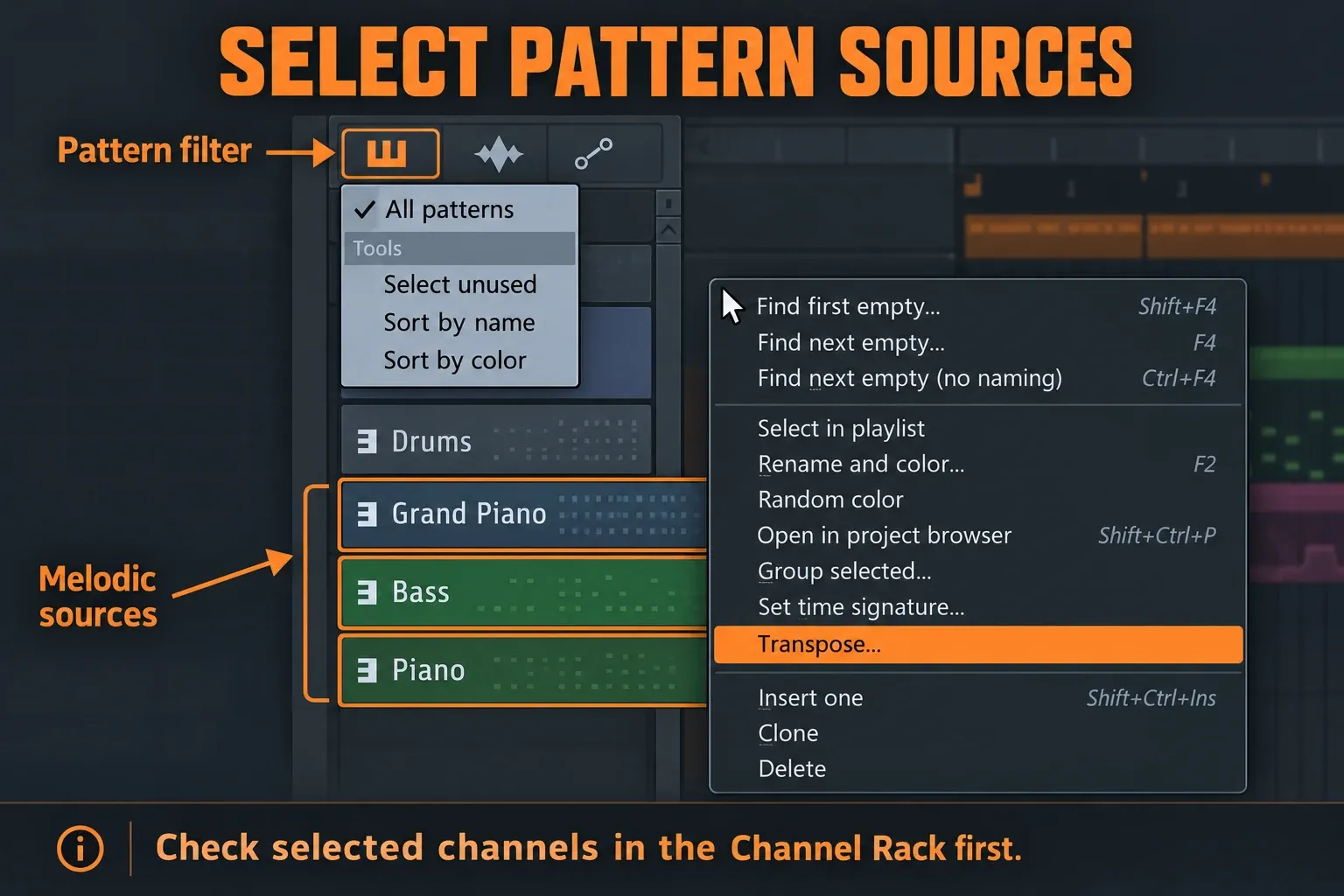
For Patterns containing only pitched material, the Playlist’s Picker Panel provides a batch route. Image-Line documents transposing single or multiple Patterns from the Picker. The Transpose command works in semitones and targets selected channels, so check channel selection as well as Pattern selection.
- In the Channel Rack, ensure the instrument channels used by the melodic Patterns are selected. Do not leave a bass or lead channel out accidentally.
- Open the Playlist and show its Picker Panel. Select the Pattern filter at the top of that panel.
- Select the melodic Pattern sources in the Picker list. Ctrl-click individual entries, or Shift-click the first and last entries of a range. Keep drum-only and mixed drum/melody Patterns out of this batch.
- Right-click a selected Pattern entry and choose Transpose. Enter the signed interval, such as 2 for two semitones up or −3 for three down.
- Open a changed melodic Piano Roll and check a known note against the original. Then check the other pitched channels before moving on to audio.
Select the Pattern sources in the Picker, not just a rectangle of blocks on the Playlist timeline. The manual’s project-transposition shortcut selects all Patterns; use that only when you have confirmed that every affected channel and Pattern belongs in the shift.
For mixed Patterns, move only the melodic notes
For these Piano Roll edits, turn off Snap PR notes to scale while applying the exact chromatic interval. Image-Line explains that scale snapping can move edited notes to the nearest allowed pitch. Re-enable it with the new root and scale after transposing if you want that writing aid.
Open a melodic channel’s Piano Roll in the current Pattern, select the notes you want to move, then use Shift + Up Arrow or Shift + Down Arrow. Each press moves one semitone; Image-Line lists these separately from the Ctrl/Cmd + Up/Down octave shortcuts. For a +2 change, press Shift + Up twice.
Repeat for the other melodic channels in that Pattern and for each other mixed Pattern source used in the arrangement. Leave the kit notes alone. Our Piano Roll guide covers selection and editing in more detail.
By default, repeated instances of a Pattern share its data. Editing the source therefore changes its repeated uses. For a key change in only one chorus or outro, choose Make unique on that Playlist Pattern Clip first, then transpose the new source. The Playlist manual identifies Make unique as the way to edit a clone without changing the other instances.
Move the audio by the same interval
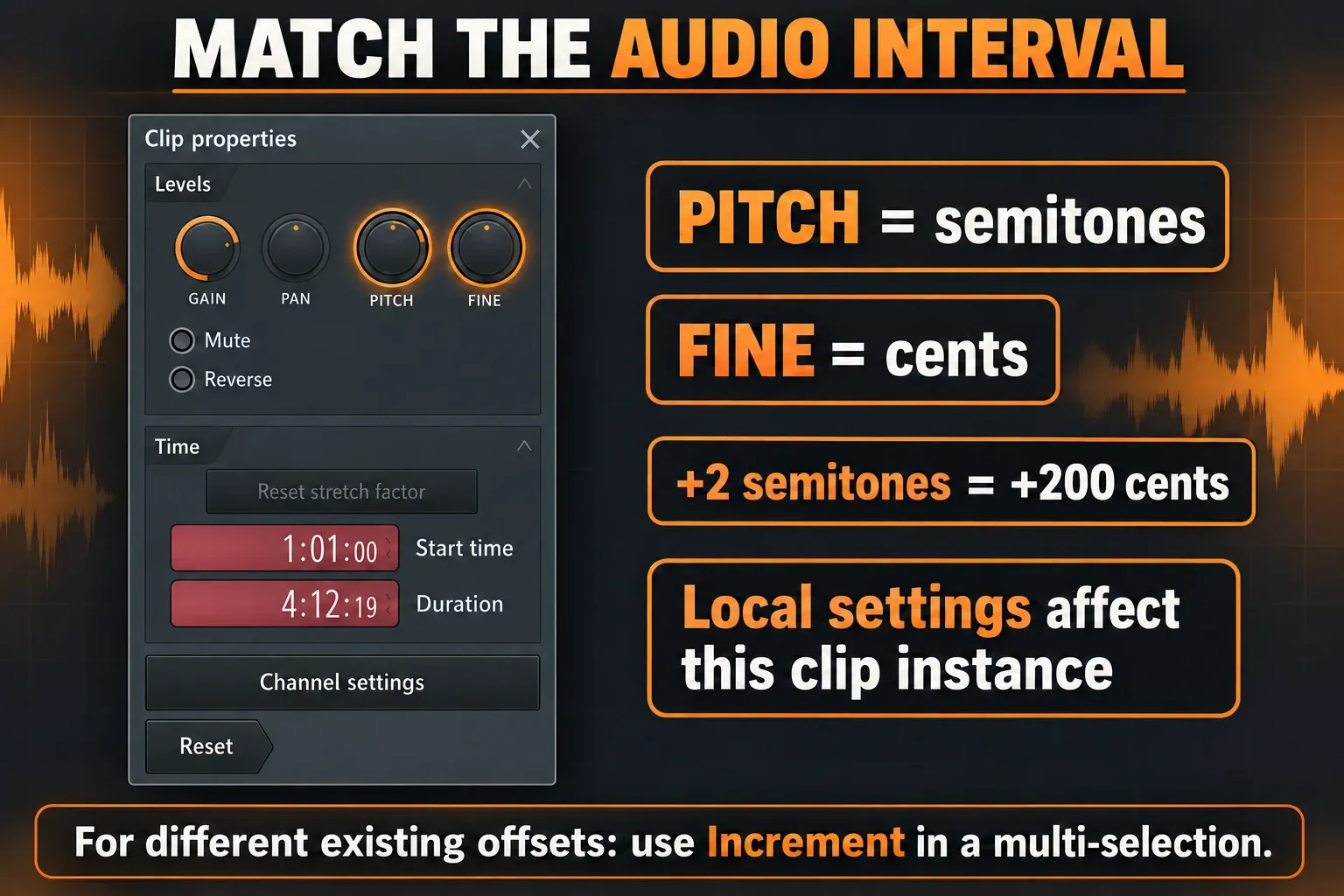
Transposing Pattern notes does not transpose a vocal recording sitting on the Playlist. Select the pitched Audio Clips that belong in the change and open Clip Properties—the documented default is Alt/Option + double-click. That shortcut can be reassigned, so confirm the window title and controls.
In the current Audio Clip properties, Pitch is measured in semitones and shifts pitch while preserving length; Fine is measured in cents. A +2 note transposition calls for a +2-semitone audio change, not +2 cents.
- Select the relevant melodic Audio Clip instances, including the vocal slices and printed bass parts you actually use.
- For a multi-selection with existing offsets, choose Levels → Increment. This adds the change to each clip’s current value. Set instead makes all selected clips adopt the same value.
- Apply the same signed semitone change as the Patterns. For a single clip, add the interval to its current Pitch value rather than assuming it started at zero.
- Play the boundaries of the changed clips and check their timing against the arrangement.
Clip Properties apply to the individual instances you edit. The parent Channel Settings apply across that Audio Clip’s instances and combine with local values. Choose one level deliberately; do not shift the parent and then add the same shift again to every child.
Keep the timing and vocal character under review
All instances of an Audio Clip share a stretch mode. If an older workflow uses ordinary sample playback pitch or Resample, pitch and duration can be coupled. Image-Line’s stretching and pitch controls distinguish this from duration-preserving processing.
For a vocal that sounds unnaturally small or heavy after the move, compare a suitable mode and its formant behavior. Stretch pro offers F.Shift formant control; e3 Mono is intended for monophonic material and uses automatic formant preservation. Listen for consonants, sustained notes and processing artifacts rather than assuming one setting suits every recording.
If your task is only one loop, the sample pitch guide covers that narrower workflow. Here, the important check is that the audio and the transposed notes still agree.
Use Master Pitch for auditioning, with channel checks
Master Pitch can help audition another register before committing to edits. It is not a substitute for checking every sound: the Master Pitch documentation requires Enable main pitch on each responding channel and describes Add to Key for changing the note played rather than simply shifting pitch.
That distinction matters with multisampled instruments and drum mappings. Do not assume all plugins, samples and kit channels respond identically. Also, Type in value on this control sets the tuning reference for A in hertz, normally 440 Hz; it is not a box for entering a semitone count.
I’d return Master Pitch to its original setting before applying permanent note and clip edits. Otherwise the audition shift can sit on top of the newly transposed material.
Check the result before replacing the original
Start with bass and chords, then bring in the lead, vocal and drums. Check each distinct section, including fills and one-off clips; a correct loop does not prove that the outro was included.
- Harmony: every pitched part moved by the intended interval, with no source shifted twice or missed.
- Register: bass remains useful, the lead is playable, and sampled instruments still cover the notes you need. Choose an octave deliberately if a part now sits badly.
- Drums: the expected kit sounds still trigger. Revisit any mixed Pattern included in a batch.
- Audio: starts, ends and edits stay aligned, and the pitch processing sounds acceptable in context.
- Labels: update key markers and project notes to describe the new key. Scale highlighting and key markers help you write in it; they do not perform the transposition.
If one sound disagrees, inspect that source and its existing pitch settings before shifting the project again. Keep the original project version until the new arrangement passes these checks.