FL Studio
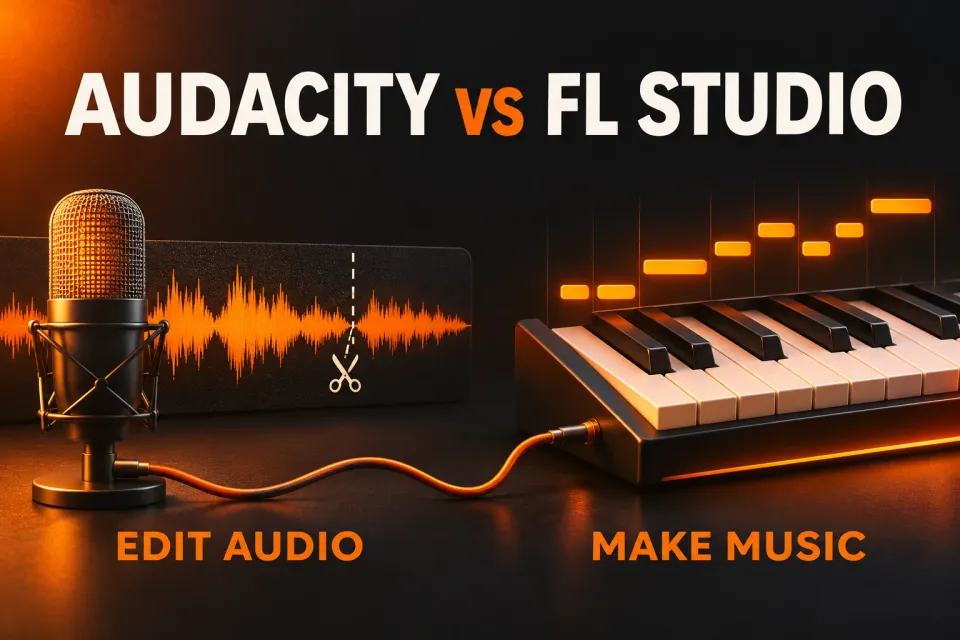
Choose FL Studio for beats, MIDI instruments, and arranging a song; choose Audacity for recording a voice, editing an interview, or cleaning up an audio file. For vocals over a beat you're producing in FL Studio, I'd use Producer Edition so the recording and music stay in the same project. Audacity is the free choice for an audio-only job, and WAV files let you move the sound between the two.
Choose by the thing you need to finish
| Your next job | My pick | Start here |
|---|---|---|
| Record and edit a voiceover or interview | Audacity | Choose your microphone in Audio setup, record, cut mistakes, then export audio. |
| Remove steady hiss from a recording | Audacity | Capture a noise-only profile before applying Noise Reduction. |
| Program drums, bass, and chords | FL Studio | Build a pattern with the Channel Rack and Piano roll, then arrange it in the Playlist. |
| Record vocals while building the backing track | FL Studio Producer Edition or higher | Record into the song project so takes stay alongside the arrangement. |
| Trim a sample for a song already open in FL Studio | Stay in FL Studio | Use its clip tools or Edison, if your edition includes it. Exporting to another app adds a handoff. |
| Arrange existing recordings without buying software | Audacity | Import the audio, edit the clips, and balance the tracks. Keep instrument composition in a DAW. |
The dividing line is what you need to keep editable. In Audacity, you're mainly working on recorded sound. FL Studio also keeps the notes that play instruments, patterns, routing, and parameter changes inside a song project. Its documented music-making workflow connects the Channel Rack, Piano roll, Playlist, and Mixer.
You can make music by arranging recorded sounds in Audacity. But if the next change is “rewrite the bass line with a different synth,” FL Studio is the more useful starting point.
For voice recording and cleanup, start with Audacity
A voiceover doesn't need a step sequencer. Audacity puts recording and waveform editing in one place, and the app is free and open source on Windows, macOS, and Linux. Optional plugins and cloud services are separate choices.
In Audacity 4, open Audio setup and select your Recording device and Playback device. Use headphones before enabling input monitoring: sending the microphone through speakers can create feedback. Audacity's microphone setup instructions show those controls and explain how to rescan a newly connected device.
Record a short passage, listen back, then record the full take. Cut unwanted sections and save the editable project before exporting a file for delivery. That order gives you a chance to catch the wrong input, room noise, or clipping before committing to a long recording.
For constant hiss or fan noise, select a noise-only stretch and open Effect > Noise removal and repair > Noise reduction. Choose Get noise profile, then select the audio you want to clean and apply the effect. The Noise Reduction manual distinguishes steady background noise from one-off sounds such as a door slam. I favor a modest reduction that preserves the voice; a metallic or watery sound means the processing is too aggressive.
FL Studio can record and edit audio too. If you're already producing the song there, switching apps just to capture a vocal creates extra work. Follow the FL Studio vocal-recording route and keep Audacity for a specific editing job you prefer doing there.
For beats and playable instruments, choose FL Studio
FL Studio lets you change the performance before it becomes a finished audio file. Draw drum steps, edit pitches and note lengths in the Piano roll, try another instrument, and arrange the patterns into sections. A bass note can stay a note until you're ready to render the song.
That's the important distinction behind plugin support. An effect processes existing audio; an instrument creates sound from a performance or note sequence. Audacity's Audacity 4 compatibility notes list Note/MIDI tracks among the unavailable features. Its audio editing and effects don't provide FL Studio's instrument-composition workflow.
My starting route for a new beat is a drum pattern in the Channel Rack, a bass or chord part in the Piano roll, and an arrangement in the Playlist. Make the musical idea work before shopping for more plugins. The first-beat walkthrough takes that route through to an export.
Audacity remains useful when the material already exists as audio: spoken takes, field recordings, a rendered loop, or a full mix. Once you export a synth performance as WAV, however, changing its original notes or preset means returning to the instrument project.
Audacity 4 changes some familiar advice
Old comparisons that describe Audacity as a fixed, dated interface miss the current workflow. Audacity 4 has dockable panels, saved Workspaces, direct clip selection, and grouped clip editing. The transition guide from Audacity 3 is useful when an older tutorial points to a tool that has moved.
It also supports realtime effect chains, which you can adjust or bypass without rewriting the recorded audio. Other effects still process a selected region. Calling the entire application “destructive editing only” obscures that choice.
There are tradeoffs. Audacity 4.0's release notes list the Mixer, Macro Manager, and scripting pipe among features still being brought forward from Audacity 3. The 4.0.2 patch fixes several crashes and project-corruption issues; it doesn't announce the return of that full feature set. If you rely on an older automation workflow, check the specific feature before moving the job to version 4.
Keep the original project files. Audacity 4 saves .aup4 projects and converts .aup3 projects without overwriting the original; its project compatibility notes confirm that it cannot save the converted project back to .aup3. This matters more for continuing a project than which interface looks simpler in a comparison image.
Check the recording edition before you pay
Audacity's core app is free. FL Studio is paid software, and Fruity Edition doesn't include audio recording. Producer Edition adds recording and Edison; Signature Bundle and All Plugins Edition add further tools. The edition restrictions also limit Fruity Edition to eight Audio Clips. That is an Audio Clip limit, not a limit of eight instruments or eight Mixer tracks.
I'd choose Producer Edition for a beginner who wants to make songs with recorded vocals. Fruity can suit an instrument-focused beatmaker, but buying it specifically to record a microphone misses the required feature. Compare the current FL Studio prices and edition choices against the work you intend to do.
The standard FL Studio Trial has no time limit and allows saving projects and exporting audio. Its key restriction is that you cannot reopen saved projects until you buy FL Studio. Plugins outside the edition you purchase can have their own trial restrictions, so check the instruments and effects used in a project before choosing the license.
For an audio job you need to reopen and revise without paying, Audacity is the straightforward choice. For deciding whether FL Studio's music-making workflow suits you, the Trial is useful. The Trial and free-version explanation covers that distinction in more detail.
Use both through WAV, keeping the original projects
You don't have to choose one program for every job. Keep the editable source project, export audio for the handoff, and import that audio into the other app. WAV carries the sound; it doesn't carry the original instrument notes, plugin settings, or editable effect chain.
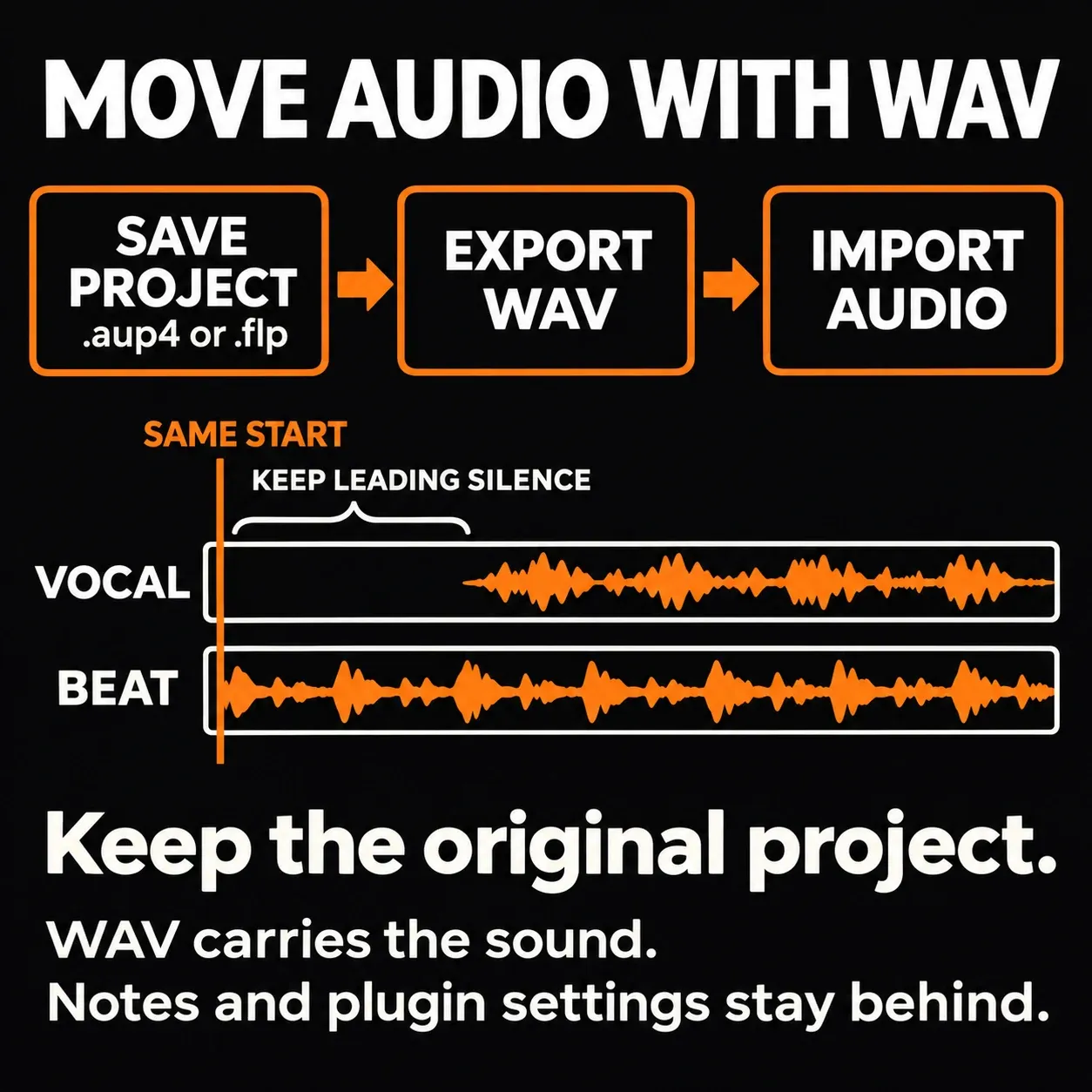
- Save the source project. Keep the .aup4 or .flp file for later changes to the edit or composition.
- Export the audio you need. In Audacity 4, use File > Export audio, choose the intended export range, then select WAV. Its export instructions distinguish the full project, selected audio, and loop region. In FL Studio, use File > Export > Wave file and choose Song or the intended selection.
- Keep a common start for separate parts. Preserve leading silence instead of trimming every file to its first sound. Use the same sample rate for the handoff, and keep a mono voice recording mono unless you need stereo processing.
- Import the WAV and check the join. Listen at the start, around an edit, and at the end. Confirm the part lands in time and a reverb tail hasn't been cut off.
For further editing, I'd choose WAV rather than an MP3 round trip. Image-Line's audio-export guidance recommends WAV for production handoffs and explains the bit-depth and tail options. If you're moving several FL Studio parts, the aligned-stem export guide covers the extra routing and range checks.
Will FL Studio sound better?
A paid application won't repair a clipped input or remove room echo just because it has a larger Mixer. For a voice recording, microphone placement, input level, the room, and processing choices affect the result. Choose FL Studio for control over a musical arrangement; choose Audacity for the audio-editing job it handles conveniently.
More processing can also mean more work for the computer. A single voice track and a song full of live instruments are different workloads, so “Audacity is lighter” doesn't tell you how the same job will perform. Don't buy FL Studio on a promise of cleaner recording or lower latency alone.
Platform support can settle the choice first. Audacity offers native Windows, macOS, and Linux builds. Image-Line's official FL Studio desktop downloads are for Windows and macOS. If native Linux support is a requirement, Audacity fits the audio-editing side; for instrument composition, consider a free DAW with the features you need.
Which should you start with?
For a podcast, voiceover, interview, or an audio file that needs cuts and cleanup, start with Audacity. For drums, bass, chords, virtual instruments, and an arrangement you want to keep changing, start with FL Studio. Add microphone recording to that music project and Producer Edition becomes my default recommendation. Keep both when each has a clear job, using WAV for the handoff and the original project for revisions.