FL Studio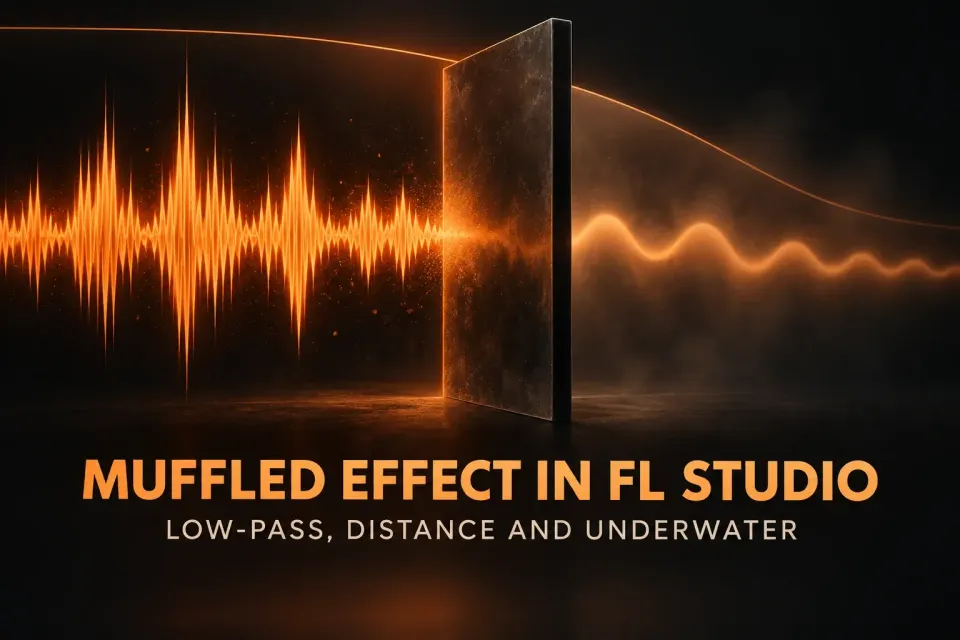
To make audio sound muffled in FL Studio, load Fruity Parametric EQ 2 on the sound’s Mixer track, switch band 7 to Low Pass and pull its cutoff down to around 500 Hz. That removes the treble and keeps the bass and low mids, which is exactly what survives behind a wall or under water. For a convincing next-room sound, add distance as well: drop the level, narrow the stereo image and send it to a short reverb.
The 500 Hz starting point comes from the recipes themselves. Across nine published recipes from six sources, the median cutoff for a muffled sound is 500 Hz, with a range of 300 Hz to 1.4 kHz (door-open variants excluded). Lower reads as a thick wall; higher reads as a thin door. If you want a thin, boxy voice instead, that is a different filter shape, covered in the telephone effect guide.
The last section handles the opposite problem: FL Studio itself suddenly sounding muffled or mono. That one usually comes from a headset mode or a forgotten setting, not from your mix.
Make a sound muffled with EQ 2
EQ 2 is the stock plugin I’d reach for first. Image-Line describes it as an advanced 7-band parametric equalizer, any of those bands can become a low-pass filter, and you can see the cutoff move on the graph. Set it up like this:
- Route the sound to its own track in the FL Studio Mixer and load Fruity Parametric EQ 2 into an empty effect slot. Audio passes through the slots in order from 1 to 10, so place the EQ after any distortion or saturation on that track.
- Turn band 7 into a low-pass filter. Left-click and drag up or down on band 7’s shape icon in the upper section of the plugin, or right-click the band 7 token and pick Low Pass from the Filter Type menu.
- Drag the band 7 token to the left, or turn its FREQ knob, until the cutoff sits near 500 Hz. The band’s gain fader goes grey, because low-pass, band-pass, high-pass and notch filters don’t use it. The cutoff frequency is the control that matters here.
- Set the slope with the dots under the band shape. The center position is 12 dB per octave; dragging down selects Steep 4 at 24 dB per octave, then steeper options.
- Play the sound against the full mix. With Band solo on shift switched on (the headphones icon in the lower controls), hold Shift and click the band 7 token. In Adaptive solo mode, a low-pass solo plays only the frequencies you are removing, so you hear at once whether the cut has eaten the words.
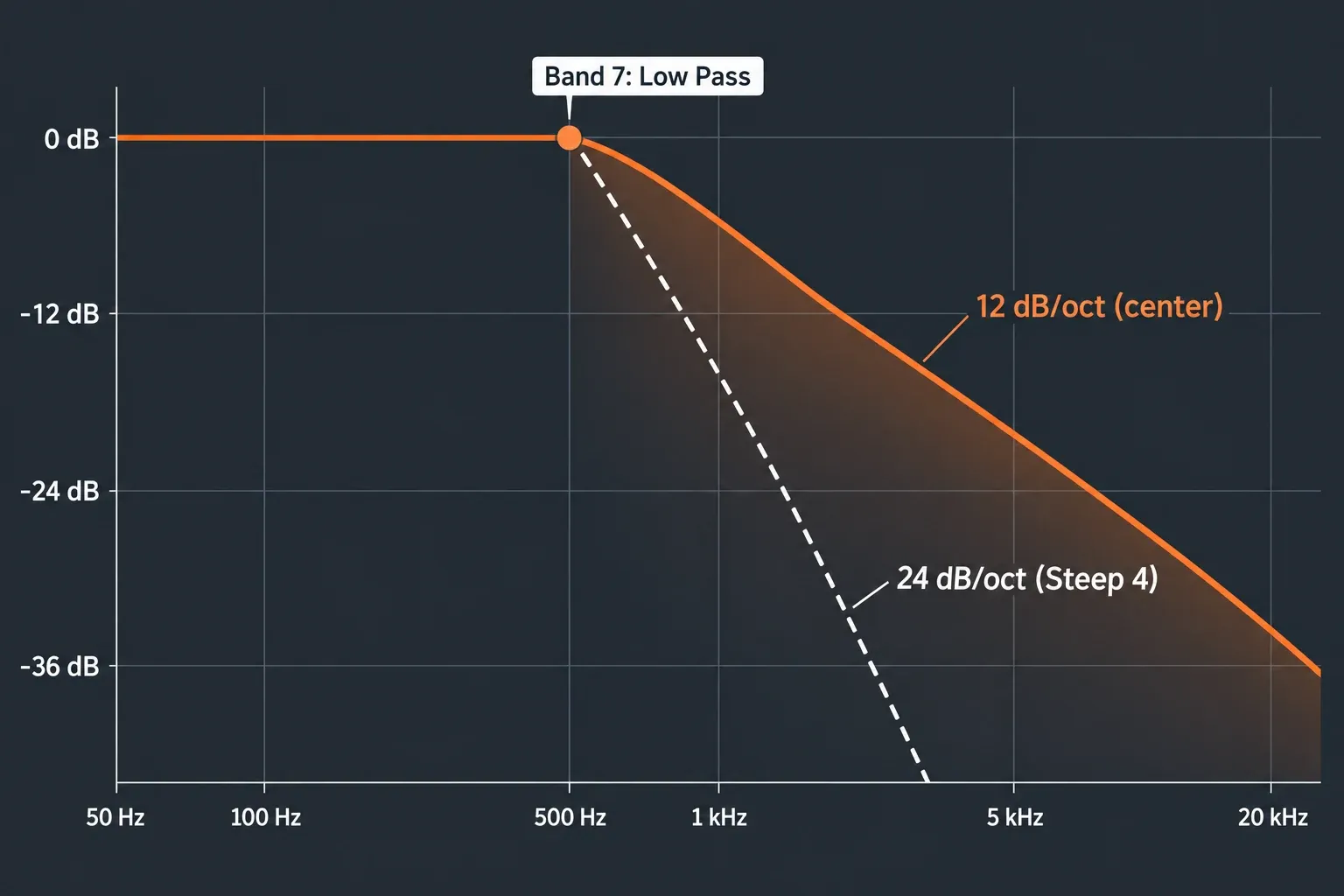
On slope, the two most detailed recipes disagree. Gazillion’s next-room recipe uses a steep 24 dB per octave low-pass around 1 kHz. Tunary’s room-isolation guide argues the opposite: a wall adds close to 6 dB more isolation for every doubling of frequency, and a steep 24 dB per octave low-pass behaves like no wall that has ever been built. For a realistic wall or closed door, my default is the gentle 12 dB center setting, because the treble should fade rather than vanish. I’d keep Steep 4 for a filtered intro, where you want the listener to hear a filter.
Both recipes agree on one point: keep the low end. A muffled sound is the bass surviving while the top disappears. Gazillion warns against high-passing it away, and that is the main difference from a telephone voice, which loses both ends. The only low cut I’d add is a roll-off below about 40 Hz so the rumble doesn’t crowd the mix.
Other stock filters work too. Fruity Filter is a variable state filter plugin, optimized for automation, so it suits a sweep you plan to draw by hand. Fruity Love Philter has its own modulators, handy for underwater movement. For one sample in a Sampler channel you can skip the Mixer: on the channel’s Envelope / Instrument tab, the Filter section uses Mod X as the cutoff, and a higher Mod X percentage means a higher cutoff. Pick a low-pass type such as Fast LP and pull Mod X down. The Sampler channel guide shows where that tab sits.
What I’d skip is the Mixer track’s built-in three-band EQ. Its bands are fixed, and band 3 is a high shelf, so pulling it down only turns the treble lower. It never gives you the falling edge of a real low-pass.
Cutoff starting points for each scene
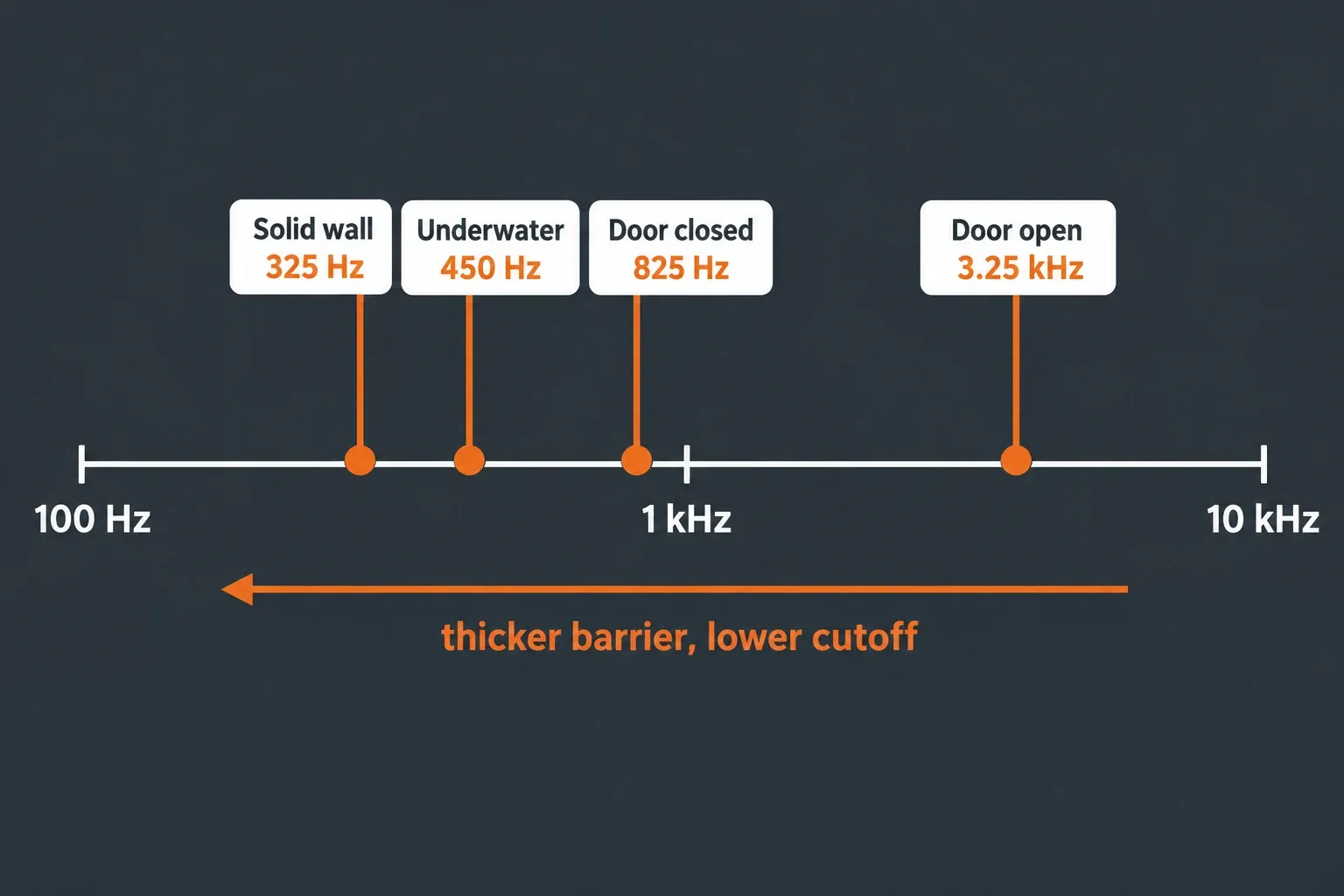
Different scenes need different cutoffs. The table pulls the cutoff values from published muffled, underwater and other-room recipes. A stated range counts as its midpoint, and each source counts once per scene. These are mixing recipes, not lab measurements of real walls, so treat them as starting points for your ears.
| Scene | Published cutoffs | Median | Sources |
|---|---|---|---|
| Solid wall, or outside a club | About 300 Hz; 250 to 400 Hz; 800 Hz | 325 Hz | 3 |
| Underwater | 300 Hz; 400 Hz; 500 Hz; 1.4 kHz | 450 Hz | 4 |
| Next room, door closed | 500 to 800 Hz; 1 kHz | 825 Hz | 2 |
| Next room, door open | 2 to 4 kHz; 3 to 4 kHz | 3.25 kHz | 2 |
The underwater row draws on Music Guy Mixing’s underwater EQ with its low-pass at 300 Hz, Gazillion’s near 400 Hz, a video-editing recipe that drops the cutoff to 500 Hz and a voice tool that uses 1.4 kHz. The wall row combines a Sound Design Stack Exchange answer of about 300 Hz, Tunary’s solid wall at 250 to 400 Hz and Gazillion’s club heard from the smoking area near 800 Hz. Gazillion goes as low as 250 Hz for a car outside.
My rule of thumb: start at 500 Hz, then move by scene. Go down toward 300 Hz for a thick wall, up to 800 Hz or 1 kHz for a closed door, and above 2 kHz once the door opens. The underwater range is the widest, so judge it by the words: if a vocal must stay understandable, stay near the top of that range. Rows with only two sources are a direction rather than a target.
Add distance so it sounds like another room
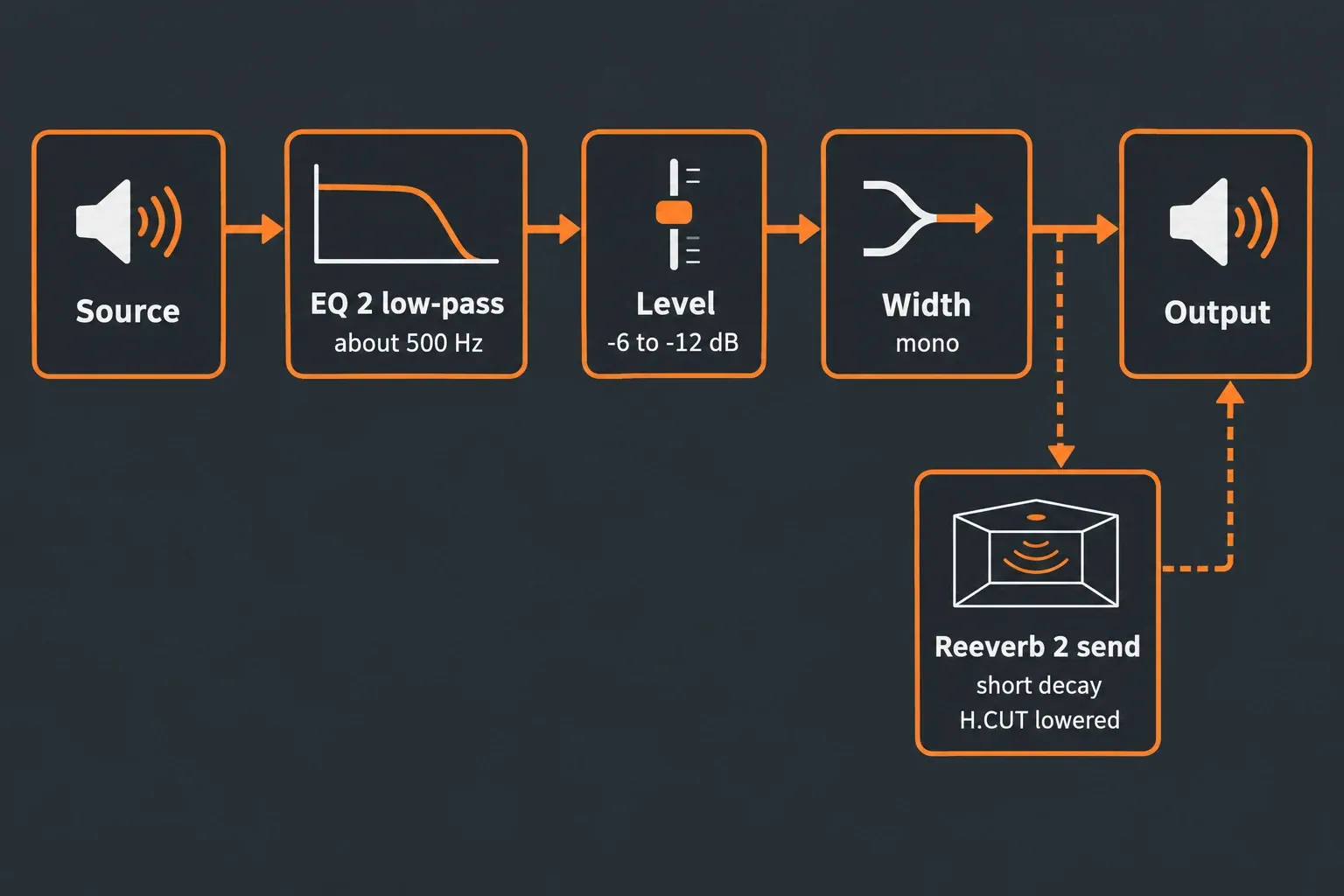
A low-pass alone sounds like a filter. To sound like another room, the part also has to be quieter, narrower and placed in a space. Add these in order and stop as soon as the scene works:
- Level. Gazillion cuts the part 6 to 12 dB so the listener is not standing next to it. Physical isolation is much bigger: Tunary lists a closed door at 25 to 30 dB down. In a song I’d stay in the 6 to 12 dB range; the bigger drop suits a background layer under dialogue in a film or game scene.
- Width. A wide stereo image reads as close. The FL Studio Mixer manual says to turn the track’s Stereo separation control fully clockwise to hear it in mono. Turn it part of the way for a narrower image; the stereo separation guide covers that knob in detail.
- Room. Put Fruity Reeverb 2 on a send track with DRY at 0% and WET at 100%, which is what Image-Line recommends for a send. Select the muffled track, then left-click the send switch on the reverb track; the send-level knob that appears sets the amount. Gazillion’s small room is a good start: 0.6 to 1.2 seconds of decay and pre-delay under 20 ms. Then pull H.CUT down. The Reeverb 2 manual says that control can make the room sound duller, and that DAMP makes the tail gradually muffled and warmer. The full routing is in the reverb and delay sends guide.
- Wall resonance. Gazillion adds a gentle boost around 100 to 200 Hz when the wall should resonate. In EQ 2 that is a small peaking boost on one of the low bands. Go easy around 300 Hz, where a sound designer on Stack Exchange warns about muddiness.
For a heavier wall, I’d try Fruity Convolver instead of an algorithmic reverb. Image-Line notes that any audio file can serve as an impulse, which opens up a trick shared on Sound Design Stack Exchange: record a heavy thud, such as a plank slammed on the floor upstairs, from the room below, and use that recording as the impulse. Another designer there uses wall knocks captured with contact mics, which gives the filtering and resonance of a wall without a reverb tail, so you can still add your own room afterwards. Load the file with the Browse impulses button in Convolver’s editor.
Make it sound underwater
Underwater needs one more ingredient: movement. Gazillion pairs a low-pass near 400 Hz with slow modulation on the cutoff, so the muffling moves. Music Guy Mixing adds a chorus with a rate around 4 Hz at a 50/50 dry/wet mix, and a voice tool’s underwater recipe uses a slow 3 Hz vibrato. The published rates sit at 3 to 4 Hz.
In FL Studio there are two clean ways to get it:
- Chorus after the filter. Load Fruity Chorus in the slot below EQ 2. Its Depth control sets how far the delay is modulated, and the LFO Freq controls set the speed. Raise the speed until the wobble is clear but still slow.
- Moving cutoff. Right-click band 7’s FREQ knob in EQ 2 and select Create automation clip. Double-click the clip in the Playlist to open its settings and switch on LFO Mode, which turns the clip into an LFO. Fruity Love Philter can do the same with its own LFO on the cutoff.
For vocals I prefer the chorus route. Moving the cutoff on a voice also moves the consonants in and out of hearing, which costs words. On pads, drums and full beats, the moving cutoff sounds more like water. One technical catch: when EQ 2 runs in HQ filter mode, fast frequency band movements may cause crackling, and its Minimum phase mod speed option smooths that out.
Muffled intro that opens at the drop
This is the version most producers are after: the beat plays muffled through the intro, then opens at the drop. Automate the cutoff, not a gain fader.
- Put EQ 2 with the band 7 low-pass on a bus that carries the parts you want filtered. The Master works, but then every vocal tag and riser gets filtered too.
- Right-click band 7’s FREQ knob and select Create automation clip. EQ 2 is an Image-Line plugin, so that menu is there. For a third-party filter plugin, Image-Line’s automation clip page recommends the Last tweaked method first and Current project as the fallback, since not all plugins support Last tweaked.
- Draw the clip so the cutoff sits around 500 Hz through the intro and rises to fully open right at the drop. Fully open means the top of the range, around 20 kHz.
- Check the end of the clip. If it finishes below fully open, the whole drop stays dull.
I’d ramp the cutoff over the last bar or two, unless the drop wants a hard switch from dull to bright. For a club scene, Gazillion uses a neat variation: when a door opens, it raises the cutoff by 2 kHz for one bar. The automation guide covers drawing and shaping clips, and the transitions guide shows how a filter rise fits with risers and impacts.
Why FL Studio itself sounds muffled
If everything sounds muffled, including songs that sounded fine yesterday, the cause is usually outside the mix. Check these in order:
- A Bluetooth headset with its microphone in use. On Bluetooth Classic headsets, Microsoft explains that the high-quality A2DP profile doesn’t allow the microphone, while the hands-free HFP profile allows the mic but plays back in mono with lower fidelity. Windows picks the profile automatically, so once an app uses the headset’s mic, playback drops to HFP. Even wideband HFP is still closer to an AM radio than to CD quality. In Options > Audio settings (F10), don’t use the headset’s mic as FL Studio’s input. On Windows, FL Studio ASIO can take its input and output from separate devices, so a laptop mic or an interface can record while the headset plays. Some LE Audio headsets keep super wideband stereo during calls on Windows 11 version 24H2 with an updated Bluetooth driver, but wired headphones avoid the question entirely.
- Stereo separation turned to mono. A track or the Master with its Stereo separation knob turned clockwise sounds narrow and boxed in. Return the knob to its middle default position, where the control does nothing, and compare.
- A filter left behind. Look for an EQ 2 low-pass or filter plugin on the Master, and for an intro automation clip that never returns to fully open. Check the Current track too: Image-Line notes that effects added to it apply to any selected track, so the sound goes dull only while certain tracks are selected.
- One dull sample. If a single Sampler channel sounds muffled, open its Envelope / Instrument tab and check Mod X. At 100% Mod X and 0% Mod Y, the channel filter is fully bypassed.
- Reverb on the Master. Image-Line advises that reverb on the Master track rarely helps and tends to muddy the sound. Move it to a send.
If the project sounds fine inside FL Studio but the rendered file sounds dull, that is a different problem, covered in why an FL Studio export sounds different. For driver and device choices, go to the audio settings guide.