FL Studio

To use Serum in FL Studio, get Serum 2 legally from Xfer Records or Splice, run the full installer with its default VST3 location, then open Options > File settings > Manage plugins and enable Verify plugins, then click Find installed plugins. Serum 2 then shows up as a generator under the Channel Rack + button. Open its editor once and log in with your Xfer account to authorize the computer; if you rent through Splice, the Splice app handles the license instead.
Two things trip FL users up after that. Old projects keep loading Serum 1, because Xfer deliberately doesn’t swap them, and some Serum 2 patches drew far more CPU than their Serum 1 versions on early builds. I’d keep both versions installed until your old songs are finished or rendered, and update Serum before blaming FL Studio for crackles. Below you’ll find the legal routes and what each costs, VST3 against AU, scanning, authorization, presets, Serum 2 FX on Mixer inserts, the published CPU numbers and fixes for the usual errors.
What Serum 2 costs and the legal ways to get it
Serum 2 is a paid synth with no free edition, so the real choice is how you pay. The Serum 2 product page lists it at $249 and offers a demo for Windows and macOS that is limited to 15 minutes. Splice’s Serum 2 rent-to-own plan starts with a 3-day free trial, then takes 25 monthly payments of $9.99, and the plan includes Serum 2 updates.
| Route | Cost | What you get | The catch |
|---|---|---|---|
| Buy from Xfer Records | $249 once | Full license with free updates, plus a Serum 1 license | Authorize each computer by logging in inside the plugin |
| Splice Rent-to-Own | $9.99 a month for 25 months after a 3-day trial | Full version with updates; yours after the last payment | Open the Splice Desktop app at least every three days until it’s paid off |
| Demo | Free | The full synth for testing | 15-minute session limit |
| You already own Serum 1 | Free upgrade | Serum 2 next to Serum 1 | Your Serum 1 serial won’t activate Serum 2; log in instead |
Xfer’s Serum 2 upgrade FAQ confirms the free upgrade for anyone who bought Serum 1 directly or from a reseller, and for Serum 1 renters on Splice. Serum 1 itself is no longer sold: Xfer’s note on buying Serum 1 says a Serum 1 license comes with Serum 2 bought directly from xferrecords.com, while Splice renters can request one after Serum 2 is paid in full. If you cancel a Splice plan, you keep access until the end of the billing cycle and can resume later.
Skip any page offering a free Serum download. Xfer’s own install note names two sources for the installer: your account page on Xfer’s site, or the Splice client if you rent. One more trap sits on the FL side. Image-Line’s trial limitations let you save projects in the FL Studio trial, but you won’t be able to reopen them until you buy FL Studio, so a Serum session made in the trial stays locked. Our guide on whether FL Studio is free explains that trial in full.
Install Serum 2: VST3 or AU?
Serum 2 needs Windows 10 or later, or macOS High Sierra on Intel and Big Sur on Apple Silicon, in a 64-bit host. Xfer builds it as VST3, AU and AAX, and there is no CLAP version. FL Studio loads VST3 on both systems and AU only on macOS, per Image-Line’s supported plugin formats. AAX is for Pro Tools, so ignore it.
- Close FL Studio.
- Download the full installer from your Xfer account page or from the Splice app.
- Run it and keep the default VST3 folder. On Windows that’s
C:\Program Files\Common Files\VST3; on a Mac it’s/Library/Audio/Plug-Ins/VST3, with the AU in/Library/Audio/Plug-Ins/Components. - Start FL Studio and run the scan in the next section.
Leave the default folder alone for a reason. Image-Line’s plugin installation guide says VST3 plugins must be installed to the exact locations it lists, otherwise they will not be found during a scan, and it warns against installing anything into FL Studio’s own Plugins\VST folder. Xfer’s older install note still suggests making a custom C:\VSTPlugins folder; that advice comes from the VST2 days of Serum 1, and Serum 2 ships no VST2 file to put there.
On a Mac, I’d pick the VST3 over the AU. The same Image-Line guide notes that AU does not support MIDI output, and Serum 2’s CLIP and ARP modules each have a MIDI Out setting. VST3 is also the only Serum 2 format FL Studio can load on Windows, so a project that moves between a PC and a Mac keeps the same plugin. For format basics, see what a VST plugin is; if FL runs natively on Apple Silicon, our Apple Silicon plugin guide covers native and Rosetta mode.
Make FL Studio find Serum 2
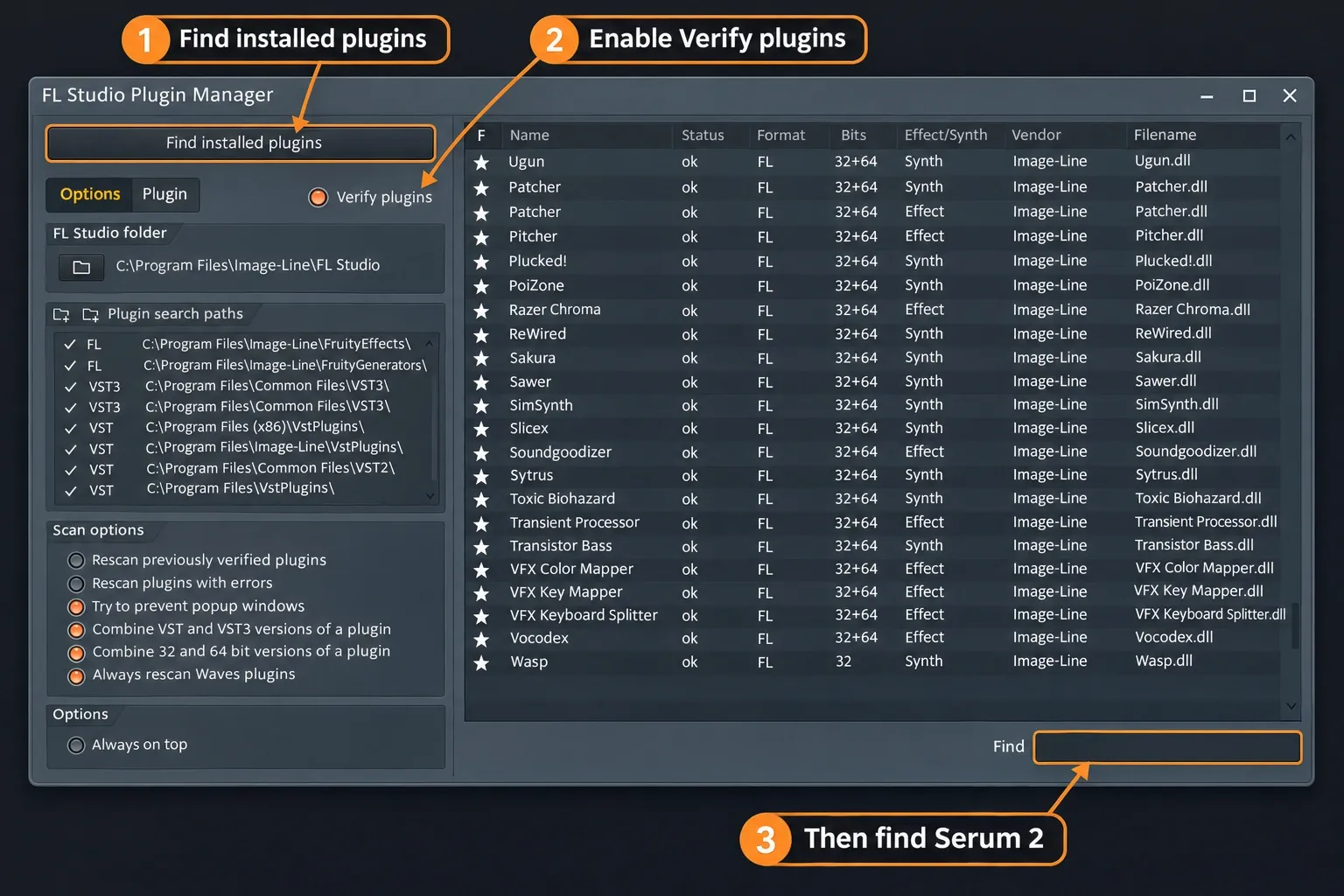
A fresh install isn’t visible until FL Studio scans for it. Open Options > File settings > Manage plugins and enable Verify plugins, then click Find installed plugins. Verify plugins sorts each plugin into Generators or Effects, which is what puts Serum 2 in the Channel Rack + button and Main menu > Add lists, and Serum 2 FX in the Mixer’s FX slot menu. After a Serum update, use Rescan previously verified plugins when you need FL Studio to verify the changed build. If you set Type manually as described below, that rescan can reset it: check and reapply the assignment afterward, then leave the rescan options off for routine scans.
To keep Serum 2 one click away, favorite it. Open the Browser > Plugin database > Generators, go to the sub-folder you want, load Serum 2 and choose Add to plugin database (flag as favorite) from the plugin wrapper menu. Our plugin database guide shows how to organize those folders, and installing plugins in FL Studio covers the scan options for every format.
If the scan lists Serum 2 with an error or an Unknown type, Image-Line’s Plugin manager error article gives the fix: in the Plugin manager’s Plugin tab, set Type (Unknown) to Synth and click Apply changes. For future routine scans, leave Rescan previously verified plugins and Rescan plugins with errors off to preserve this manual Type assignment.
For a separate Mac recovery case, the same article covers FL Studio 26.1.3 or earlier running in Silicon native mode without Rosetta. If the manual Type fix is insufficient, close FL Studio, use Applications > FL Studio > Get info > Open using Rosetta to install Rosetta if prompted, then uncheck that option to return to Silicon mode. Reopen FL Studio and rescan with Verify plugins, Rescan previously verified plugins and Rescan plugins with errors enabled, and Combine VST and VST3 versions of a plugin disabled. Check and reapply the Synth Type if this recovery scan resets it, then leave both rescan options off for routine scans. Keep Rosetta mode enabled when a plugin you need is not Silicon native.
Load Serum 2 and authorize it
Click the + button at the bottom of the Channel Rack and pick Serum 2, then open its editor. Xfer’s machine authorization page says you authenticate Serum 2 by opening the plugin’s editor in your DAW and logging in with your xferrecords.com account. A Serum 1 serial won’t activate Serum 2. You can’t authorize an unlimited number of computers, so if you run out, you manage activations from your Xfer account page or contact support.
- Offline studio computer: start Serum 2 there to get a Machine ID, choose offline authorization at xferrecords.com/my_account, download the license and give it to Serum 2 on that computer.
- “You don’t own Serum 2”: the website is usually logged in to a different account. Sign out on xferrecords.com, sign in with the account that holds the purchase, and authorize again.
- Splice rental: the plan lets you install your copy on up to 2 computers, and Serum shouldn’t ask for a product key at all. If it does, Xfer’s Splice serial article says to sign out of the Splice client and back in, then check that your payment info is up to date.
Once it plays, Serum 2 behaves like any other Channel Rack instrument: give it notes in the Piano roll and route it to a Mixer insert. Our Channel Rack guide covers routing and channel settings.
Why old projects still open Serum 1
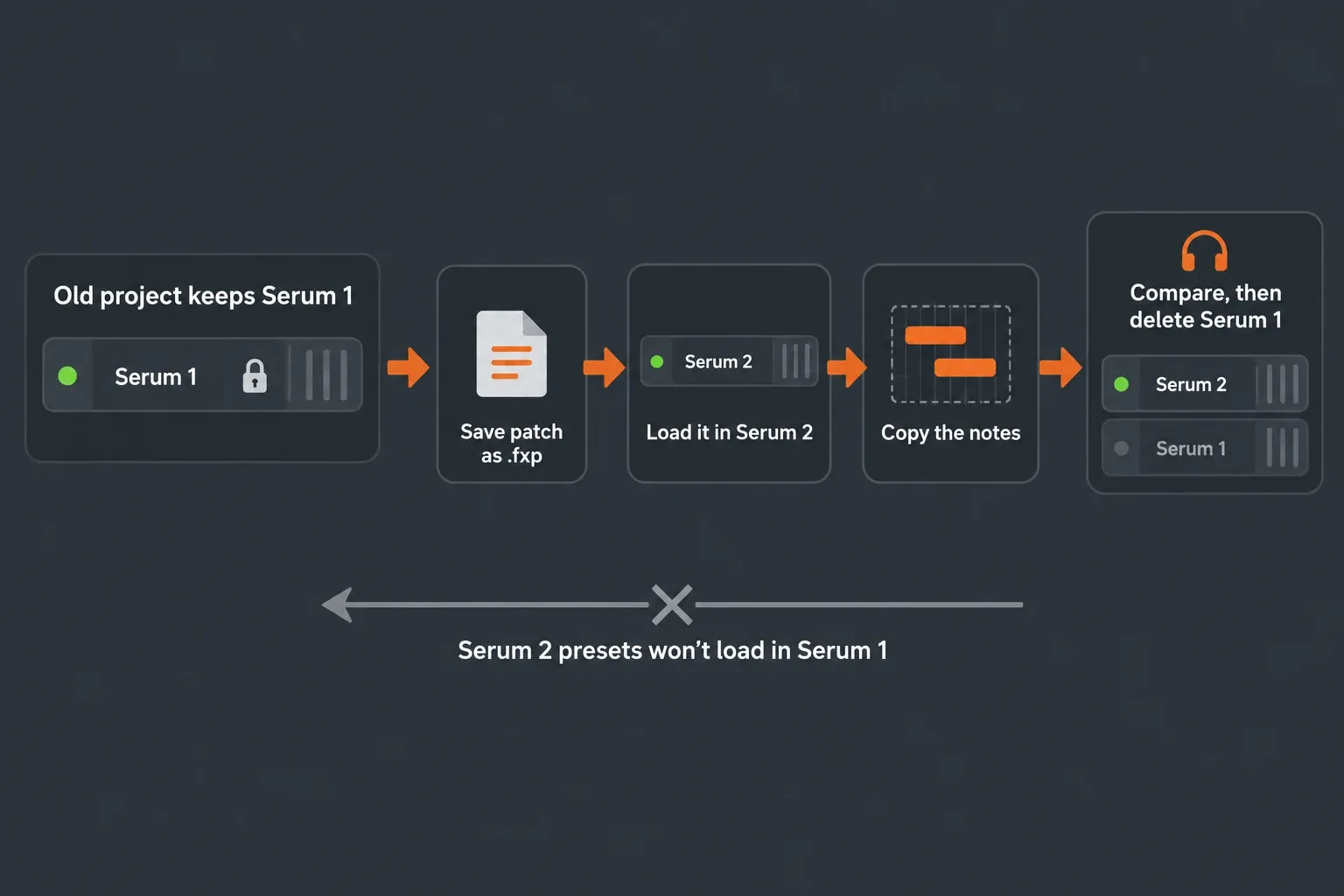
An FL project that used Serum 1 keeps loading Serum 1, and that’s by design. The upgrade FAQ says plainly that projects using Serum 1 will not automatically update to Serum 2, so you can check each part by ear before you switch it. Both versions can be installed at the same time, and Serum 1 presets are fully compatible with Serum 2; the reverse isn’t true, because Serum 2 presets cannot be loaded in Serum 1.
That gives a simple rule for collaboration. If you send a project to someone who only has Serum 1, keep the Serum 1 instance or render the part to audio. For a song still in progress, I’d move one part at a time: save the Serum 1 patch as an .fxp preset, load it in a new Serum 2 channel, copy the notes across, then compare both channels before you delete the old one. Serum 1 is discontinued, so finished songs can stay on it as long as it still opens, while anything you’ll keep working on is worth moving.
Serum 2 presets and third-party packs
Serum 2 shows your Serum 1 presets in its browser automatically and carries over the ratings you gave them. Splice’s support note on Serum 1 presets in Serum 2 also confirms that Serum 2 includes all Serum 1 wavetables and noise files, and it gives the user preset folders:
- Windows:
C:\Users\[YourUsername]\Documents\Xfer\Serum 2 Presets\Presets\User - macOS:
~/Library/Audio/Presets/Xfer Records/Serum 2 Presets/Presets/User
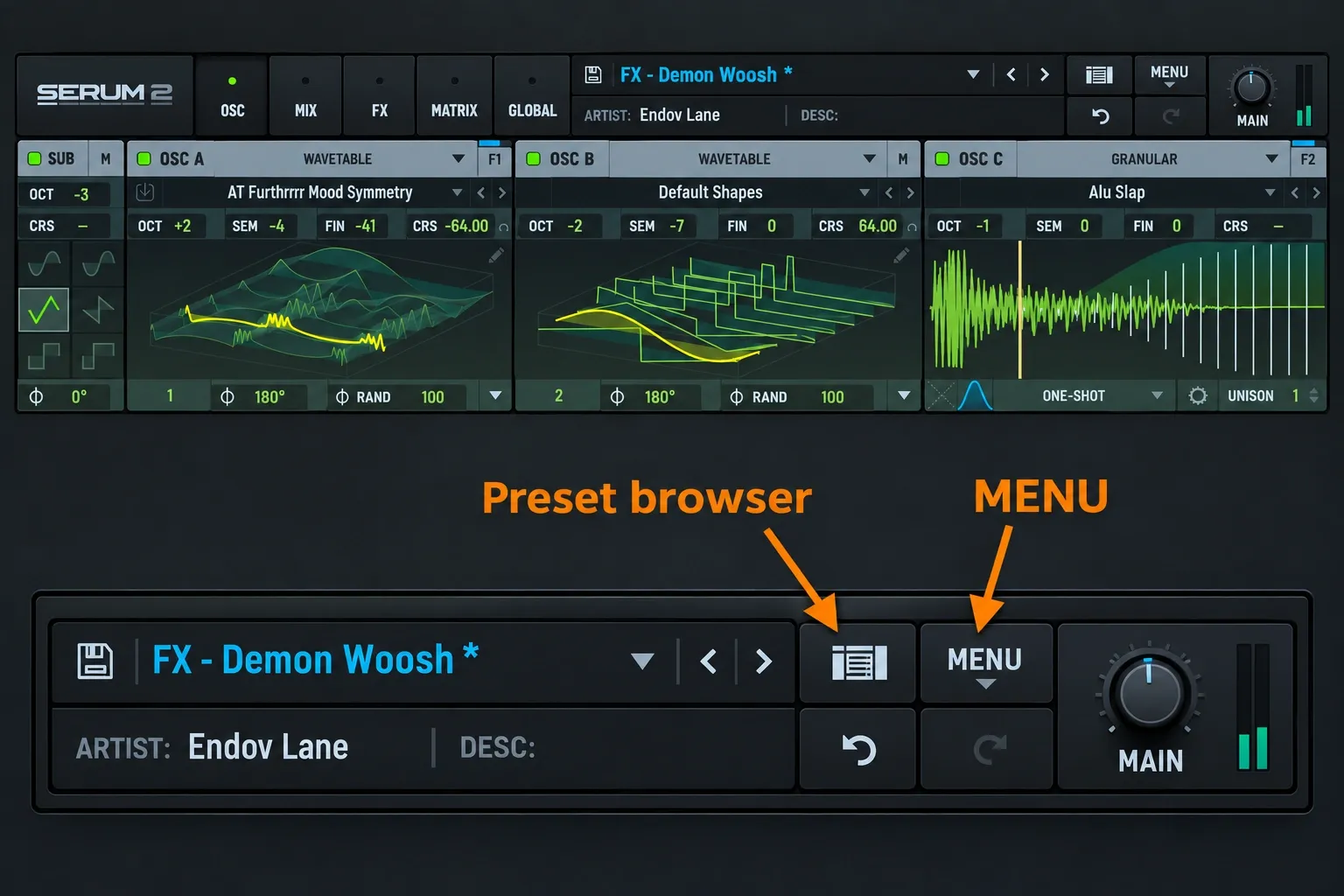
For a purchased preset pack, Xfer’s third-party preset note uses three steps: choose Menu > Show Serum Presets Folder, put the pack in its own folder inside the Presets subfolder, then choose Menu > Rescan folders on disk. If a pack still doesn’t show, Serum 2’s preset browser menu also has a rescan database command.
I’d save your own sounds through Serum’s browser rather than as FL wrapper presets, because Serum’s browser is where Serum looks for them and where you can rate and search them later. A pack folder per vendor keeps the tree readable once you own more than a couple of packs.
Use Serum 2 FX on a Mixer insert
Serum also comes as an effect plugin, so you can run audio through its effects. In FL Studio, select a Mixer insert, open an empty FX slot and choose Serum 2 FX from the effects list. Xfer’s SerumFX note calls it a bonus plugin for customers, downloaded from your account page; on Splice rent-to-own it becomes available once payments begin after the 3-day trial.
One FL-specific bug is worth knowing. The Serum 2.0.17 release notes list a fix for Serum 2 FX failing to open in FL Studio with a custom User Data Folder location, along with improved compatibility with FL Studio 25 Beta and a fix for file drag and drop from Edison. If you’ve moved FL’s user data folder and Serum 2 FX won’t open, update Serum first. Our FL Studio Mixer guide covers inserts and routing.
Automate Serum 2 macros in FL Studio
Serum 2 has eight macros, and in Serum 2 each macro can itself be a modulation destination. To automate one in FL Studio, move the macro knob in Serum’s editor, then choose Tools > Last tweaked > Create automation clip. Image-Line’s Tools menu manual describes that command as creating an automation clip linked to the last moved knob, and the same Last tweaked menu offers Link to controller for a hardware knob.
I’d automate macros, not raw parameters. A macro can drive several targets inside Serum, so one Playlist clip moves cutoff, drive and reverb mix together, and you can change what the macro does later without redrawing the clip. Our automation guide covers clip editing and curves.
CPU test results: Serum 2 against Serum 1
The CPU reports below describe different systems and builds. In KVR Audio’s Serum 2 thread, one user reported two to three times the CPU load on an AMD PC for the same preset, but equal or slightly lower load on an M1 Pro. In Xfer’s performance thread, another user reported about twice the load on a Ryzen 9 5900X in April 2025, then Serum 1-like load after 2.0.22 in August. Those observations are useful for troubleshooting, but they do not establish one CPU multiplier for Serum 2.
| Report | System and host | Serum 2 against Serum 1, same preset |
|---|---|---|
| Xfer forum, 4 Apr 2025 | Windows 10, FL Studio, Ryzen 9 5900X | About 2x |
| KVR thread, 9 May 2025 | AMD PC, host not named | 2x to 3x |
| KVR thread, 9 May 2025 | Mac M1 Pro, host not named | Same or slightly less |
| Xfer forum, 21 Aug 2025 | Same FL Studio user as the first row, Serum 2.0.22 | “Way down like in Serum 1”; no exact ratio reported |
Serum 2 came out in March 2025, so the two heavy results come from builds a few weeks old, and the FL Studio user who measured 2x in April reported Serum 1-level load after 2.0.22. Xfer’s position matches that direction: the upgrade FAQ says Serum 2 is optimized to use the same or less CPU than Serum 1 for equivalent patches, while some new features need more processing power.
The reviews agree on where that extra cost sits. MusicTech’s Serum 2 review rates it 8, lists “More CPU-hungry than ever” as a con and recommends at least 16 GB of RAM. Dubspot’s review scores it 9.2 out of 10 and says the granular and spectral oscillators are hungry in dense polyphonic patches, while the wavetable path stays efficient. Two further reports describe different presets or hosts: a Threadripper user saw the problem in Ableton with no issues on FL Studio, and a Ryzen 9 7950X3D user on 2.0.24 wrote in January 2026 that they couldn’t run two instances of Serum 2 with many presets, against about 25 instances of Serum 1.
My choice is to update Serum first and compare the exact preset in the affected project. A Serum 1-style wavetable patch avoids the additional granular and spectral layers that can increase processing, but the reports above do not guarantee equal CPU use on every system. The late complaints on 2.0.24 mean an update isn’t a cure for every machine, though. If an old project stutters after you move it to Serum 2, update Serum first, work through the steps below, and if one factory preset still chokes a fast computer, send Xfer support that preset’s name.
Cut Serum 2 CPU load in FL Studio
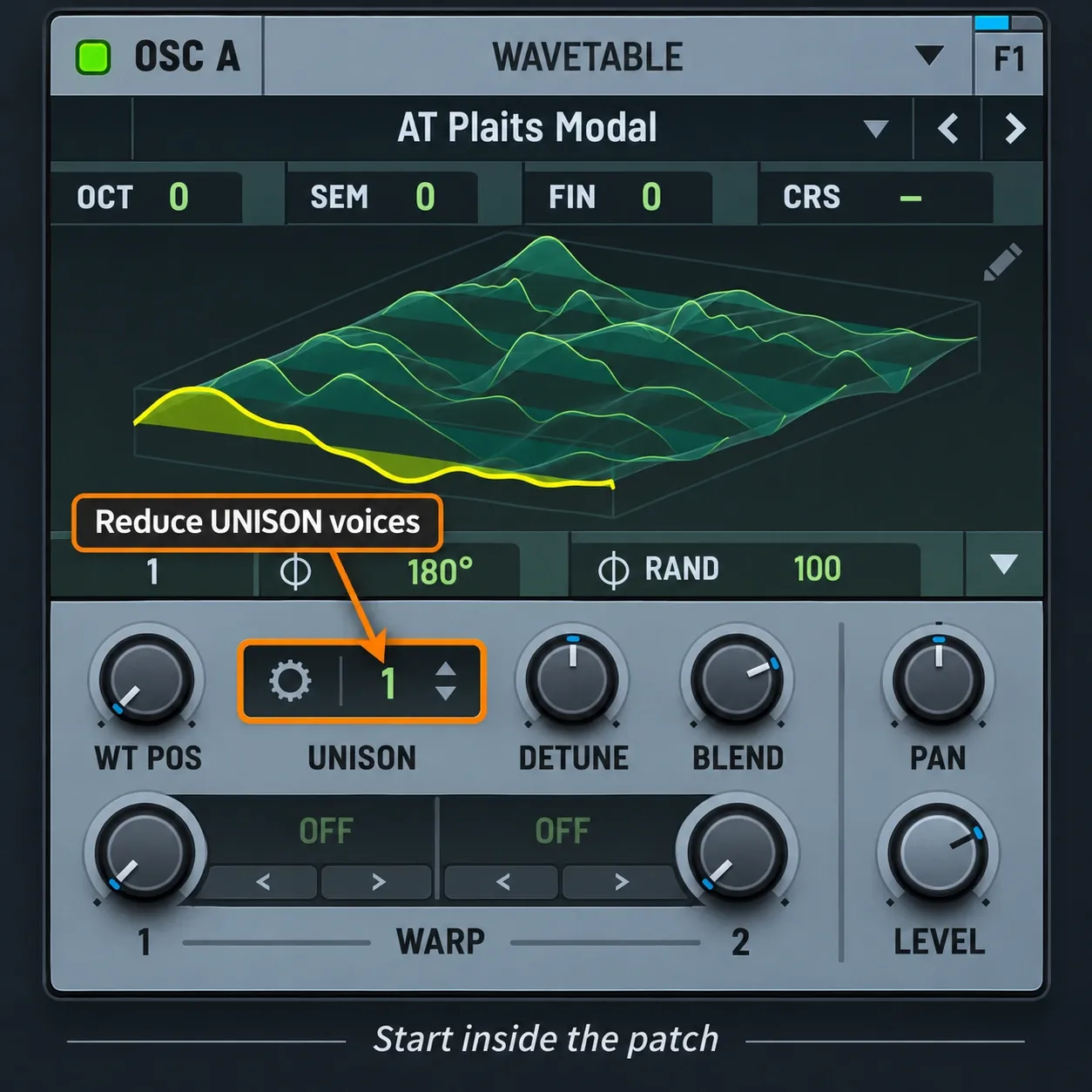
Start inside the patch, then let FL Studio help. Xfer’s CPU guidelines for Serum 2 say that more than 3 to 7 unison voices per oscillator is often unnecessary, and suggest a dedicated FX bus with a chorus effect for width instead. In the order I’d try them:
- Update Serum. On your Xfer account page, click See Available Downloads, close FL Studio and run the updater. The 2.0.17 notes alone fixed excessive CPU use when adjusting or modulating Conv Size and reduced Conv reverb spikes.
- Trim unison and move width to an FX bus. Drop oscillators that sit above 7 voices and add chorus on a bus instead.
- Turn on Smart disable. Image-Line’s CPU optimization guide says to enable Smart disable in Audio Settings, then run Tools > Macros > Switch smart disable for all plugins, so silent instruments and effects stop using CPU.
- Close plugin windows. View > Close all plugin windows (Alt/Opt+F12) stops the GUI drawing. One Xfer forum user found that minimizing Serum 2’s window, so it isn’t drawing, made it work as expected.
- Render the heaviest part. Find the worst plugin in the Plugin Performance Monitor, then use Consolidate this track from the Playlist track header’s right-click menu to turn that pattern into audio.
- Raise the buffer last. A bigger buffer gives more headroom but adds latency, so set it per task in FL Studio audio settings.
The same Image-Line guide asks for Multithreaded generator processing and Multithreaded mixer processing in Audio Settings, and Allow threaded processing in the plugin wrapper, before you judge any plugin’s load. Our high CPU guide goes through the rest of FL’s performance settings.
Fix common Serum 2 errors in FL Studio
- Serum 2 isn’t in the plugin list: check that the VST3 is in the default folder, enable Verify plugins and click Find installed plugins. Use Rescan previously verified plugins only when an already scanned build needs checking; verify and reapply any manual Synth Type afterward. Our plugin not showing guide goes through the rest.
- Serum asks for a serial: Xfer buyers log in with their account, because Serum 1 serials don’t activate Serum 2. Splice renters sign out of the Splice app and back in, and stay connected at least once every 3 days until Serum is paid off.
- The Serum 2 window is mostly black on Windows: close FL Studio and back up your Serum 2 preset folder before changing its location. In the Serum 2 black-window thread, steve_xfer suggests moving
Serum 2 Presetsout of Documents so the next run asks for its new location. Point that chooser to the actual moved folder. If no chooser appears, nick_xfer’s follow-up says to quit the DAW and reset%APPDATA%\Xfer\Serum 2\Serum2Prefs.json; back up that one file before removing it. On the next load Serum 2 first checksDocuments\Xfer\Serum 2 Presetsand asks for a location only if it does not exist there. This is the Windows recovery described in those replies; keep the preset content rather than deleting the whole Xfer folder. - A “skins folder missing” message: if you know where the existing presets folder is, point the chooser to it first. Xfer’s older generic skins-folder article gives
Documents\Xferas its Windows default and then recommends the full installer. That older path is not a Serum 2-specific skins-directory instruction. Use the full installer for your Serum version if the resources are missing; the preset locations above distinguish Serum 2 on Windows and macOS. - Upside-down window in FL Studio 2025: the mirrored Serum 2.0.23 release notes list a fix for an upside-down GUI in FL Studio 2025’s Detached mode on Intel macOS 14 and earlier, so update Serum.
- Crackles or a frozen meter: work through the CPU steps above before reinstalling anything.
Serum 2 or Vital first?
If you’re still deciding whether to pay, the free option is close enough to learn on. MusicTech’s Serum 2 vs Vital comparison calls Serum 2 the overall winner, with sound that is noticeably crisper, and puts Vital Pro at $80. I’d learn wavetable basics in free Vital with our Vital in FL Studio guide, try the Serum 2 demo in 15-minute sessions, and pay when you hit something only Serum 2 does: the granular and spectral oscillators, the CLIP sequencer or a preset pack you need. FL’s own synths go further than many people expect too; 3xOsc and the Sytrus Reese bass walkthrough are good places to start.
Quick answers
Is Serum free for FL Studio?
No. Serum 2 costs $249 from Xfer Records or $9.99 a month for 25 months on Splice, and the demo stops after 15 minutes per session. It’s a free upgrade if you already own Serum 1.
Where does Serum 2 appear in FL Studio after installing?
After a scan with Find installed plugins and Verify plugins, Serum 2 is in the Generators list, so it shows under the Channel Rack + button and Main menu > Add. Serum 2 FX appears in the Mixer’s FX slot menu.
Should I use the VST3 or AU version in FL Studio?
Use VST3. It’s the only Serum 2 format FL Studio loads on Windows, and on a Mac the AU can’t send MIDI out of Serum’s CLIP and ARP modules.
Why does my old FL project still use Serum 1?
Xfer doesn’t upgrade projects automatically. Keep Serum 1 installed for those songs, or move each part to Serum 2 by hand and compare.
Does Serum 2 support CLAP?
No. Xfer lists VST3, AU and AAX only, so in FL Studio you’ll load the VST3, or the AU on a Mac.
Why is Serum 2 using so much CPU in FL Studio?
Early builds drew up to two or three times Serum 1’s load on some PCs. Update Serum, keep unison to 3 to 7 voices, enable Smart disable and render the heaviest part to audio.
Where are Serum 2 user presets saved?
On Windows in Documents\Xfer\Serum 2 Presets\Presets\User; on macOS in ~/Library/Audio/Presets/Xfer Records/Serum 2 Presets/Presets/User.
My verdict
Serum 2 in FL Studio comes down to three habits: install the VST3 to its default folder, scan with Verify plugins, and authorize it by logging in inside the plugin. Everything else is maintenance. I’d keep Serum 1 installed until your old projects are done, update Serum whenever Xfer posts a build, and treat heavy unison and granular or spectral layers as the first place to look when the CPU meter climbs. If you’re paying for it yourself, I’d use the demo and free Vital until a specific Serum 2 feature is the thing holding you back; at that point the $249 or the Splice plan is easy to justify.