FL Studio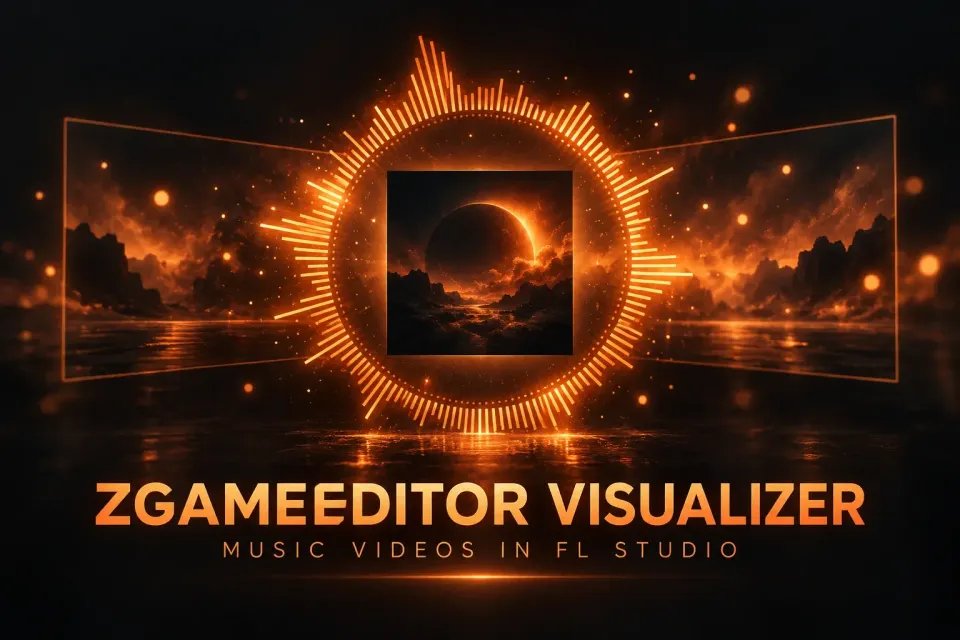
ZGameEditor Visualizer is the plugin FL Studio uses to turn a song into a music video. Image-Line’s manual describes it as a visualization effect plugin with movie render capability, and it ships in every edition on Windows and macOS. The short route: load it in the last effect slot of the Master track, pick a template with the Wizard, drop in your cover art, then go to the Main tab, click Export to Video, choose the YouTube HD preset, click OK and press START.
Building the scene is the quick part. The export is where people lose an afternoon: oversized bitrates, 4K renders that freeze, and projects that preview in real time but take hours to write to disk. The presets already follow platform guidance, and the slow renders in the reports below have a common cause that is easy to test for.
This guide covers setup, layers, audio-reactive control, the export settings worth changing, file-size math, a render-time composite from five reports and a fix list. The last sections separate ZGameEditor from Wave Candy, Spectroman and Fruity Video Player, which people often mix up.
Where to load ZGameEditor Visualizer
My default is the last effect slot on the Master. One ZGameEditor walkthrough gives the reason plainly: load it as the last plugin on the MASTER so the audio you’re hearing gets rendered into the video as is. Master fades, the limiter and any final EQ all land in the video’s soundtrack.
The alternative is an insert track. Each layer has an Audio Source menu, and the manual says it can select any Mixer track that is sent to or sidechained to the Mixer Track hosting ZGameEditor. That is useful when you want the visuals to follow one stem, but it means planning the routing in the FL Studio Mixer first. Skip it for a first video.
Two practical notes. The plugin is free in the sense that matters: the edition comparison lists Video Visualizer (ZGameEditor) as included in all editions, so Fruity Edition users get it too. It also runs on a Mac; the manual lists every keyboard shortcut in Windows and macOS columns, and the plugin itself is based on the free open source ZGameEditor engine. If you are on Apple hardware, the FL Studio on Mac guide covers the rest of the platform differences.
Make your first video from a template
The Main tab lists its controls in the order you need them. I’d start with the Wizard even if you plan to design your own scene, because it produces a finished, exportable video that you can then pull apart layer by layer.
- Click Wizard. It opens a video ‘Template Wizard’ that allows you to set a Song Title, Author and applies it to a pre-made visualization, ready for export to video.
- Or choose a template yourself in the Presets panel: click one of the images, or use the drop-down menu top left to step through presets. Save preset stores your edited version under a new name.
- Pick the Background. Find media online lets you browse copyright free, high quality images and videos from Pexels.com, and Browse... loads your own artwork. The dice icon in the top-right corner randomly chooses values, which is a decent way to find a starting point before you tweak.
- Set the Foreground overlay. The brush icon changes its color and hue; the X/Y pad moves it around the frame.
- Open Identification, the text overlay section, and choose a text preset. Turn on Editor and click the blue gear icons to change the text objects: move, rotate, font size and justification.
- Set Audio source to the Mixer track that should drive the animation, then press Play/Stop to preview your changes.
- Click Continue to render and save video. That opens the export settings covered further down.
Two shortcuts save clicks here. You can drag, from any operating system browser, and drop images or video on the plugin to automatically create a Layer. And Save still image saves a png format image of the selected content, using the current preview location if a video is playing, which is the quickest way to get a thumbnail that matches the video.
How layers stack
Every template is a row of layers. You can add up to 100 layers, and the order works like a painter’s canvas: the left-most layer will be the lowest layer in the stack and the right-most the top. Image-Line’s advice is to build your effect from the background to the foreground, and that is the order I’d follow: background canvas first, then images, then the audio-reactive effect, then text last so nothing covers it.
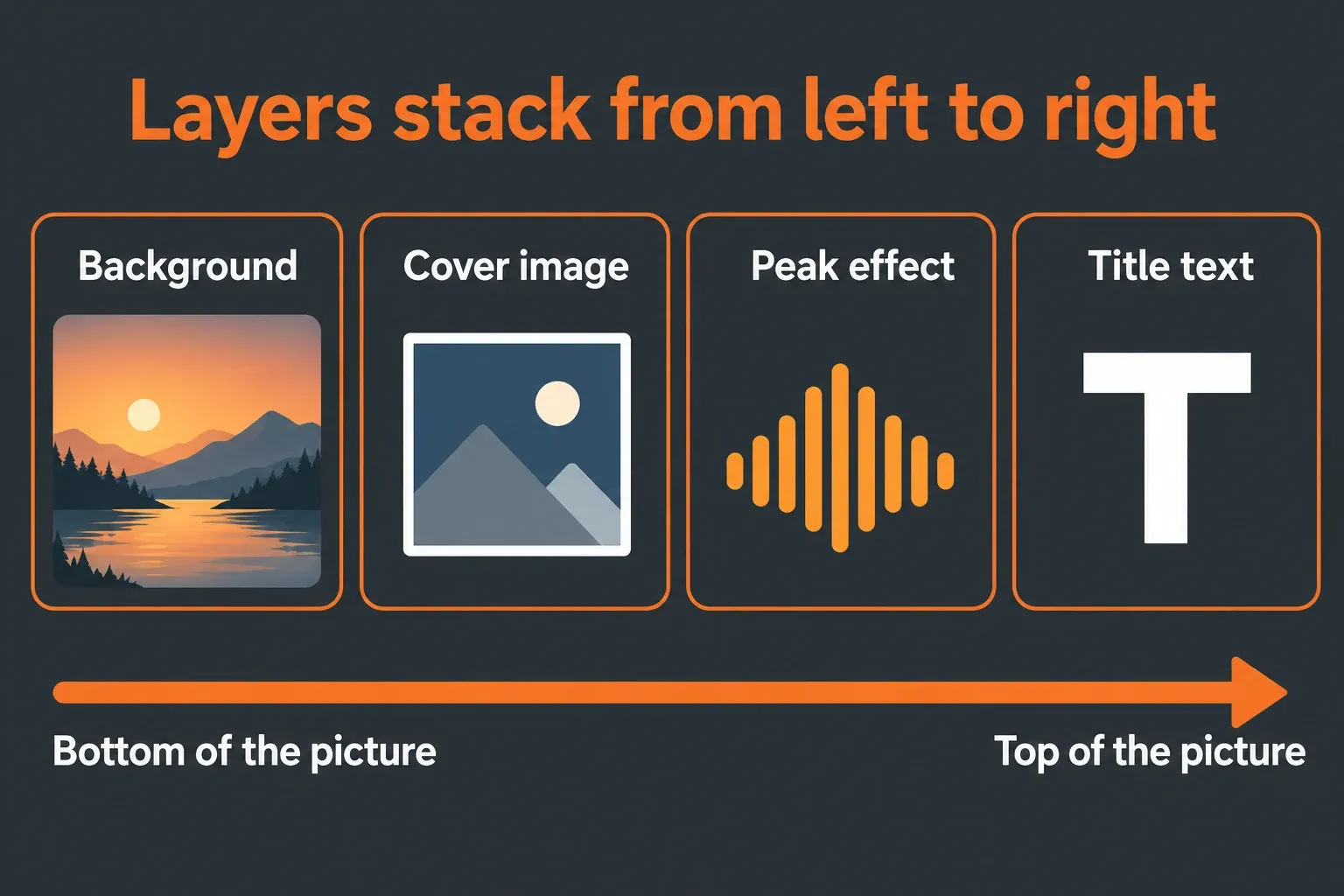
The A, B, C... letters are layer switches that disable and enable layers, which is also your main diagnostic tool when a render misbehaves. Postprocess effects work on the layers to their left, and the To buffer option sends a layer’s output into a buffer. That buffer can then be used as input to another layer using the Image source drop down, and the layer following a ‘To buffer’ layer starts from a clean slate.
The keyboard shortcuts are the same letter on both platforms for the common actions:
| Action | Windows | macOS |
|---|---|---|
| Solo layer | S | S |
| Delete layer | Del | D |
| Insert layer | Ins | I |
| Collapse or expand layer | C | C |
| Copy layer | Ctrl+C | Command+C |
| Export video | X | X |
Make it react to the music
A visualizer only earns the name when it moves with the track. ZGameEditor gives you four ways to drive it, from automatic to fully manual.
Audio Source per layer. Audio control objects generally have their parameters linked to respond to audio input from the layer’s source, and the manual notes that the audio is often analyzed in terms of frequency, so low, mid and high frequencies cause different visual effects. With the plugin on the Master, any insert track that feeds the Master can be chosen. Pointing one layer at the kick track is a simple way to get a pulse that follows the beat rather than the whole mix. If you route stems in unusual ways, the sidechain guide explains sends and sidechain links.
Peak effects. The effect list has a category for this: Peak effects are effects designed to respond to audio peak input. My default for a beat video is one Peak effect driven by the kick and everything else left calm. When every layer pulses, nothing reads as rhythm.
Controllers and automation. For tighter control, the manual suggests you link a Fruity Peak Controller from key Mixer tracks and/or Fruity Envelope Controller from Piano roll/Pattern Clips. Fruity Peak Controller automates targets in response to the volume envelope of an input sound. Most sliders and knobs on the effects can be right-clicked to create automation clips, so a camera move or color change can follow the arrangement exactly. The automation clip guide covers drawing those curves.
MIDI cue points. For video clips, set up to 70 cue points as a list of time offsets in seconds. Then load MIDI Out, match the PORT number on MIDI Out to the MIDI input port on ZGameEditor Visualizer (set on its Settings tab), and play notes. Cue-points start from note C5, so C5 jumps to the first cue, the next note to the second, and so on.
Add cover art, video clips and lyrics
Everything you bring in goes through Add Content. Its Images tab takes pictures in popular formats (.bmp, .gif, .jpg, .png etc), video in any format your computer supports, and webcams. Add Window can even use FL Studio windows such as the Playlist or Mixer as source video, handy for a screen-capture style beat video.
For a clip, the simplest way to add a video is by selecting Image Effects > Image from the list and choosing the video from the Img Src menu. Two options decide how it plays:
- Sync video with song position starts the clip with the start of the project. When this is disabled, the video will play continuously as a loop.
- Enable video preloading preloads the video to RAM. That costs memory fast: in one forum report on RAM use, a 4 minutes mp4 video of about 50MB takes up 6GB of RAM.
I’d keep imported clips short and use as few of them as the idea allows. As the render reports below show, video layers are the most common reason a render crawls.
Lyrics and titles go in Add Content > Text, one lyric per line. Text effects such as TextTrueType use the Text Line control to step through the lines entered on the Text tab. For timed lyrics, the manual’s recipe is to enter [textline] on the HTML tab, select the Text > TextTrueType effect, switch on SingleLineMode and automate the line shown with the Text Line control. The HTML tab also takes bold, italics and text-size formatting.
Export settings that matter
From the Main Tab click Export to Video, or press X. Pick a preset, adjust the advanced settings only if you need to, then click OK and then START on the FL Studio Export dialog pop-up. The options:
| Setting | What it does | My setting |
|---|---|---|
| Preset | YouTube HD (1920x1080) or the YouTube 4K (3840x2160); Instagram (1080x1920) or TikTok (1080x1920) for vertical video | YouTube HD; a vertical preset for Shorts and TikTok |
| Bit rate | Data per second of video: higher means better quality and larger files | Leave the preset value |
| Frames per second | 60 helps detailed or fast motion; 60 fps video files are approximately 2X the size of 30 fps video files | 30 unless the scene moves fast |
| 2x supersample | The video is generated at twice the final resolution and then down sampled to the chosen resolution | Off for test renders, on for the final if time allows |
| Uncompressed video | Raw video will have no compression artifacts but will be 100’s GB in size | Never |
| Audio codec | Compressed by default; FLAC is lossless | Default for uploads; FLAC if the video goes into another video editor |
| Use final (post master) audio | Exports the post FX Master Mixer Track with the video | On |
Image-Line says that with one of the branded presets you can be assured your video will be rendered to the suggested settings for that platform. The manual’s own tip is to use the presets as a guide to bit-rates recommended by YouTube and other platforms, and it adds that there is usually little quality to be gained by exceeding default bit rates. Platforms re-encode whatever you upload, so going above their quality will not, likely, result in better quality videos.
That is why I wouldn’t copy the big numbers from tutorials. One YouTube music video walkthrough sets 60 Mbps video and 320 kbps audio. YouTube’s recommended upload settings ask for 8 Mbps at 1080p and standard frame rates, 12 Mbps at 1080p and 48 to 60 fps. At 60 Mbps you upload about seven and a half times the data for a picture YouTube will compress anyway. YouTube also asks you to upload at the frame rate the content was made at, so pick 30 or 60 in the export and keep it.
File size and render time: what the numbers say
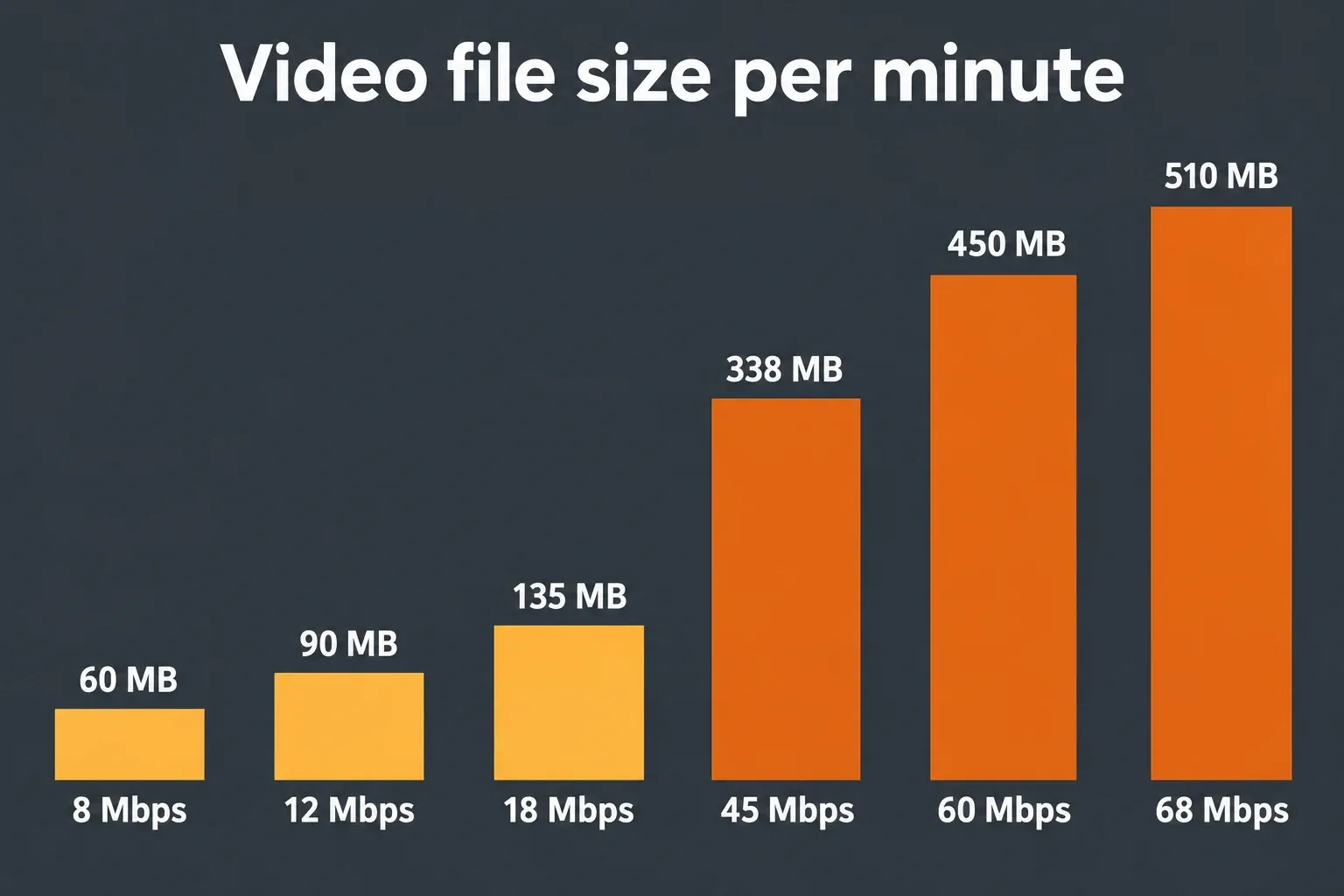
File size is plain arithmetic: one megabit per second is 7.5 megabytes per minute of video. Audio adds little next to that; 320 kbps is 2.4 MB per minute.
| Video bit rate | Size per minute | 3-minute song | Where the number comes from |
|---|---|---|---|
| 8 Mbps | 60 MB | 180 MB | YouTube, 1080p at 24 to 30 fps |
| 12 Mbps | 90 MB | 270 MB | YouTube, 1080p at 48 to 60 fps |
| 18 Mbps | 135 MB | 405 MB | ZGameEditor’s 1080p setting in a 2019 report |
| 45 Mbps | 338 MB | about 1 GB | YouTube, 4K at standard frame rates (top of 35 to 45) |
| 60 Mbps | 450 MB | 1.35 GB | A tutorial’s 1080p setting |
| 68 Mbps | 510 MB | about 1.5 GB | YouTube, 4K at high frame rates (top of 53 to 68) |
The math matches what users see. The 2019 thread on hours-long renders used the initial settings (1920x1080, 18 Mbps, no supersampling) and complained that >400MB files are not really compact for a few minutes. The manual’s ratios scale the same way: 4K files come out approximately 4X the size of 1080p video files, and 60 fps doubles the size again.
Render time is harder to predict, so I collected five published reports from Image-Line’s forum and a producer’s blog. None is a lab test; each is one project on one machine.
| Report | Setup | Render result |
|---|---|---|
| Slow export thread, 2021 | Complex scene; the debug log shows a video loading (Loading video: Particles.mp4 from the plugin’s own Content folder) | About 5 minutes for a 1 minute export at the lowest resolution; audio alone exports in about 1 second |
| Hours-long render thread, 2019 | 1920x1080, 18 Mbps, no supersampling | At least 6 hours; staff asked about imported videos, and after the follow-up the render finished |
| Stuck render thread, 2019 | Not stated | Never higher than bar 21 after over an hour; audio-only export in less than 2 minutes |
| 4K freeze thread, 2021 | 1080p versus 4K and other presets | 1080p renders fine; other presets and resolutions freeze the system |
| Lars Lentz on jerky renders, 2021 | 2x supersample on | It will take twice as long to render the video |
Across the five reports, the measurable results run from about five times the song’s length at the lowest resolution to more than six hours at 1080p, and two more stalled or froze outright. Where the setup is known, a video layer, a 4K setting or supersampling was in play, and in the hours-long thread the first question from Image-Line staff was about imported videos. A real-time preview says nothing about render time; both the 2019 and 2021 threads say the preview works just fine in real time.
My planning rule: treat roughly five times the song length as the floor for a complex 1080p scene, not the ceiling, and run a 20-second test at the lowest resolution before committing to the full render.
Fix a render that fails, stalls or looks wrong
Most failures fall into a short list. Start with the symptom you see:
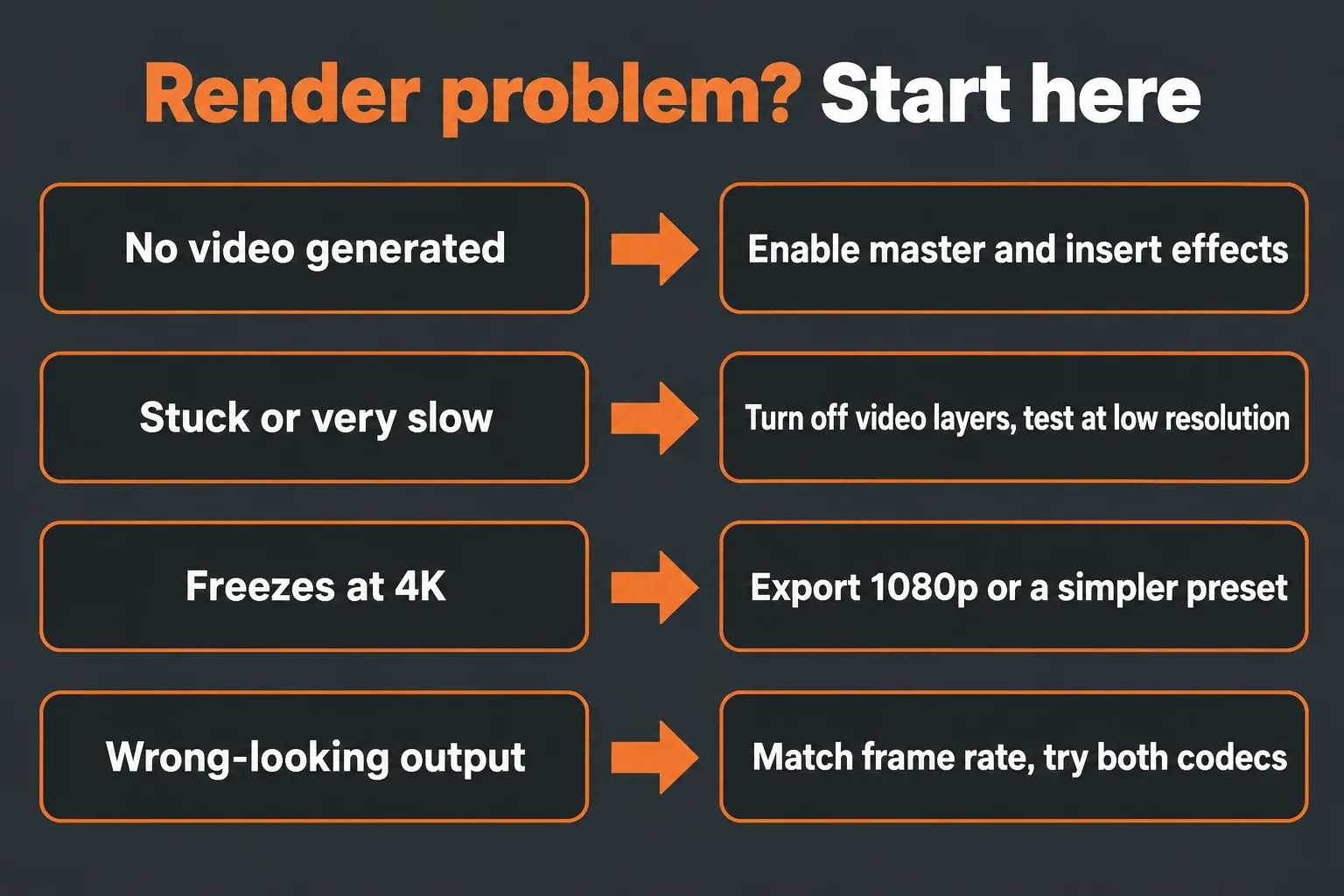
| Symptom | First fix |
|---|---|
| “Sorry, no video ZGameEditor Visualizer was generated. Check its mixer slot and the render settings” | Make sure the plugin’s mixer slot is on, then tick Enable master effects and Enable insert effects in the export dialog. In the no-video thread the cause was that the effects are turned off for master. The export settings guide shows where those boxes are. |
| Stuck on one bar, or hours for a short song | Use the layer switch to turn off any video layer and render a short test at the lowest resolution. If it now finishes, the clip is the problem: shorten it or drop it. |
| Freezes at 4K but works at 1080p | Export 1080p. Image-Line support also suggests it could help to use a simpler preset. |
| Rendered video plays jerkily | Match the Max frame rate in the plugin settings to the export frame rate, raise the bit rate (Lars Lentz went to 18 Mbps instead of 13), and get out of FL Studio completely before trying to watch a rendered video. |
| 60 fps looks more pixelated than 30 fps | The same bit rate is spread over twice the frames. A 2016 thread saw the 60 fps variant being significantly more pixelated even at the 65 Mbps maximum of the time. Stay at 30 fps or raise the bit rate for 60. |
| Washed-out colors on an imported image | In the washed-out colors thread, the colors are preserved if the video is rendered uncompressed, but that file is enormous. Support’s first request: try both codec options. |
| Master fade-out missing from the video | A 2020 thread lost exactly this, the master volume automation used to fade out the song. Turn on Use final (post master) audio and keep the plugin on the Master. |
| Distorted picture, sound fine | A late-2021 export bug produced a really distorted video; support reported in February 2022 that it had been fixed in an FL Studio update. Update before anything else; the install guide covers it. |
| Preview crawls on a laptop | On Windows laptops with two GPUs, search for Graphic Settings after pressing the Windows key, select FL Studio and choose High Performance. Lowering the preview resolution also helps: in the 2020 thread, a 50% preview resolution made playback better, at the cost of a blurred preview. The high CPU guide covers the audio side. |
If the audio export itself is the problem, with or without the visualizer, the slow or stuck export guide and the export with no sound guide handle those cases.
ZGameEditor vs Wave Candy, Spectroman and Fruity Video Player
Three other stock plugins often get mixed up with ZGameEditor. They do different jobs:
| Plugin | What it is for | Exports video | Editions |
|---|---|---|---|
| ZGameEditor Visualizer | Audio-reactive scenes rendered to a video file | Yes | All editions |
| Wave Candy | Oscilloscope, Spectrum Analyzer, Vectorscope and Peak Meter for mixing | No | All editions |
| Fruity Spectroman | Spectrum analyser that shows frequency content in real time | No | All editions |
| Fruity Video Player | Plays and syncs a video file in the project timeline | No | Signature Bundle and up |
If you want to see a mix rather than publish it, open Wave Candy. A good place to load Wave Candy is on the special Current (C) Mixer track, which receives audio from any selected track. Spectroman is lighter: to read a frequency, hover the mouse over that part of the display and read the value from the hint bar. For level and loudness targets, the LUFS guide covers the meters that matter.
Fruity Video Player confuses people because it shows video inside FL Studio. Its manual is blunt: it can’t export the video footage, it can only be used to view videos and to stream audio from videos into FL Studio, and ZGameEditor Visualizer can export video. Without a purchase, the trial will work with clips up to 35 seconds. If you only need a clip on screen in the final video, put it on a ZGameEditor image layer instead.
Wallpaper mode, live output and custom effects
The plugin’s Window mode has three settings: Attached, Detached (a free-floating window) and Wallpaper, where the video window is applied to the FL Studio background wallpaper. That gives you a moving workspace backdrop that reacts to the song. For a still image behind the workspace, the background guide is the simpler route. For live shows, Enable NDI output sends broadcast quality video to NDI connected devices.
When the stock effects run out, you can write your own. Custom effects are *.zgeproj files placed in the plugin’s Effects folder; the manual gives the Windows path under Plugins\Fruity\Effects\ZGameEditor Visualizer. To make them, you will need to download and install the ZGameEditor, and the ZGameEditor download page notes that its complete source code is available under the MIT License. And if an experiment goes wrong, the Settings section has a button for exactly that moment: Reset defaults, to press when you have created a complete mess of the settings and want your sanity back.
For a first upload, my recommendation is short: Wizard, one Peak effect on the kick, YouTube HD at 30 fps with the preset bit rate, a 20-second low-resolution test, then the full render. Add 4K, supersampling and video clips only once that version renders cleanly.