FL Studio
An FL Studio mixer preset is a saved Mixer track state: one .fst file that holds the track’s settings and every effect in its slots. To save one, right-click the track’s name and choose File > Save mixer track state as. To load one, drag it from the Browser’s Mixer presets folder onto a track or use File > Open mixer track state. The catch: every effect in the chain must be installed and included in your edition, or it opens in Trial mode.
I’d save your own chains before downloading anyone else’s. A preset built on your voice or your drums starts closer to finished than one built on a stranger’s recording, and you already own every plugin in it. Packs are still worth a look for how someone else sets up a chain, as long as you check what’s inside before you mix with it.
What a mixer preset saves
The Mixer menu reference says Save mixer track state stores “the Track settings and plugin filters” of the selected track. In plain terms: the effect chain in slot order, each plugin with its settings, plus the track’s own controls. Each Mixer track has 10 effect slots, so one preset holds up to ten effects unless one of them is Patcher, as the Mixer manual points out.
The naming trips people up because FL Studio uses the same extension for several kinds of preset. The .fst format page says state files “are used to save generator and effects presets.” When a user asked in an Image-Line forum thread on track states and mixer presets whether the two were different, the site admin answered: “They’re the same.” What tells the files apart is the folder they sit in and what you drop them on:
- Mixer preset (Mixer track state): a whole track with its chain. Lives in Mixer presets and goes onto a Mixer track.
- Plugin preset: the settings of one effect or instrument, saved from that plugin’s menu with Save preset as. Lives in Plugin presets and loads into the same plugin.
- Patcher preset: a chain packed inside a single Patcher slot. The Patcher manual says you can drag its Save preset as item to a new channel or effect slot to copy the chain, so it travels between Mixer tracks and instrument channels.
- Channel state: an instrument from the Channel Rack with its settings.
- .fxp and .fxb: VST presets for one specific plugin. You load them from inside that plugin, not onto the Mixer.
Pick by what you want to reuse. One reverb setting is a plugin preset. A complete lead vocal track is a mixer preset. A chain you also want inside an instrument channel is a Patcher preset, and the Patcher guide shows how to build one.
Save your own mixer preset
- Build the chain on one Mixer track and set the track the way you want it to come back.
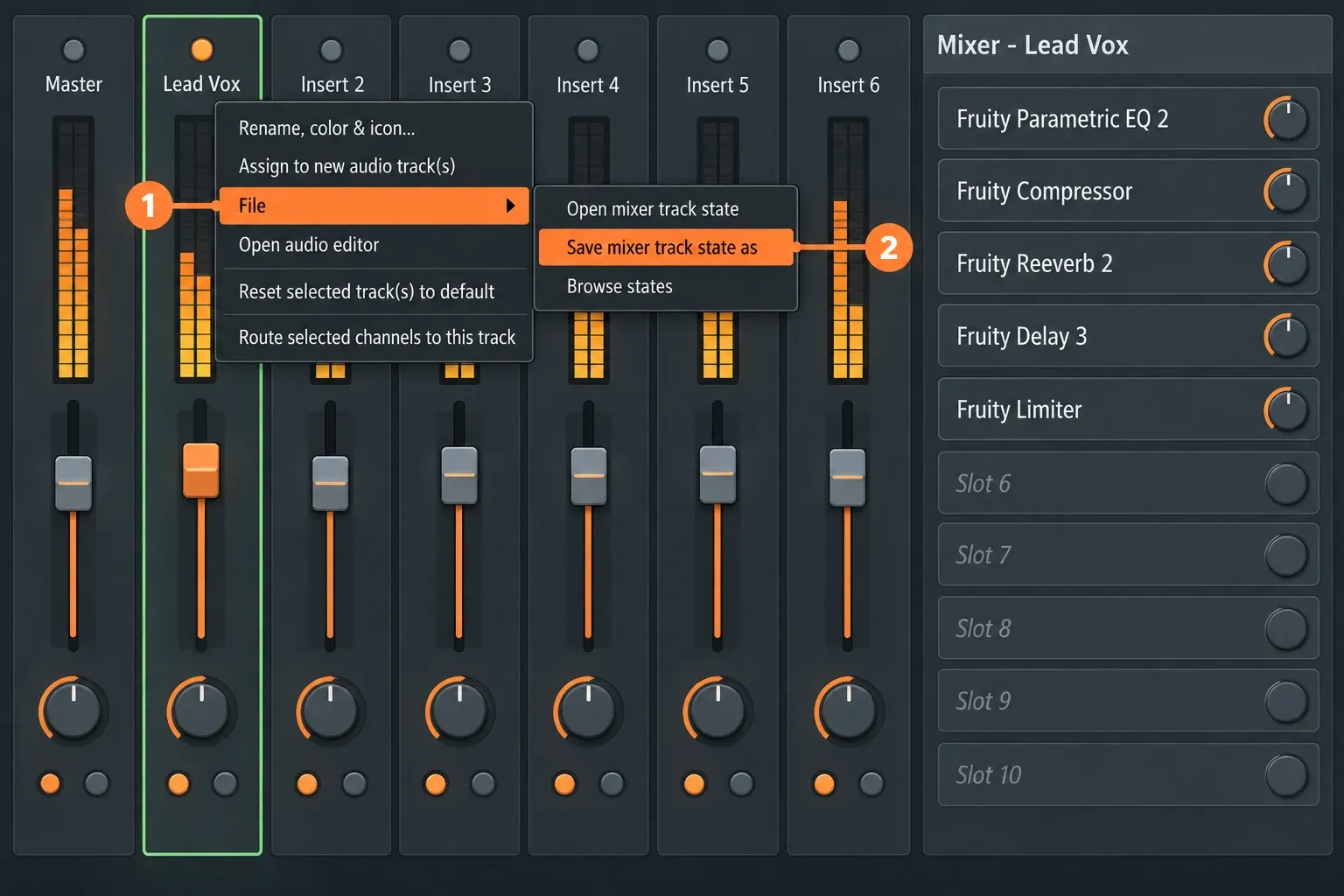
- Right-click the track’s name and open the File submenu.
- Choose Save mixer track state as, type a name that describes the job, and save it in the Mixer presets folder so the Browser lists it.
- Check the result with File > Browse states. It opens Mixer presets in the Browser, and the new file should be in the list.
Name the file for the job and flag anything above Fruity Edition, for example “Lead vocal – Pitcher – Maximus” or “808 – clip and limit.” The Browser shows only the file name, not the plugins inside, so I’d put the plugin names that matter right there. Then you know before dropping it whether a Fruity Edition machine can use it.
If you only need the chain on another track in the same project, skip the file. The Mixer menu reference notes that you can drag the Save mixer track state icon from that menu onto another Mixer track to duplicate the chain instantly.
Overwrote a preset by mistake? With autosave enabled, FL Studio copies overwritten files, .fst included, into Browser > Backup, according to the File settings page.
Five ways to load a mixer preset
All five work in current FL Studio. The last two came with maintenance updates to FL Studio 2025, so older guides and videos won’t show them.
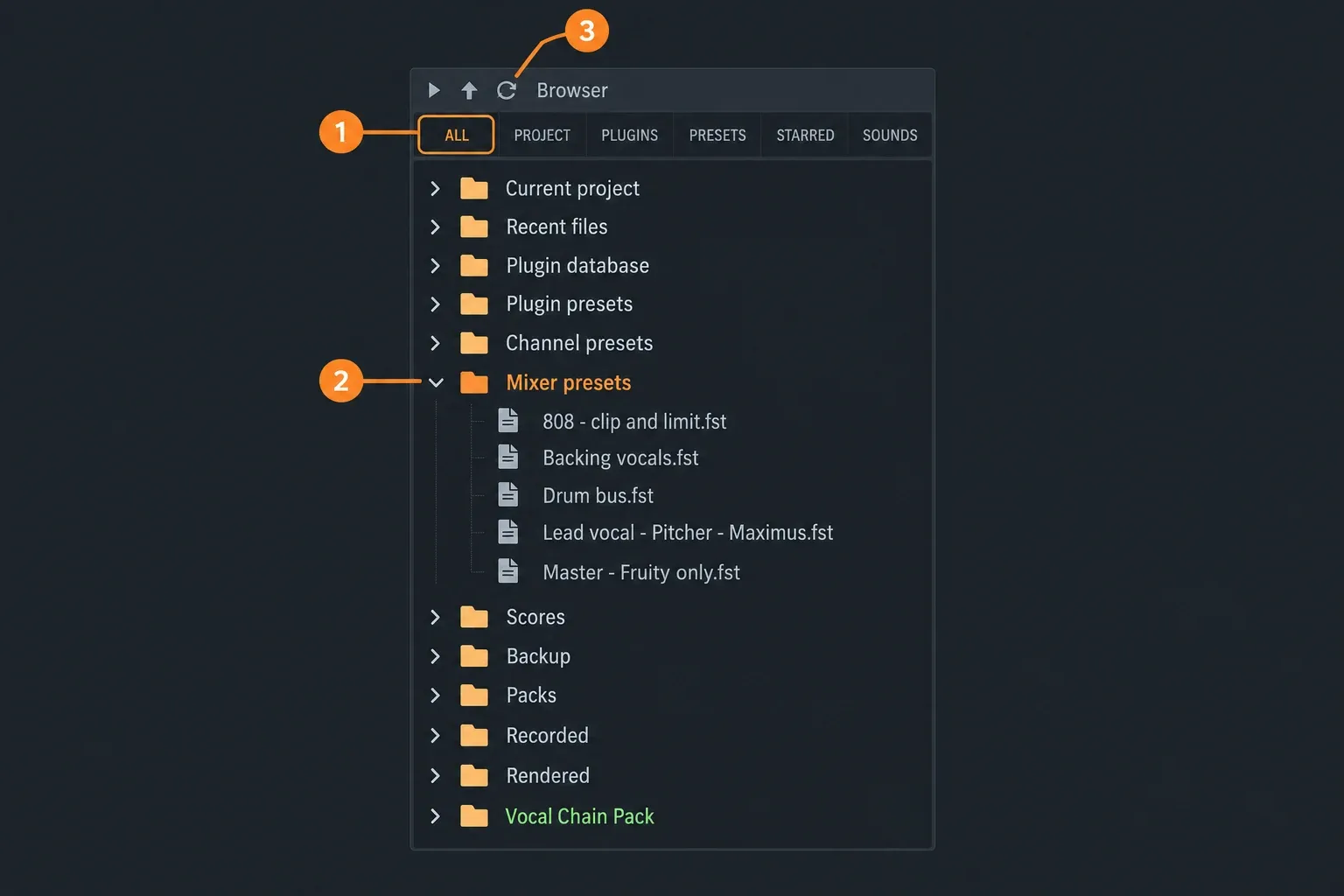
- Drag it from the Browser. Open the Browser’s ALL tab, expand Mixer presets and drag a file onto a Mixer track. This is the route I’d use most, because every preset sits in one list you can search. Skip the Presets tab for this: it was called Library before the FL Studio 2025 release and shows downloadable online content, not the presets you saved. The Browser guide covers search and favorites.
- Open it from the track. Right-click the track’s name and choose File > Open mixer track state. The state replaces what’s on the selected track.
- Add a new track from a preset. Right-click the + Add mixer track icon on the Mixer toolbar, or the one after the last insert track, and pick Add from state. FL Studio adds a new track with the preset’s effects after the selected one.
- Drop it on empty Mixer space. Since the 2025.1.4 update, dropping a track preset on the empty area after the last track creates a new track for it.
- Load one preset into several tracks. Select the tracks with Ctrl+Shift and a click on their labels, then load the preset from the track menu. Since the 2025.1.2 update it goes into every selected track, which is handy for a stack of backing vocals.
A preset can’t route your sound for you. Which channel feeds a Mixer track is set on the channel side, so after loading a vocal preset onto a track, send the vocal channel there: select it in the Channel Rack, select the Mixer track and press Ctrl+L. The Mixer guide covers routing, sends and the rest of the track controls.
Where FL Studio keeps mixer presets
Your own presets live in the User data folder, under Presets\Mixer presets:
- Windows: C:\Users\[your account]\Documents\Image-Line\FL Studio\Presets\Mixer presets
- macOS: Macintosh HD/Users/[your account]/Documents/Image-Line/FL Studio/Presets/Mixer presets
The File settings page gives Documents\Image-Line as the default User data folder, with an FL Studio sub-folder for your files, and the Browser manual puts the Presets folder inside that sub-folder. Music by Mattie’s walkthrough lists the full path to Mixer presets on both systems. If you moved the User data folder, the path follows your setting. The quickest way to open it is from the Browser: right-click Mixer presets, choose Open, and the folder appears in File Explorer or Finder.
Keep your presets there, not in the FL Studio installation folder. Image-Line calls the User data folder the default save location for all user files and says copying the Image-Line folder is enough to move your work to another computer, so presets saved there travel with your projects.
Install a downloaded preset pack
- Unzip the download. Double-clicking an .fst inside a ZIP won’t install anything.
- Copy the .fst files, or the pack’s whole folder, into Mixer presets. Or keep the pack in its own folder and add it to the Browser: drag the folder onto the Browser, or press F10 (Options > File settings) and add it as a Browser extra search folder.
- If the files don’t show up, click Refresh content, the circular-arrow button at the top left of the Browser, which rereads every folder. Restarting FL Studio works too.
- Drag one preset onto an empty Mixer track and check every slot before you mix with it, as described below.
I’d use an extra search folder for bought packs. It keeps them apart from your own presets, survives reinstalls, and you can remove a pack by clearing one row. The Browser manual allows up to 30 custom folders, shows them in green, and warns against adding the root of a drive because FL Studio scans those folders when loading projects. The File settings page also warns against putting the User data folder in iCloud, OneDrive, Dropbox or Google Drive, or on removable and network drives, because those services can lock or delay files. I’d apply the same rule to a preset folder and keep it on the internal drive. The sample pack guide uses the same folder setup for samples.
“Stock plugins” still depends on your edition
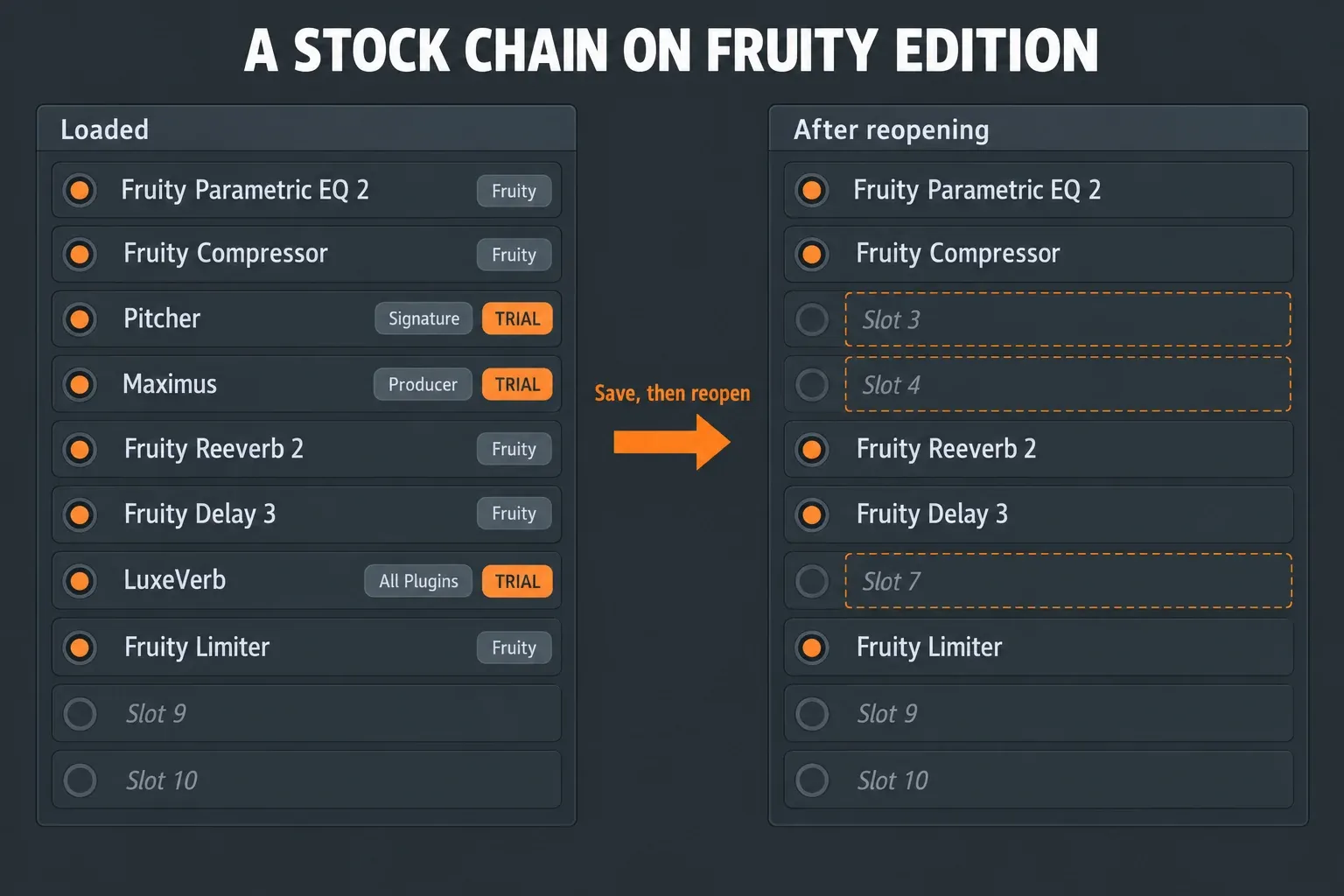
This is the part pack listings skip. Image-Line’s editions and features page says it plainly: owning an edition “does not mean all the plugins installed with it are included in your Edition.” FL Studio installs plugins from higher editions so you can try them. A chain built in All Plugins Edition will load on a Fruity Edition machine, but the effects above Fruity run in Trial mode.
Trial mode bites when you save. FL Studio lists the Trial plugins in a pop-up, and if you save anyway, those effects come back as empty FX slots the next time the project opens. Buy them before reopening and they return with their settings. Open the project and save it again before buying, and those settings are gone for good.
The edition comparison shows where the effects you’ll meet in mixer presets start:
| First included in | Effects you may find in a preset chain |
|---|---|
| Fruity (every edition) | Fruity Parametric EQ 2, EQUO, Fruity Compressor, Fruity Multiband Compressor, Fruity Limiter, Fruity Soft Clipper, Fruity Reeverb 2, Fruity Delay 3, Fruity Convolver, Fruity Stereo Enhancer, Soundgoodizer, Patcher |
| Producer | Maximus, Vocodex, Multiband Delay, Spreader |
| Signature | Pitcher, Gross Beat, Low Lifter, Vintage Chorus, Hardcore |
| All Plugins | LuxeVerb, Emphasis, Transient Processor, Pitch Shifter, Transmitter |
Pitcher and Maximus are the two I’d watch for in vocal and master chains. Both sit above Fruity, and a listing that says “stock plugins only” doesn’t rule either out. On Fruity or Producer, open every slot after loading a pack preset, Patcher slots included, because Patcher can hide a whole chain behind one slot name.
Third-party plugins are a separate problem. FL Studio can only rebuild the chain if the plugin is installed and found by its plugin scan. The guides to installing plugins and plugins that don’t show up cover both steps, and the editions guide covers what each edition includes.
What to check before you download a pack
I compared four of the pack listings that rank for “FL Studio mixer presets.” Two are free, two are paid, and none names the plugins inside its chains:
| Listing | Price | What you get | FL Studio version stated | Plugin claim | Edition note |
|---|---|---|---|---|---|
| ProducerGrind, FL 20 Mixer Presets Select | Free | 25 .fst presets for drums, melodies and master | FL Studio 20 | “ALL Stock Plugins” | None |
| The Kit Plug, PROMIX | Paid | 50 mixer presets | “Requires FL Studio” | None | None |
| Musiciangoods, FL Studio Mixing Template | Paid | Template with mixer presets for EQ, compression, reverb and delay | FL Studio 21 | None | None |
| Baywood Audio, free vocal presets | Free | 10 vocal mixer presets with EQ, compression, de-essing, reverb and delay | Not stated | “stock plugins only” | None |
So ask these before you download:
- Is it a mixer preset? Packs mix Mixer track states, plugin presets, Patcher presets and .fxp files under the same “preset” label. Only the first goes straight onto a Mixer track.
- Which plugins, by name? “Stock” means nothing until you know the edition it was built in. Check the names against the table above.
- Who made it? Download from the maker’s own page. I skip archive sites that bundle other people’s presets, because you can’t tell who built the files or what was changed.
Want a chain on every new project? Use a template
Overwriting the default track state isn’t the way to do it. In an Image-Line forum request from 2022, a user who overwrote Default.fst reported that new projects still opened with empty Mixer tracks and no effects, and the workaround they described was saving the project as a template. That’s what I’d do too: set up the Mixer the way you like to start, with chains on the tracks you always use, then save it with File > Save as template and start new songs from it. The project template guide walks through it. Keep mixer presets for the chains you add song by song.
After the preset loads
A preset was set on someone else’s audio. Compressor thresholds, gate levels and EQ moves all depend on how loud and how bright the incoming signal is, so treat it as a starting point:
- Set the level first. Get the track’s input into a sensible range before judging the chain, or the compressor will be working much harder or softer than its maker intended.
- Go slot by slot. Bypass each effect, listen, and remove anything that isn’t helping. A shorter chain is easier to fix later.
- Move the space to sends. Two of the four listings above put reverb and delay in the chain itself. I’d move them to a send so several tracks share one space; the reverb and delay sends guide shows the setup.
- Be careful with master presets. A ready-made master chain can push a mix louder than it can take. The mastering guide covers what each stage should do.
For specific chains, the vocal mixing guide builds a lead vocal track you can save as your first preset, and the 808 mixing guide does the same for low end. If you’re still choosing which effects belong in your chains, start with the stock plugins guide, and use the plugin database to keep the ones you reach for most one click away.