 FL Studio
All guides
FL Studio guides, organized by the job in front of you
Choose from thirteen routes, from your first setup to MIDI, recording, mixing and export. Each route helps you find the right next step; the complete article library is below.
Choose a practical route
FL Studio is easier to learn when each question belongs to a real session. Start with setup if the program is new, use Workflow when the idea needs structure, or go straight to Troubleshooting when audio, MIDI or a project has stopped behaving.
Where should you begin?
If FL Studio is not yet installed, follow Start here in order. If you already have a working session, pick the route that matches the current bottleneck rather than reading from the oldest article forward. A silent output belongs in Troubleshooting; a clean recording that needs timing edits belongs in Workflow; a balanced arrangement that needs tone and level work belongs in Mixing.
All published FL Studio tutorials
These guides are ordered by publication date. Use the route cards above when you want a guided sequence, or browse below for one exact task.
 11 min read
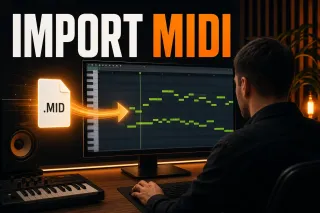
How to Import One or Multiple MIDI Files into FL Studio
Pick the destination first: Piano Roll import (Ctrl+M) for one part, File import with one channel per track for a song, an empty Pattern per file for several files, then instrument, tempo and sustain checks.
Read guide
 12 min read
How to Humanize MIDI and Randomize Velocity in FL Studio
Select the notes, open the Randomizer with Alt+R, switch Pattern off and give velocity a small Bipolar amount; then use the Quantizer, Strum, Articulate, Flam and VFX Level Scaler for timing, chords, lengths, drums and live variation.
Read guide
 10 min read
FL Studio Scale Highlighting: Set Keys & Fix Snap
Right-click the Piano Roll note icon, pick a scale and then its root, read the lighter lanes, and decide separately whether Snap to scale, Snap incoming MIDI or the Limit tool should move any notes.
Read guide
 10 min read
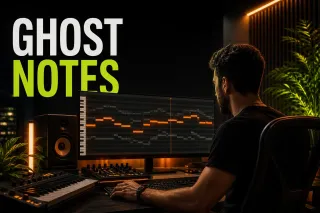
How to Enable Ghost Notes in FL Studio: Shortcut and Fixes
Press Alt+V in the Piano Roll to turn Ghost Notes on, read solid and outlined blocks, show notes from overlapping Patterns, choose which sources stay visible and fix Ghost Notes that won't appear, including clips that open the Channel Rack.
Read guide
 12 min read
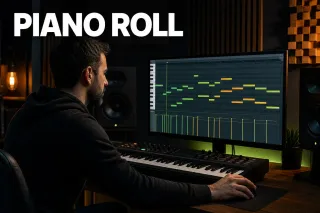
FL Studio Piano Roll: A Practical Beginner Guide
Open the correct Piano Roll, draw and edit notes, control snap and velocity, then turn one Pattern into an arrangement without losing your place.
Read guide
 13 min read
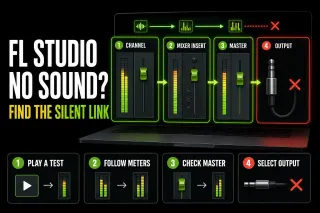
FL Studio No Sound: Find the Silent Link Fast
Follow the meters from the Channel Rack to the Master and the audio device, then fix the first dark link: transport, mute light, Enable send arrow, plugins, Monitor Volume, Master Output, driver or Auto close.
Read guide
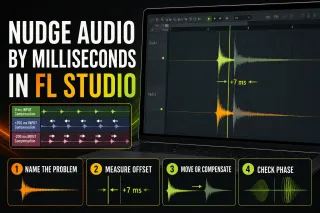 11 min read
How to Nudge Audio by Milliseconds in FL Studio
Roll Shift+Alt+wheel over a Clip to nudge it in PPQ steps, type an exact millisecond offset in a Mixer track's manual PDC, and fix late recordings with input delay compensation instead of moving every take.
Read guide
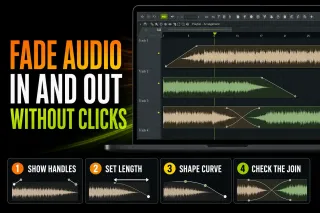 13 min read
How to Fade In and Out in FL Studio: Clips, Patterns, Notes
Press Shift+F and drag the Audio Clip fade triangles for one edge, crossfade overlapping clips, automate channel volume for a pattern, use the envelope for a held note, velocity across notes or a slide on a native FL instrument, and fade the whole song with Fruity Balance on the Master.
Read guide
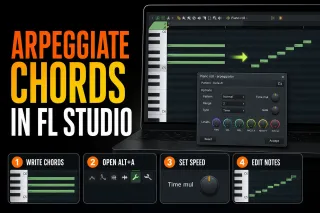 15 min read
How to Arpeggiate in FL Studio: Two Built-In Ways
To arpeggiate in FL Studio, select a chord in the Piano roll and press Alt+A on Windows or Option+A on macOS; the Piano roll Arpeggiator turns it into editable notes. For a live, reversible arpeggio, use the Channel Settings arpeggiator instead.
Read guide
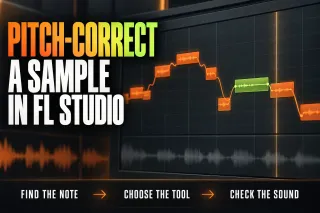 15 min read
How to Pitch-Correct or Pitch Down a Sample in FL Studio
Count the semitones from the source note to the target, then set them as Clip Properties Pitch for one clip or Time stretching PITCH for the whole Channel; both keep the length. Use NewTone for single notes, Stretch to pitch down without slowing down, and keys 7/8 or Master Pitch for several clips.
Read guide
 12 min read
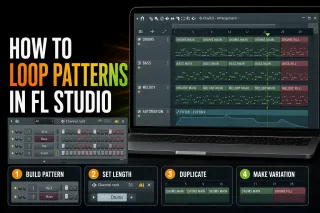
How to Loop Patterns in FL Studio Without a Static Beat
To loop patterns in FL Studio, place the Pattern Clip in the Playlist and press Ctrl+B or Command+B for a copy to its right, or paint copies along the lane; press L for Pattern mode to hear the current Pattern cycle while you edit.
Read guide
 15 min read
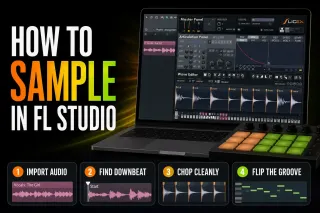
How to Sample in FL Studio: Chop and Flip Audio Cleanly
To sample in FL Studio, drop a loop on the Playlist to arrange it, a one-shot on the Channel Rack for a Sampler Channel, and load the phrase into Slicex, or Fruity Slicer in Fruity Edition, when the chops should play as notes.
Read guide