 FL Studio
All guides
FL Studio guides, organized by the job in front of you
Choose from thirteen routes, from your first setup to MIDI, recording, mixing and export. Each route helps you find the right next step; the complete article library is below.
Choose a practical route
FL Studio is easier to learn when each question belongs to a real session. Start with setup if the program is new, use Workflow when the idea needs structure, or go straight to Troubleshooting when audio, MIDI or a project has stopped behaving.
Where should you begin?
If FL Studio is not yet installed, follow Start here in order. If you already have a working session, pick the route that matches the current bottleneck rather than reading from the oldest article forward. A silent output belongs in Troubleshooting; a clean recording that needs timing edits belongs in Workflow; a balanced arrangement that needs tone and level work belongs in Mixing.
All published FL Studio tutorials
These guides are ordered by publication date. Use the route cards above when you want a guided sequence, or browse below for one exact task.
 14 min read
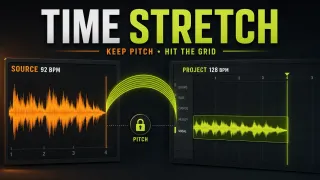
FL Studio Time Stretch: Fit Audio Without Changing Pitch
Pick Stretch or an e3 method in the Audio Clip's Channel settings, turn on Playlist Stretch and drag the edge. Then fit loops with Fit to tempo or Beat/Bar #, match the method to the source, fix drift and save a processed copy from Edison.
Read guide
 15 min read
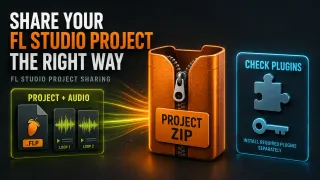
FL Studio Zipped Loop Package: Send Projects With Samples
Use File > Export > Zipped loop package. The ZIP holds the FLP and its Sampler Channel and Audio Clip samples, factory samples included, and opens with File > Open without unzipping. Plugins, licenses and third-party sampler libraries stay out, so bounce what the recipient doesn't own.
Read guide
 14 min read
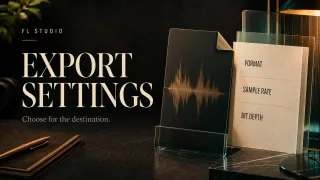
FL Studio Export Settings: Bit Depth, Sinc and Dither
Export a 24-bit WAV at the project rate for mastering, 32-bit float for more mixing, 44.1 kHz 16-bit with Dithering on once for CD and a 320 kbps MP3 for review. Leave resampling at the default unless you hear aliasing, and turn on HQ for all plugins for the final render.
Read guide
 14 min read
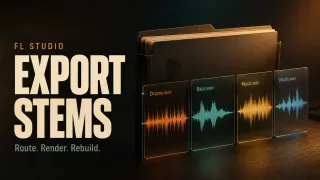
Export Stems in FL Studio: Aligned WAV Files Ready to Send
To export stems in FL Studio, choose File > Export > Wave file, set Mode to Song and turn on Split Mixer Tracks. Each Mixer track in use renders to its own aligned WAV file; split files bypass the Master, so plan the Master effects and a stereo reference first.
Read guide
 14 min read
Export a Song from FL Studio: WAV, MP3 and More
Choose File > Export > Wave file (Ctrl+R), set Mode to Song with Leave remainder and click Start. Keep a 24-bit WAV as the master, use FLAC to save space or a 320 kbps MP3 as the review copy, and play the exported file before you send it.
Read guide
 15 min read
Slicex in FL Studio: Chop Samples, Map Pads & Fix Clicks
Turn a loop into a playable Slicex instrument: auto-slice with Medium, fix clicks without dulling the attack, dump or map notes to pads, set cut groups and outputs, and choose between Slicex and Fruity Slicer.
Read guide
 14 min read
Edit Samples in FL Studio Edison: Trim, Fade & Fix Clicks
Edit samples in Edison without losing the original: Trim versus Delete, exact cuts with Snap and the zoom keys, published anti-click fade lengths, the Declicker and Declipper, and saving only the selection as its own WAV.
Read guide
 15 min read
Remove Background Noise in FL Studio with Edison
Clean steady hiss, hum and fan noise in Edison without losing the performance: profile selection, Windows and Mac controls, the Output noise only check, gating the gaps between phrases and maker noise figures for mics and interfaces.
Read guide
 19 min read
Edison in FL Studio: Record, Edit and Export Audio
Edison is FL Studio's recorder and wave editor, included from Producer Edition: where to load it, Mac shortcuts, AI repair tools and safe exports.
Read guide
 17 min read
How to Turn On Loop (Repeat) Recording in FL Studio
Loop recording repeats recording passes. Ctrl+drag the Playlist ruler for a range; use Blend for layers or separate takes. To stop repeating, turn Loop recording off and undo the active time selection, Loop marker or Pattern mode.
Read guide
 16 min read
FL Studio Microphone Not Working: Fix the Input
Find where your microphone stops working: the source and preamp gain, OS permission, the selected device, the Mixer input, the listening path or the Playlist recording controls, with maker figures for dynamic and condenser mics and audio interfaces.
Read guide
 19 min read
How to Record Guitar in FL Studio: DI, Amps & Acoustic
Plug a passive guitar into an instrument or Hi-Z input, select it in mono on its own Mixer insert and record on EXT so the file stays a dry DI. Pick one monitoring path, set the buffer by the underrun count, start a cabinet mic halfway at about 2.5 cm and back up the WAV files with the FLP.
Read guide