 FL Studio
Prove the fault before changing the project
Start with a controlled audio setup, isolate one symptom, then follow the matching repair path. Crackling, CPU overload, missing MIDI and a project that will not open are related only until the first useful test separates them.
One symptom, one clean comparison
Troubleshooting becomes slow when every setting changes at once. Keep the failing project safe, open a blank test project where appropriate, and compare one condition at a time: audio device, buffer and sample rate; project CPU load; MIDI device visibility; or the specific file that refuses to open. A result that changes after one controlled step is evidence. Ten random preferences are not.
The first route below is the Audio Settings baseline because it defines the driver, sample rate and buffer you are testing. From there, choose the visible symptom. Popping with a healthy-looking project needs the crackling ladder. Sustained processing pressure needs the high-CPU workflow. A silent keyboard needs the MIDI path. A single project that fails before playback needs file recovery, not a bigger audio buffer.
Take the shortest diagnostic route
Audio Settings is a prerequisite, not a universal cure. After that first check, open only the guide that matches what the system is actually doing.
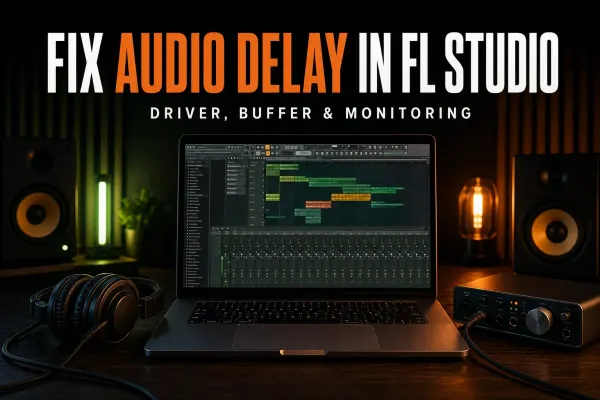 Establish the baseline
FL Studio Audio Settings: Fix Delay and Recording Latency
Confirm the intended driver, device, sample rate and buffer before diagnosing clicks, latency or missing input.
Check Audio Settings
Establish the baseline
FL Studio Audio Settings: Fix Delay and Recording Latency
Confirm the intended driver, device, sample rate and buffer before diagnosing clicks, latency or missing input.
Check Audio Settings
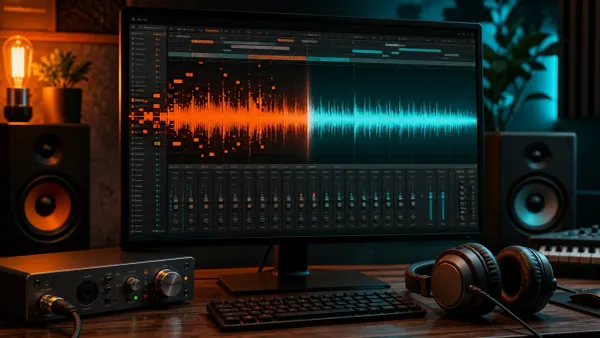 Symptom: clicks and dropouts
FL Studio Audio Crackling: Fix Clicks and Pops
Separate buffer underruns, driver or sample-rate faults, plugin trouble and connection problems in a useful test order.
Repair crackling audio
Symptom: clicks and dropouts
FL Studio Audio Crackling: Fix Clicks and Pops
Separate buffer underruns, driver or sample-rate faults, plugin trouble and connection problems in a useful test order.
Repair crackling audio
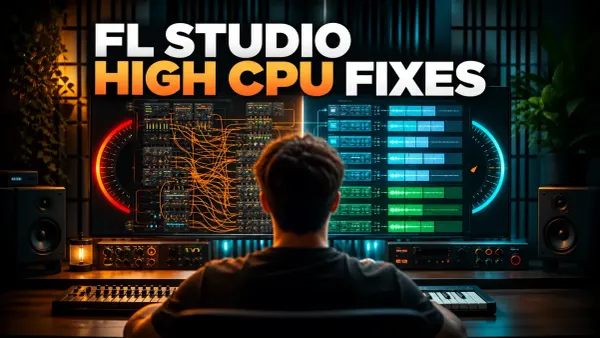 Symptom: processing overload
FL Studio High CPU: Find the Bottleneck and Lower Load
Identify deadline pressure, expensive plugins and project scheduling problems before freezing or disabling the wrong work.
Reduce high CPU
Symptom: processing overload
FL Studio High CPU: Find the Bottleneck and Lower Load
Identify deadline pressure, expensive plugins and project scheduling problems before freezing or disabling the wrong work.
Reduce high CPU
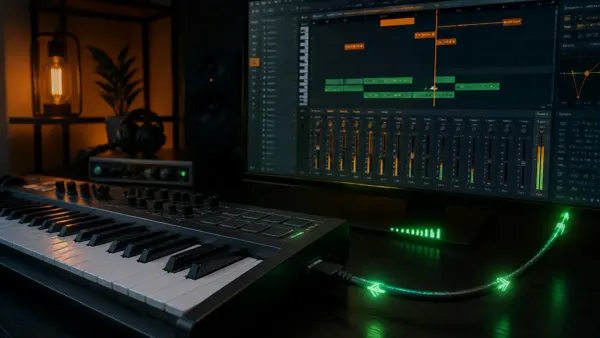 Symptom: silent MIDI controller
Connect a MIDI Keyboard to FL Studio (Fix No Input)
Check device visibility, enable state, ports and instrument routing without confusing MIDI input with the audio driver.
Repair MIDI input
Symptom: silent MIDI controller
Connect a MIDI Keyboard to FL Studio (Fix No Input)
Check device visibility, enable state, ports and instrument routing without confusing MIDI input with the audio driver.
Repair MIDI input
 Symptom: project will not open
FL Studio Keeps Crashing or Won’t Open: Fix It
Protect the file, use backups and recovery options, then isolate the plugin or project state that prevents loading.
Recover the project
Symptom: project will not open
FL Studio Keeps Crashing or Won’t Open: Fix It
Protect the file, use backups and recovery options, then isolate the plugin or project state that prevents loading.
Recover the project
Crackling can involve CPU without being the same search
An audio stream crackles when the system fails to deliver samples in time, but the reason may be the driver, buffer, sample-rate mismatch, USB path or a plugin as well as overall project load. Start with the crackling guide when the audible symptom is the clue. Move to High CPU when the performance panel stays close to its deadline after the audio path is stable. That handoff prevents endless buffer increases from becoming the only “fix.”
Open the guide for the task in front of you
This list includes every live guide assigned to this route. Scheduled and draft pages stay out until readers can open them.
FL Studio Audio Crackling: Fix Clicks and Pops
Protect your session, then compare live playback with a WAV on a clean output. Test the matching driver, buffer, plugin or recording path one change at a time.
Open the guide
FL Studio High CPU: Find the Bottleneck and Lower Load
Find the plugin or audio path exhausting the buffer deadline, then test one reversible change without risking the original project.
Open the guide
FL Studio Keeps Crashing or Won’t Open: Fix It
Separate an FL Studio startup failure from one broken project, recover the safest copy and isolate the plugin, path or permission that caused it.
Open the guide
Connect a MIDI Keyboard to FL Studio (Fix No Input)
Connect a MIDI keyboard, prove where its signal stops and fix missing devices, silent keys, dead pads or transport buttons without random driver surgery.
Open the guide
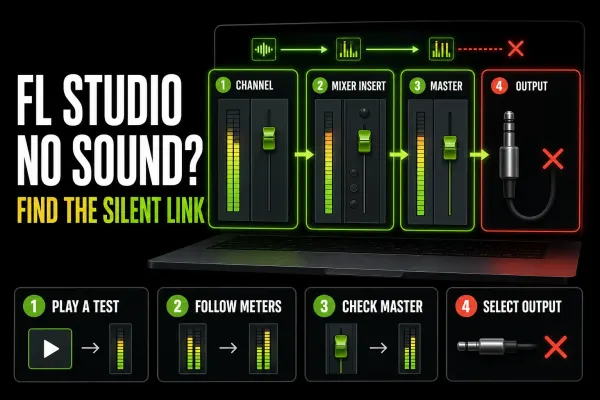 FL Studio No Sound: Find the Silent Link Fast
Follow the meters from the Channel Rack to the Master and audio device to find exactly where FL Studio stops producing sound.
Open the guide
FL Studio No Sound: Find the Silent Link Fast
Follow the meters from the Channel Rack to the Master and audio device to find exactly where FL Studio stops producing sound.
Open the guide
 How to Organize an FL Studio Project
Keep an FL Studio session readable with useful names, clear routes, deliberate versions and known data locations. Review unused objects without risking your recordings.
Open the guide
How to Organize an FL Studio Project
Keep an FL Studio session readable with useful names, clear routes, deliberate versions and known data locations. Review unused objects without risking your recordings.
Open the guide
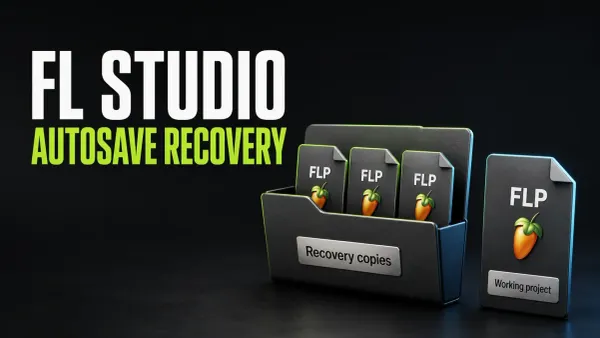 FL Studio Autosave: Set It Up and Recover a Backup
Find the active backup folder, preserve candidates and compare recovery copies. Understand local autosave timing, rotation, missing data and Trial limits.
Open the guide
FL Studio Autosave: Set It Up and Recover a Backup
Find the active backup folder, preserve candidates and compare recovery copies. Understand local autosave timing, rotation, missing data and Trial limits.
Open the guide
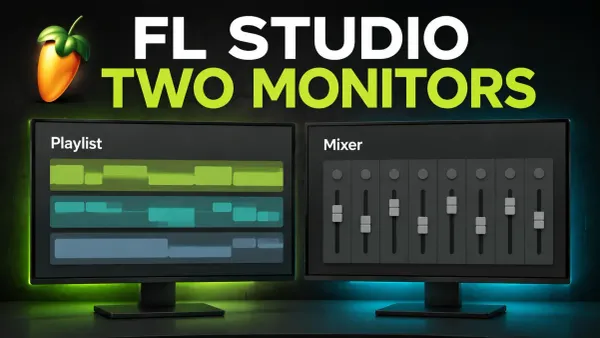 How to Use FL Studio on Two Monitors
Move the Mixer to a second screen, choose detached or stretched layouts, save a custom layout and recover off-screen windows without an unnecessary settings reset.
Open the guide
How to Use FL Studio on Two Monitors
Move the Mixer to a second screen, choose detached or stretched layouts, save a custom layout and recover off-screen windows without an unnecessary settings reset.
Open the guide
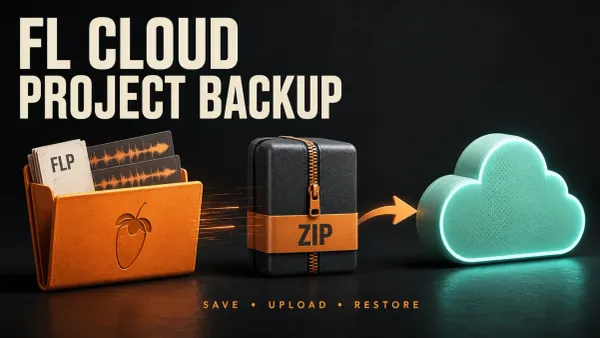 FL Cloud Project Backup: Setup, Limits and Restore
Set up save-triggered FL Cloud project backups, protect named milestones and test a downloaded ZIP while checking storage, dependencies and retention limits.
Open the guide
FL Cloud Project Backup: Setup, Limits and Restore
Set up save-triggered FL Cloud project backups, protect named milestones and test a downloaded ZIP while checking storage, dependencies and retention limits.
Open the guide
 How to Record Vocals in FL Studio: Clean Takes
Prepare the microphone, set gain and monitoring, record purposeful vocal takes, and build a reversible comp in FL Studio without losing the original audio.
Open the guide
How to Record Vocals in FL Studio: Clean Takes
Prepare the microphone, set gain and monitoring, record purposeful vocal takes, and build a reversible comp in FL Studio without losing the original audio.
Open the guide
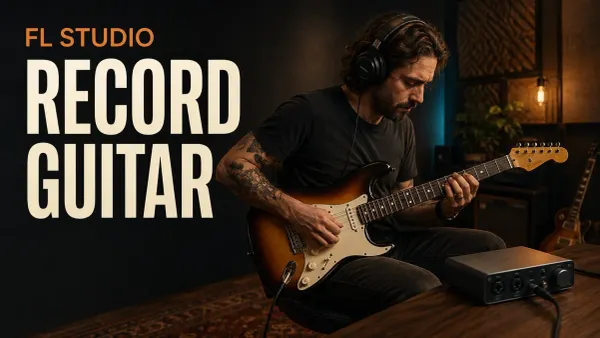 How to Record Guitar in FL Studio: DI, Amps & Acoustic
Connect the right guitar input, record an unprocessed DI or microphone, choose one monitoring path and keep the actual audio files with your FL Studio project.
Open the guide
How to Record Guitar in FL Studio: DI, Amps & Acoustic
Connect the right guitar input, record an unprocessed DI or microphone, choose one monitoring path and keep the actual audio files with your FL Studio project.
Open the guide
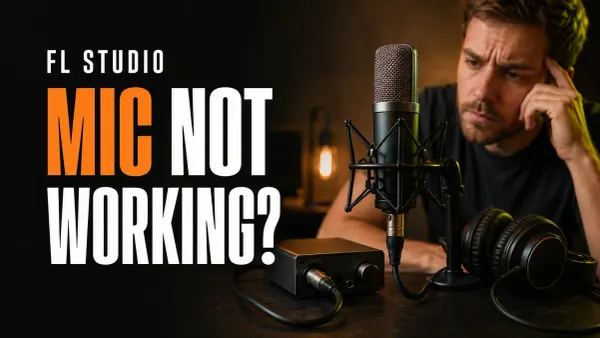 FL Studio Microphone Not Working: Fix the Input
Find where your microphone stops working: the source, OS permission, selected device, Mixer input, listening path or Playlist recording controls.
Open the guide
FL Studio Microphone Not Working: Fix the Input
Find where your microphone stops working: the source, OS permission, selected device, Mixer input, listening path or Playlist recording controls.
Open the guide
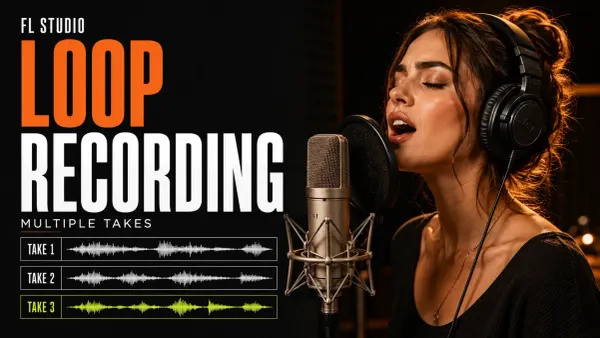 FL Studio Loop Recording: Separate Takes or Layers
Capture separate performances, build audible layers or select a marked Edison region. Set up the loop, inspect the routing and keep the takes you need.
Open the guide
FL Studio Loop Recording: Separate Takes or Layers
Capture separate performances, build audible layers or select a marked Edison region. Set up the loop, inspect the routing and keep the takes you need.
Open the guide
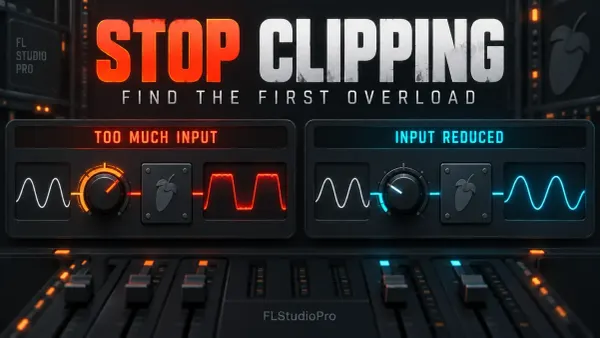 FL Studio Clipping: Find the Overload and Fix It
Find where clean audio first becomes distorted. Check plugin input, Master output and the finished file without confusing orange Insert meters with damaged sound.
Open the guide
FL Studio Clipping: Find the Overload and Fix It
Find where clean audio first becomes distorted. Check plugin input, Master output and the finished file without confusing orange Insert meters with damaged sound.
Open the guide
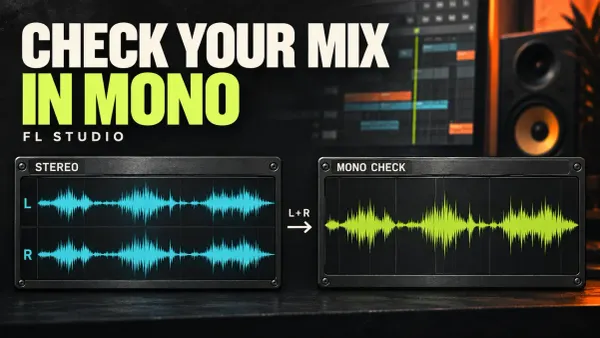 FL Studio Mono Compatibility: Check and Fix Your Mix
Find what disappears when stereo folds to mono. Check the Master, the meter position and the responsible layer without flattening a mix that already works.
Open the guide
FL Studio Mono Compatibility: Check and Fix Your Mix
Find what disappears when stereo folds to mono. Check the Master, the meter position and the responsible layer without flattening a mix that already works.
Open the guide
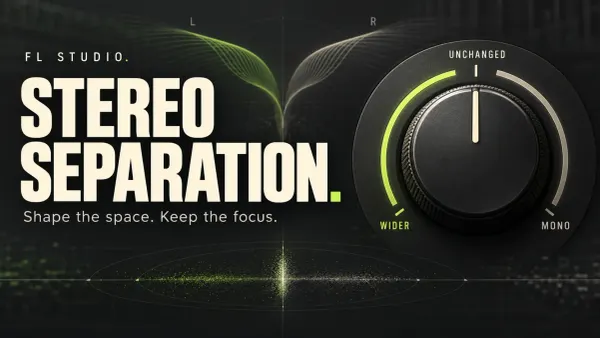 FL Studio Stereo Separation: Widen, Narrow or Go Mono
Choose between pan, existing stereo width and new L/R differences. Understand the stock controls, place the meter correctly and keep the change only when the mix benefits.
Open the guide
FL Studio Stereo Separation: Widen, Narrow or Go Mono
Choose between pan, existing stereo width and new L/R differences. Understand the stock controls, place the meter correctly and keep the change only when the mix benefits.
Open the guide
 Measure LUFS in FL Studio: Meters, Setup and Export
Get a repeatable whole-song loudness reading, distinguish measurement from mastering processing and check why the exported file might disagree with the project.
Open the guide
Measure LUFS in FL Studio: Meters, Setup and Export
Get a repeatable whole-song loudness reading, distinguish measurement from mastering processing and check why the exported file might disagree with the project.
Open the guide
 Install Plugins in FL Studio: VST3, AU and CLAP
Choose the right plugin build, check Windows and Mac folder paths, run a verified scan and test the loaded instrument or effect without losing work in FL Studio Trial.
Open the guide
Install Plugins in FL Studio: VST3, AU and CLAP
Choose the right plugin build, check Windows and Mac folder paths, run a verified scan and test the loaded instrument or effect without losing work in FL Studio Trial.
Open the guide
 FL Studio Plugin Not Showing? Find and Fix the Cause
Separate a missing file from a scan error, an unclassified entry or a hidden favorite. Recover the right plugin without risking Trial work or overwriting an old project.
Open the guide
FL Studio Plugin Not Showing? Find and Fix the Cause
Separate a missing file from a scan error, an unclassified entry or a hidden favorite. Recover the right plugin without risking Trial work or overwriting an old project.
Open the guide
 FL Studio Plugin Database: Categories, Favorites & Backup
Build a small working plugin library: useful categories, deliberate starting states, readable thumbnails and a backup you can restore without reinstalling your plugins.
Open the guide
FL Studio Plugin Database: Categories, Favorites & Backup
Build a small working plugin library: useful categories, deliberate starting states, readable thumbnails and a backup you can restore without reinstalling your plugins.
Open the guide
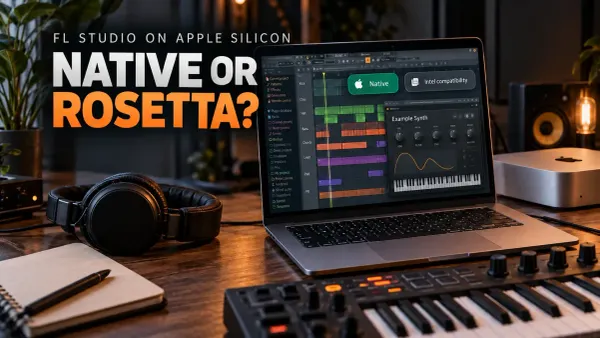 FL Studio Plugins on Apple Silicon: Native or Rosetta?
Keep the working project safe while you separate native plugin builds, Intel translation and whole-host Rosetta mode. Includes the older Plugin Manager scan-error exception and a practical recall test.
Open the guide
FL Studio Plugins on Apple Silicon: Native or Rosetta?
Keep the working project safe while you separate native plugin builds, Intel translation and whole-host Rosetta mode. Includes the older Plugin Manager scan-error exception and a practical recall test.
Open the guide
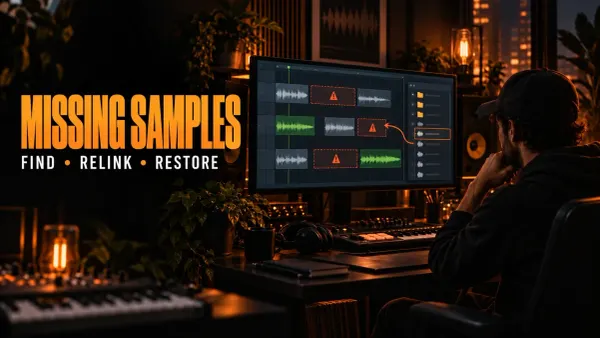 FL Studio Missing Samples: Find and Restore Lost Audio
Find out whether FL Studio lost an audio file, sample-library path, plugin or project folder, then restore it without overwriting the original project.
Open the guide
FL Studio Missing Samples: Find and Restore Lost Audio
Find out whether FL Studio lost an audio file, sample-library path, plugin or project folder, then restore it without overwriting the original project.
Open the guide
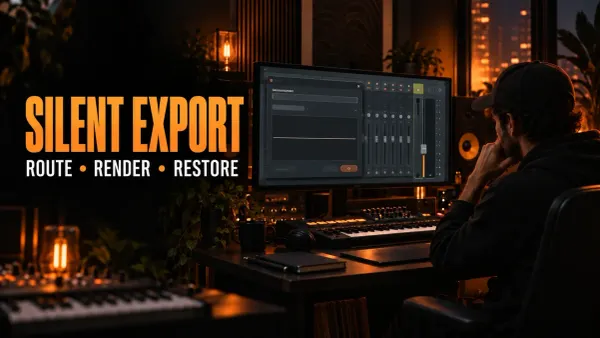 FL Studio Export Has No Sound: Fix a Silent Render
Fix a silent FL Studio export by checking the render range, Master routing, mute states, plugin render behavior and external hardware before changing quality settings.
Open the guide
FL Studio Export Has No Sound: Fix a Silent Render
Fix a silent FL Studio export by checking the render range, Master routing, mute states, plugin render behavior and external hardware before changing quality settings.
Open the guide
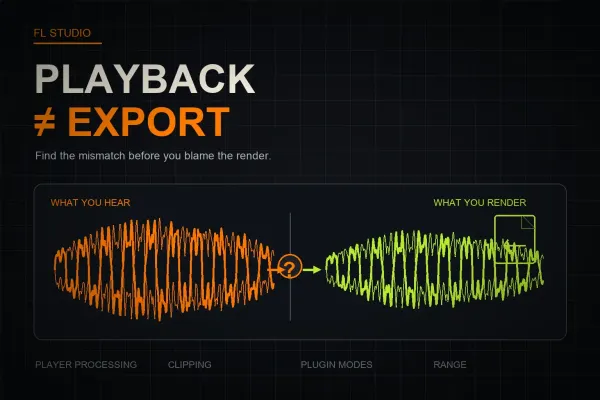 Why Your FL Studio Export Sounds Different From Playback
Find why an FL Studio export sounds different by separating player processing from clipping, interpolation, plugin render modes, routing and range problems.
Open the guide
Why Your FL Studio Export Sounds Different From Playback
Find why an FL Studio export sounds different by separating player processing from clipping, interpolation, plugin render modes, routing and range problems.
Open the guide
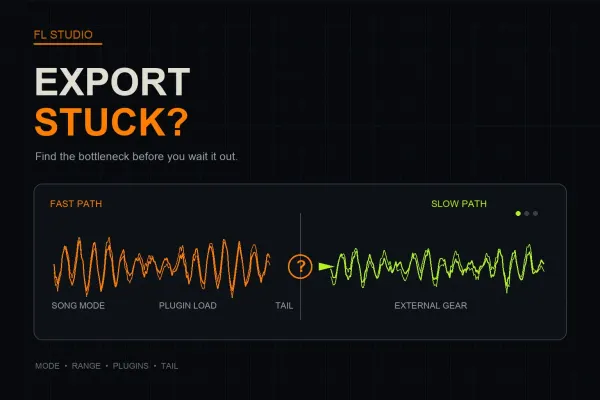 FL Studio Export Is Slow or Stuck: Find the Bottleneck
A slow or frozen FL Studio export usually has a specific bottleneck. Check render mode, range, effect tails, plugin quality and external gear in the right order.
Open the guide
FL Studio Export Is Slow or Stuck: Find the Bottleneck
A slow or frozen FL Studio export usually has a specific bottleneck. Check render mode, range, effect tails, plugin quality and external gear in the right order.
Open the guide
 How to Record Computer Audio in FL Studio
Route browser or system audio into FL Studio with a virtual cable or loopback, record it through a dedicated Mixer Insert, and fix silence, feedback, clicks, and drift.
Open the guide
How to Record Computer Audio in FL Studio
Route browser or system audio into FL Studio with a virtual cable or loopback, record it through a dedicated Mixer Insert, and fix silence, feedback, clicks, and drift.
Open the guide
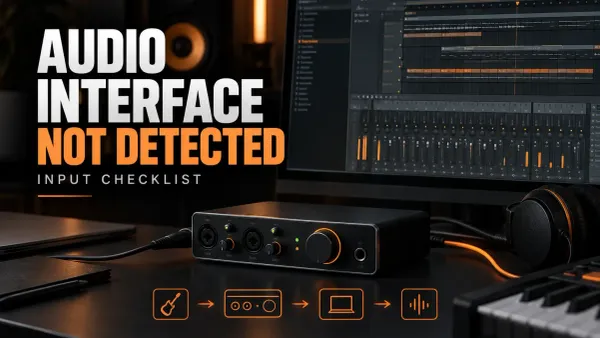 FL Studio Audio Interface Not Detected: Input Checklist
When FL Studio does not show your interface, follow the signal from power and driver selection to the Mixer input and meter before changing buffer settings or recording.
Open the guide
FL Studio Audio Interface Not Detected: Input Checklist
When FL Studio does not show your interface, follow the signal from power and driver selection to the Mixer input and meter before changing buffer settings or recording.
Open the guide
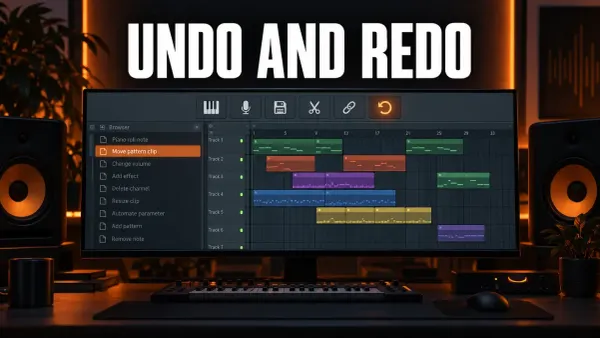 How to Undo and Redo in FL Studio
Undo with Ctrl+Alt+Z, redo with Ctrl+Z, jump back through the History list and fix FL Studio undo that only goes back once or skips knob moves.
Open the guide
How to Undo and Redo in FL Studio
Undo with Ctrl+Alt+Z, redo with Ctrl+Z, jump back through the History list and fix FL Studio undo that only goes back once or skips knob moves.
Open the guide
 How to Zoom Out in FL Studio and Fix a Stuck Zoom
Zoom out with Ctrl+wheel, Page Down or Shift+4, leave a stuck Zoom tool, resize Playlist tracks and fix an FL Studio window that looks too big.
Open the guide
How to Zoom Out in FL Studio and Fix a Stuck Zoom
Zoom out with Ctrl+wheel, Page Down or Shift+4, leave a stuck Zoom tool, resize Playlist tracks and fix an FL Studio window that looks too big.
Open the guide
 How to Resize Plugins in FL Studio: Too Big, Too Small or Blurry
Plugin cut off at the bottom, tiny on a 4K screen or blurry? Pick the right FL Studio control for native and third-party plugins, keep the size with a favorite preset, and know what bridging costs.
Open the guide
How to Resize Plugins in FL Studio: Too Big, Too Small or Blurry
Plugin cut off at the bottom, tiny on a 4K screen or blurry? Pick the right FL Studio control for native and third-party plugins, keep the size with a favorite preset, and know what bridging costs.
Open the guide
Keep these facts with every test
- Record the FL Studio build, operating system, audio device and driver in use.
- Save the original project and test changes in a copy when recovery or plugin removal is involved.
- Note whether a blank project reproduces the fault; that separates setup-wide and project-specific causes.
- Reconnect or rescan one device or plugin at a time so the result remains attributable.
- Undo temporary workarounds after the cause is known instead of leaving the system in an undocumented state.
Image-Line’s official performance guide explains underruns, buffer length and plugin-related load. Use it as primary documentation alongside the focused workflows here, not as permission to enable every optimization at once.
FL Studio troubleshooting questions
Should I reinstall FL Studio first when something breaks?
No. First test whether the fault follows the audio setup, project, plugin or device. Reinstallation rarely repairs a routing choice, incompatible plugin or damaged project and can remove useful evidence.
Does increasing the buffer always fix crackling audio?
No. A larger buffer can help underruns caused by deadline pressure, but crackling can also involve drivers, sample-rate mismatch, plugins, connections or device-specific behavior. Diagnose the path before treating buffer size as the answer.
Is a missing MIDI keyboard an audio-driver problem?
Usually it is a separate MIDI detection, enable, port or routing problem. The keyboard can be visible to the system while FL Studio input is disabled, or enabled while no instrument is ready to receive notes.